
Tagging Extension#
Tag-UI in NVIDIA Omniverse™ Kit is a plugin that allows viewing, changing and searching for tags. It requires that the tagging service is running on the NVIDIA Omniverse™ Nucleus server.
Default View#
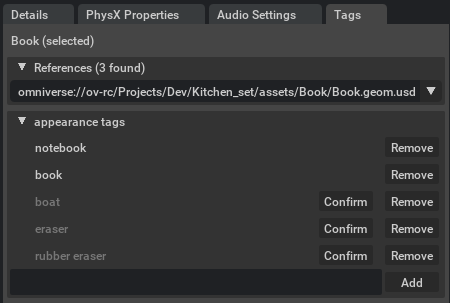
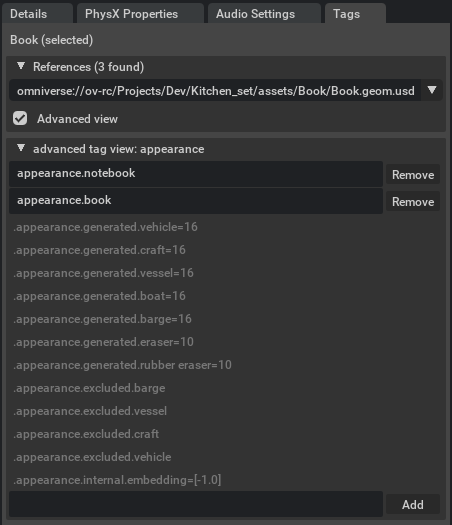
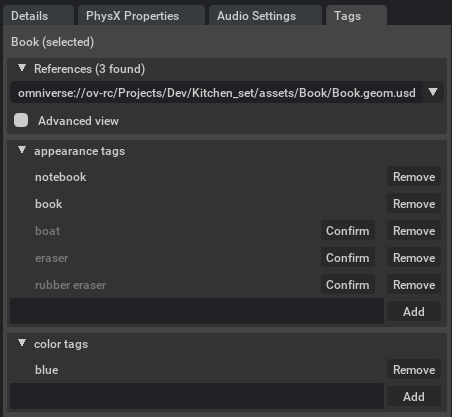
Enable the Tags window via the Windows menu. Load a file and select a prim. The Tags window will display the References found. The found tags will be displayed. User created tags will appear first, followed by generated tags in order of confidence.
Adding a tag “book” actually adds the full tag “appearance.book” with the appearance namespace.
Generated tags will be slightly grayed out until they are confirmed by a user as being correct.
Generated tags have a hidden namespace and begin with a dot (such as “.appearance.generated.eraser”)
Removing a user added tag deletes the tag, but removing a generated tag adds the corresponding excluded tag (such as “.appearance.excluded.book”)
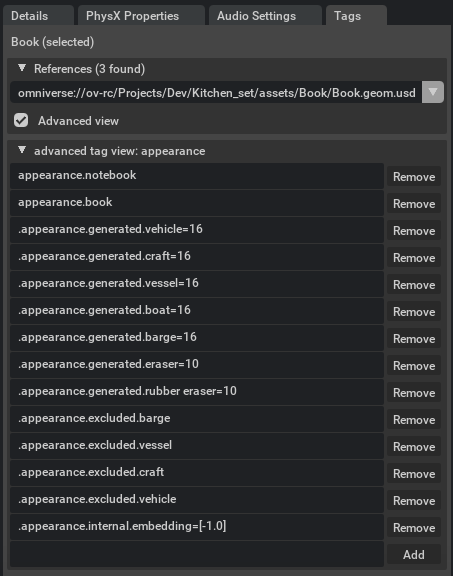
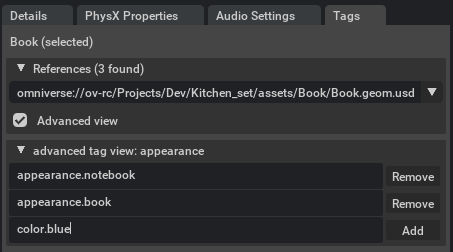
These namespace prefixes can be viewed in the advanced view (see below).
Advanced View#
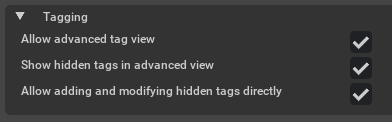
Selecting Advanced View gives the user more direct control over the tags. Full tags can be modified, removed, and added. In order to modify hidden tags (which begin with “.”) the preference must be enabled first (“Edit” → “Preferences” → “Tagging” → “Allow adding and modifying hidden tags”)
Preferences: Advanced Tagging Options#
Tag Search & Content Window Tags#
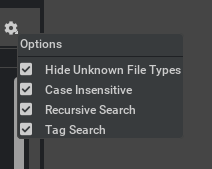
Like recursive search, tag search can be enabled or disabled with a check box.
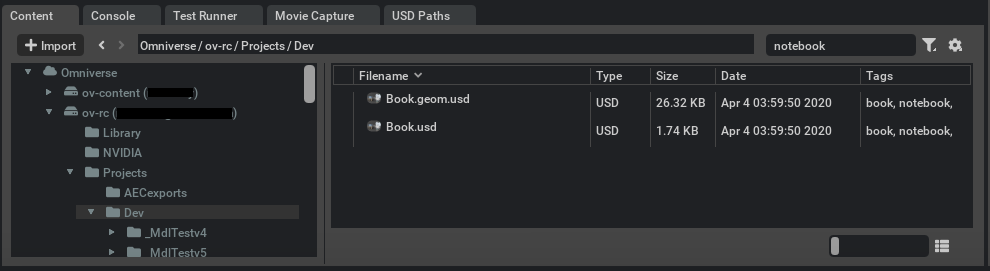
In the content window, enter list view by sliding the icon size to the smallest value or click on the icon next to the slider.
To search for a tag, enter text in the search field. You can also enable recursive search. If there is no tag column, then the tagging service may not be running.
Namespaces#
Although the default namespace is appearance, users can add other namespaces with the advanced view. Below is the result of adding color.blue:
Known Issues#
Search only works with exact matches the first time.
Slow searches in root directories.