


Python Behavior Scripting - Getting Started#
This guide explains how to enable Python Behavior Scripting and associate a code editor so you can create and run Behavior scripts on USD prims. You enable the extension from the Extensions window and optionally install a Python editor.
Enable the Extension#
Select Window > Extensions.
In the search bar, enter
Python Behavior Scripting.Locate the Python Behavior Scripting Bundle extension and select it.
Turn on the Enabled toggle.
Optional: Select the AUTOLOAD check box to load the extension automatically on application start.
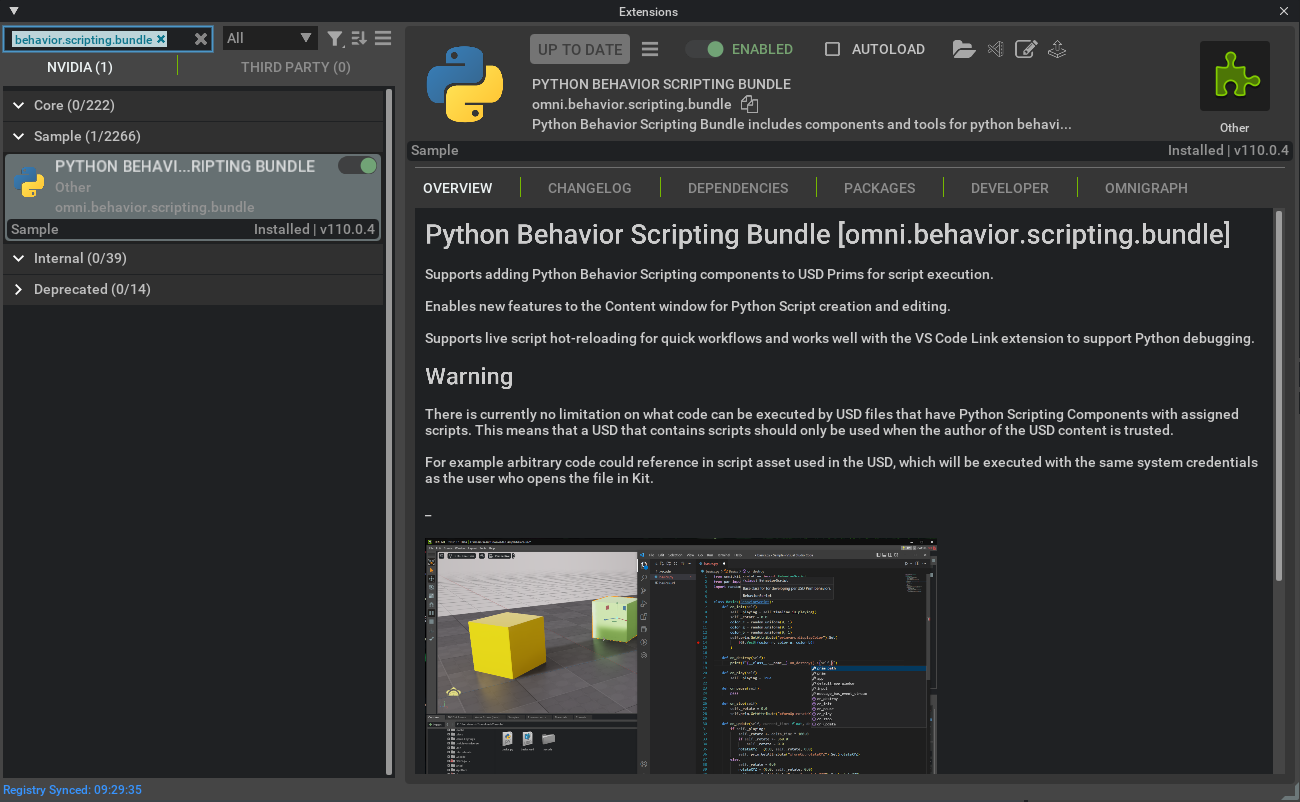
The extension is now enabled.
Note
This set of Python Behavior Scripting extensions, omni.behavior.scripting.bundle, omni.behavior.scripting.core, and omni.behavior.scripting.ui
is replacing the previous Python Scripting Component extension omni.kit.scripting. They should not be enabled at the same time.
Any omni.kit.scripting.BehaviorScript modules that were imported and used in previous scripts must be updated to the new module omni.behavior.scripting.core.BehaviorScript.
Install a Code Editor for Python#
Use any code editor for Python. Associate .py files with your preferred editor in your operating system.
Note
If you are not sure which code editor to use, start with Visual Studio Code and enable the Microsoft Python extension. This is supported on both Windows and Linux and provides a full Python environment with auto-completion for Omniverse Kit SDK APIs. Download: https://code.visualstudio.com/download
You have enabled Python Behavior Scripting and can optionally install a code editor. For creating scripts and assigning them to prims, refer to Python Behavior Scripting - User Manual.