


AnimGraph Example Workflow#
This tutorial walks you through basic Animation Graph (AnimGraph) setup and uses Action Graph events (such as keyboard presses) to drive a character in the scene. You enable the extension, create and load an Animation Graph, add and blend clips, and control the blend from Python and Action Graph.
Enabling Anim Graph#
When you enable the omni.anim.graph.bundle extension, the Animation Graph tab appears in the lower pane. If the tab is closed while the extension is still loaded, open Window > Animation > Animation Graph to show it again.
Creating & Loading Anim Graphs#
When no graph is loaded, a menu of options appears in the graph canvas. Use the buttons in the upper-left corner to create a new graph or load an existing one from the scene.
Click Create New Animation Graph; the dialog opens. Set the path and name of the Anim Graph and bind a Skeleton using one of these options:
Select From Stage: Assign a Skeleton that is already in the scene.
Add Reference: Reference a Skeletal Mesh from disk or a network location.
After you create the graph, the final output node appears on the canvas and the node catalog lists available nodes on the left.
Applying the Animation Graph#
The Animation Graph has a skeleton assigned and you can add animations. Next, assign the Animation Graph to the character’s SkelRoot in the scene.
In the Stage outliner, locate the character’s SkelRoot prim. Right-click it and choose Add > Animation > Animation Graph. When prompted, select the Animation Graph you just created.
Adding Animation Clips#
Add animations to the graph. In the Content browser, find clips that are compatible with the Skeleton bound to the graph.
Drag scenes that contain the animation clips into the Stage, then drag those clips from the Stage into the graph. For example, add an IDLE clip (character stands in place) and a WALK clip (character walks forward in a loop).
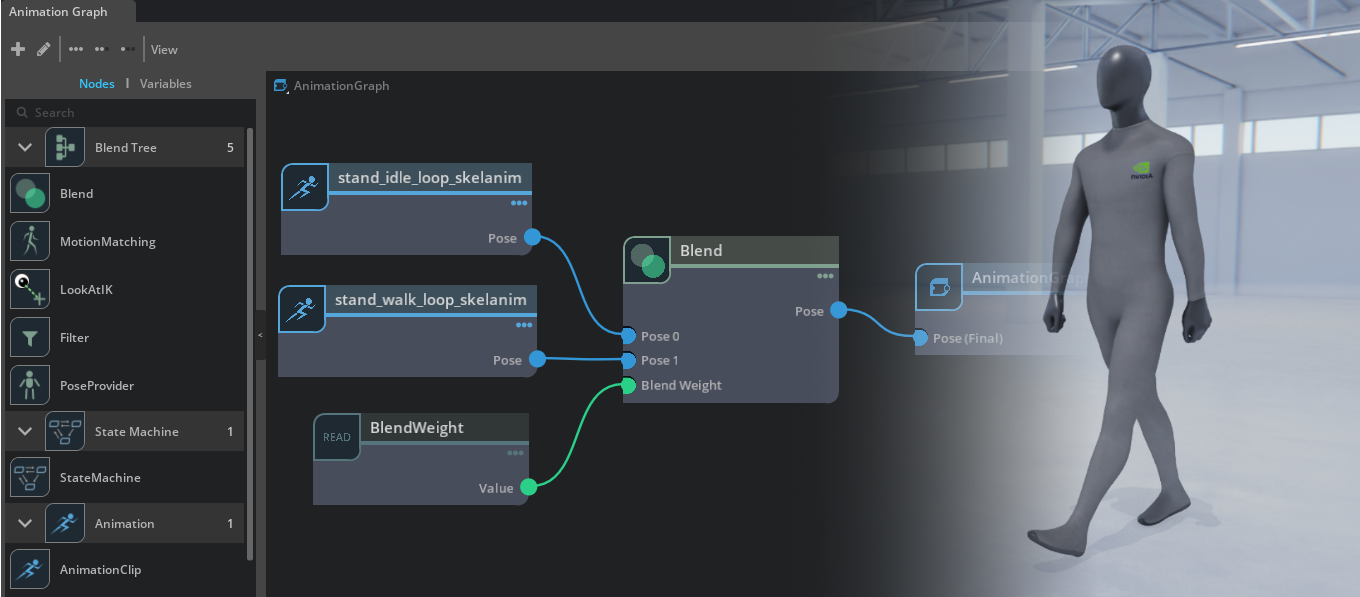
Connect either clip to the final output node for basic playback. To control blending, add a BLEND node and drive it with a variable.
Blending Clips#
With both clips in the graph, add a BLEND node to mix the two animations.
Find the BLEND node in the catalog pane on the left, or right-click on the graph canvas to add it.
Set IDLE as the first animation on the BLEND node and WALK as the second.
To control the blend, create a FLOAT variable and name it WALKING. Connect it to the BLEND node’s alpha input.
Press Play. The character is idle because the default WALKING value is 0. To see the character walk, set the default to 1.0. To control the blend at runtime, use Python or Action Graph.
Python Control#
You can change the WALKING variable from Python:
import omni.anim.graph.core as ag— Imports the Animation Graph core module.myChar = ag.get_character("path/to/your/skel/root")— Returns the character with the assigned Animation Graph.myChar.set_variable("VariableName", value)— Sets the variable in the Animation Graph (for example,myChar.set_variable("WALKING", 1.0)).
Press Play, then open Window > Script Editor and run:
import omni.anim.graph.core as ag
myChar = ag.get_character("path/to/your/skel/root")
myChar.set_variable("WALKING", 1.0)
The character walks forward. Change the value to control the blend and effective speed.
Action Graph Control#
You can also drive the Animation Graph from the Action Graph.
Create a simple Action Graph to drive the Animation Graph:
Add an On Keyboard Input node.
Create an Action Graph variable named
KeyPresswith type Token. Drag it onto the graph and connect it to the On Keyboard Input Key In port.Add a Write Animation Graph Variable node. Set Graph to your Animation Graph and Variable name to
WALKING.Connect On Keyboard Input > Pressed to Exec In so a key press updates the variable.
Add a Graph Target node and connect it to Write Animation Graph Variable Skel Root Path (this targets the SkelRoot that has the Animation Graph).
Add a Constant Float, connect it to Value, and set the value to 1.0.
Attach the Action Graph to the character SkelRoot: right-click the SkelRoot in the Stage, choose Add > OmniGraph, and select the Action Graph you created. On the SkelRoot, set the KeyPress variable to A so the A key drives the graph.
Press Play in Omniverse USD Composer and press the A key. The character walks forward.
Summary#
You have set up an Animation Graph, added and blended IDLE and WALK clips, and controlled the blend from Python and Action Graph. For more graph nodes and UI details, refer to the User Guide. For the full API, refer to the API Reference.