


Developer Integration Guide#
Integrating Point Cloud Extensions Using the Omniverse Kit App Template#
Point Cloud functionality is packaged as a bundle of extensions that are designed to work together. To support customization of the point cloud workflow, these extensions provide APIs.
The following is a list of the extensions that are bundled together in the Point Cloud Streaming Bundle with a short description of their purpose:
omni.pointcloud.streaming.bundle: Bundles all extensions together in a single dependency that is easy to use.
omni.pointcloud.potree2: Provides access to IVION server (authentication, list contents, access potree2 data).
omni.pointcloud.streaming.potree: Streams potree2 data from NavVis IVION server to the RTX renderer.
omni.pointcloud.content_browser: Shows NavVis IVION server contents in the Content Browser.
omni.pointcloud.ui: Configuration dialog, status overlay, and Selection Box.
Step 1: Enable the Point Cloud Streaming Bundle from the Omniverse Extension Registry#
Using the Omniverse Kit Application Template (KAT), the process for enabling the Point Cloud Streaming Bundle is the same.
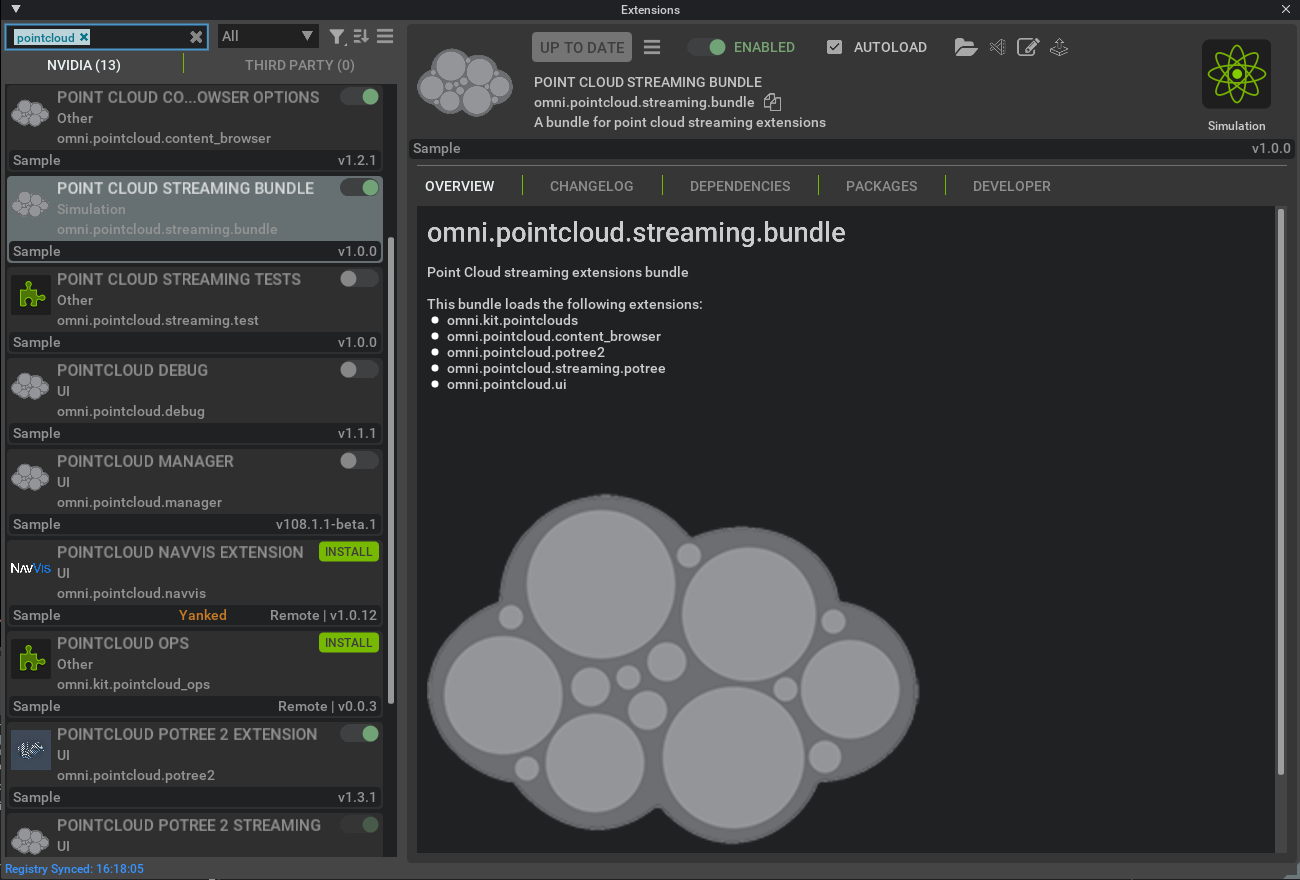
To enable the extensions:
Open the Extensions panel: Window > Extensions (or Developer > Extensions in some builds).
In the search bar, enter
Pointcloud.Locate the Point Cloud Streaming Bundle extension and install it if not already installed.
Select the Point Cloud Streaming Bundle extension.
Select the Enabled toggle to enable the extension.
Optionally, select the AUTOLOAD checkbox to have all required extensions load automatically on application start.
Close the Extensions panel.
Restart the application.
Note
Upgrade path: If you previously enabled an older version of the Point Cloud Streaming Bundle, first disable all Point Cloud extensions individually and un-check AUTOLOAD for each. Restart the application, then enable the consolidated bundle (omni.pointcloud.streaming.bundle) to re-enable the updated set of extensions.
Step 2: Verify the Extension is Active#
To verify the Point Cloud extension is active in your Kit application:
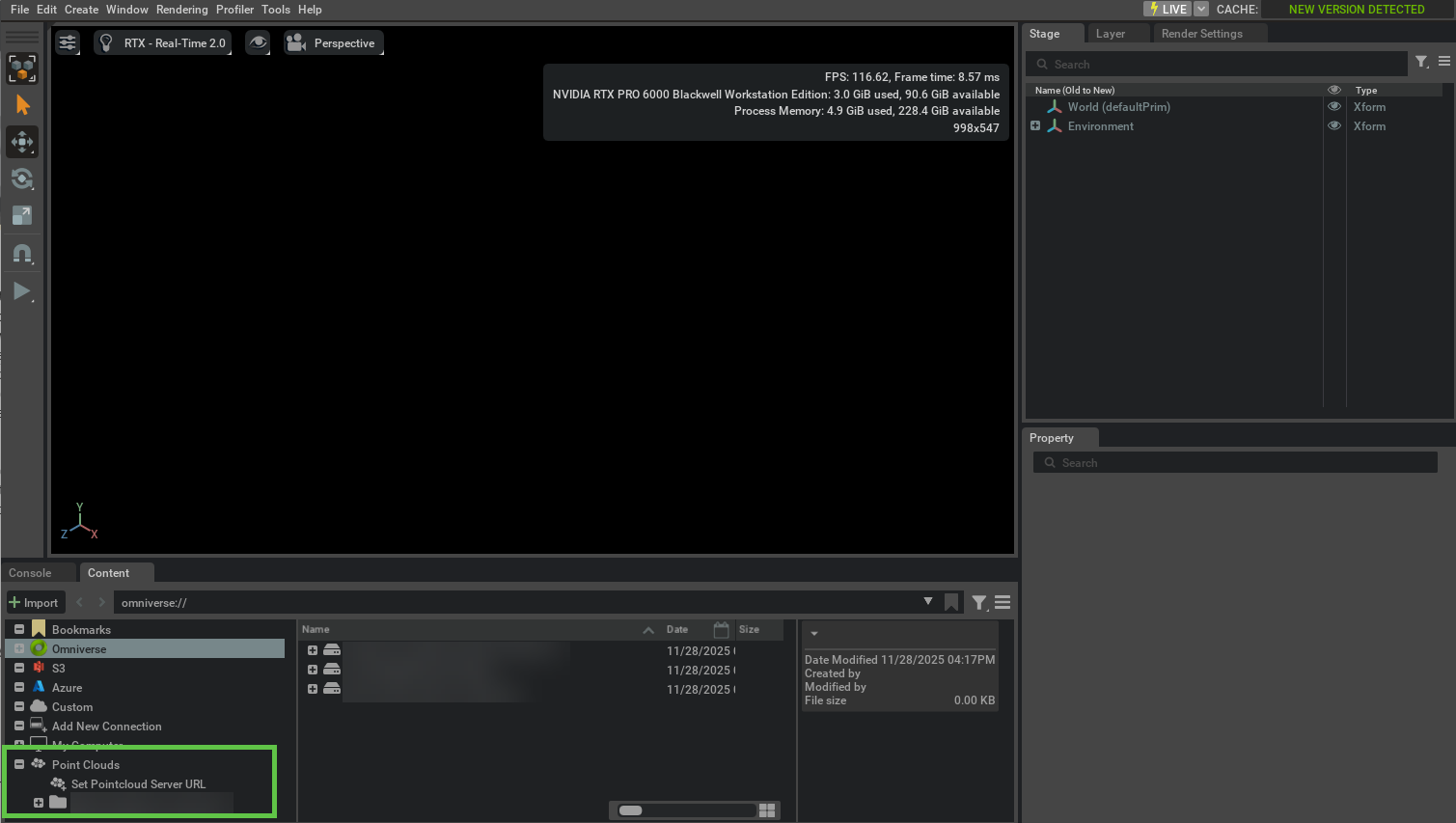
Check the Content Browser navigation pane for a Point Clouds folder.
Open Window and confirm that Point Cloud Streaming Settings is listed.
If either item is missing, repeat the enablement procedure in Step 1.
Integrating Point Cloud Extensions in Custom Applications#
Enable the streaming bundle for a custom Kit application by including the dependency and settings in a small Kit manifest (for example, repl.kit):
Example Kit Manifest for Point Cloud Extensions:
[dependencies]
"omni.pointcloud.streaming.bundle" = {}

[settings]
exts."omni.pointcloud.streaming.bundle".autoRunREPL = true
Pass the kit file to the Kit executable to run with the configured extensions:
Running Kit with Point Cloud Extensions:
kit.exe repl.kit
This enables the specified extensions (and their dependencies), and runs a simple REPL with the Point Cloud Streaming bundle active.
For more information on integrating Point Cloud extensions in custom applications, refer to the Kit Extensions documentation.
More Information#
For integrating extensions beyond the standard Kit App development workflow, refer to the Creating Kit Apps documentation.