

Streamed Point Clouds UI#
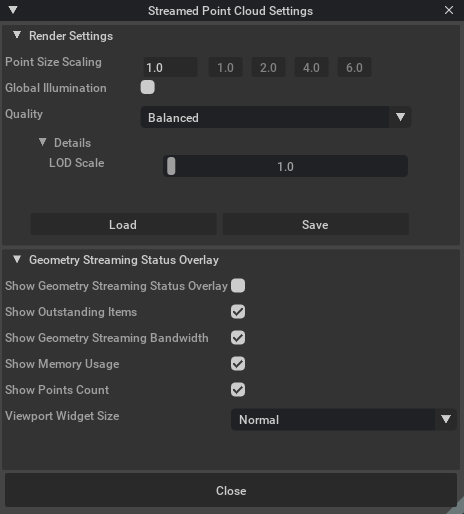
This section describes how you can configure the Point Cloud Settings to control the user interface. Open the settings from Window > Streamed Point Cloud Settings.
Render Settings#
Render Settings apply globally and use default values.
Point Size Scaling: Scale the size of the points globally by editing the number field or selecting the buttons to switch between preset values.
Global Illumination: When enabled, points render with more realistic lighting. For example, points cast shadows.
Quality: Choose a rendering preset to balance quality and performance. Available presets:
Quality
Balanced
Performance
A rendering preset currently consists only of LOD Scale.
LOD Scale: Change the Level of Detail (LOD) during streaming. This shows the current setting from the selected Quality preset. Change the value to adapt the current Quality preset by selecting the Apply to Preset button (which appears when the LOD Scale is changed).
Load: Load predefined custom settings.
Save: Save custom settings as a
.jsonfile.
Geometry Streaming Status Overlay#
These controls display streaming diagnostics in the viewport.
Show Geometry Streaming Status Overlay: When enabled, the streaming status windows appear in the viewport.
Show Outstanding Items: Displays the number of outstanding/queued streaming items in the viewport.
Show Geometry Streaming Bandwidth: Shows current streaming bandwidth in the viewport.
Show Memory Usage: Shows GPU memory usage statistics in the viewport.
Show Points Count: Displays the current points count in the viewport.
Viewport Widget Size: Changes the size of the on-screen widgets. Options:
Normal
Compact
Minimalistic
Point Cloud Material Parameter#
When a streamed Point Cloud parameter is added to the Stage, it receives a copy of the PointDefaultMaterial. Each streamed dataset receives its own independent material instance. You can edit it interactively by selecting the material Shader item in the Stage.
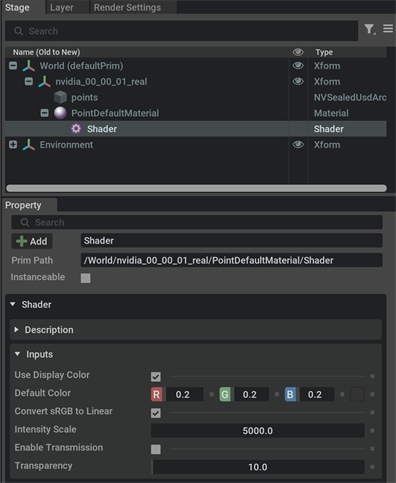
Key material parameters:
Use Display Color: When enabled, renders points with their per-point color. When disabled, all points use the Default color.
Default Color: RGB values used when you do not apply per-point colors.
Convert sRGB to Linear: Convert sRGB color values to linear space. Enable this in most workflows.
Intensity Scale: Adjusts the intensity/brightness of points.
Enable Transmission (experimental): Enables translucency so other geometry may be visible through points.
Transparency (experimental): Adjusts transparency intensity for points.
Point Cloud Viewport Widgets#
You can display the Geometry Streaming Stats widgets in the Main Viewport to monitor streaming activity and resource usage.
Geometry Streaming Bandwidth: Displays the current and maximum bandwidth while streaming.
Outstanding Items: Shows how many streaming objects remain for processing in the current view.
Memory Usage: Displays available and used GPU memory for Point Cloud rendering.
Points Count: Shows current and maximum point counts rendering in the viewport.
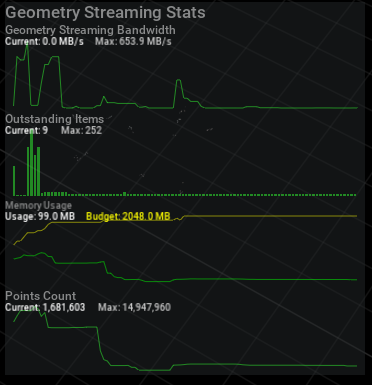
Configure which widgets are visible and the widget size in Window > Streamed Point Cloud Settings.