NavMesh Volumes
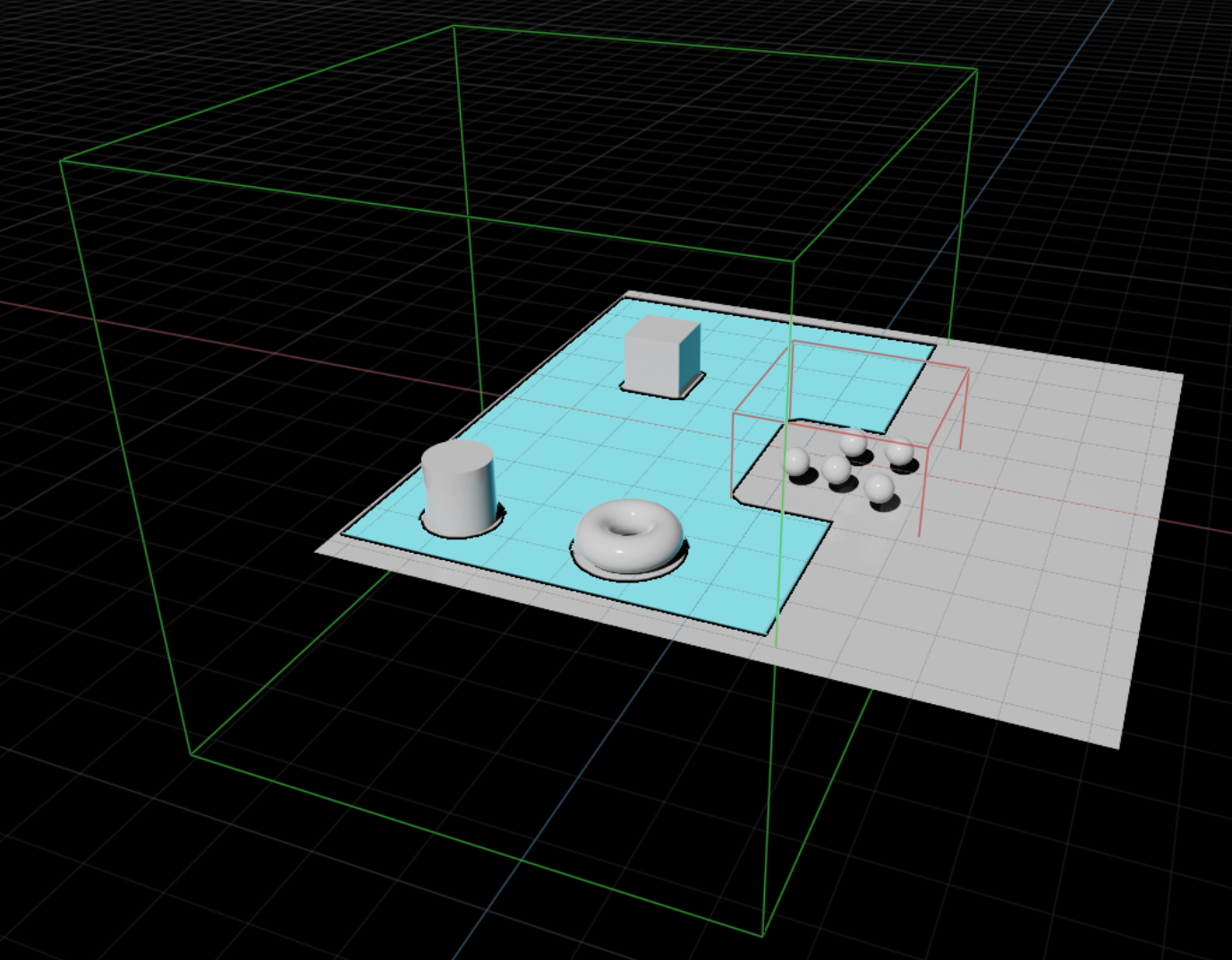
Many NavMesh Volumes can be added to the stage as needed by going to Create > Navigation > NavMesh Include/Exclude Volume. NavMesh Include volumes are used to gather all mesh geometry within the axis-aligned include volume bounds. NavMesh Exclude volumes are used to clip out unwanted mesh geometry from large axis-aligned exclude volume bounds. NavMesh Volumes can be moved and scaled to ensure the right fit. They are axis-aligned, so the rotation is not considered. Multiple NavMesh volumes can be placed near each other to extend new areas of the NavMesh.
NavMesh Areas
NavMesh query computations use areas to determine the shortest path or walkable/traversable polygonal surfaces. NavMesh Areas have a name and default cost for travel across a polygon with a certain area. Each stage can define its own NavMesh Areas and costs. There are 2 built-in areas: Walkable and NotWalkable. A NavMesh Area can be assigned to a NavMesh Include Volume and the default is Walkable.
Applying a NavSchema.NavMeshAreaAPI to any Xform, Mesh, or Material in the stage enables a NavMesh Area on that prim and its children. To apply it, right-click a Xform, Mesh, or Material, then choose Add > Navigation > NavMesh Area. In the Property window, set Navigation Area in the NavMesh section to the desired area from the drop-down.
You can add areas from the NavMesh window via Window > Navigation > NavMesh, then open the Areas section. You can also open the NavMesh window by selecting any NavMesh Volume or prim with NavSchema.NavMeshAreaAPI and clicking Edit NavMesh.
NavMesh API query operations consider areas when computing queries; area costs apply only to the contributing polygons. For example, a shortest-path query uses each polygon’s area travel cost. For API reference, refer to API Commands.