


Video Textures#
NVIDIA Omniverse RTX™ Renderer can use a video asset anywhere an NVIDIA Material Definition Language (MDL) material accepts a texture asset. The selected video frame follows the Universal Scene Description (USD) stage timeline, so the video updates as the stage plays or seeks.
For default playback, assign a video file to an asset input such as inputs:diffuse_texture. Apply OmniPlaybackAPI when the clip needs an explicit source range, start time, playback rate, or out-of-range behavior.
Requirements#
Complete the following requirements:
Enable the
omni.usd.schema.playbackextension in Omniverse Kit.Author the video on an asset-valued input of a
Material,NodeGraph, orShaderprim used by an Omniverse RTX Renderer material.Use a video that the decoder stack on the target system supports. Container and codec availability can vary by platform and application deployment.
Local files, HTTP URLs, HTTPS URLs, Real-Time Streaming Protocol (RTSP) streams, and omniverse:// assets can be video texture sources. Network-source seeking and caching behavior depends on the URI scheme.
Use Video Textures in the Omniverse Kit UI#
Enable the Extensions#
Select Window > Extensions.
Search for
omni.usd.schema.playback, then enable USD Omni Playback Schema.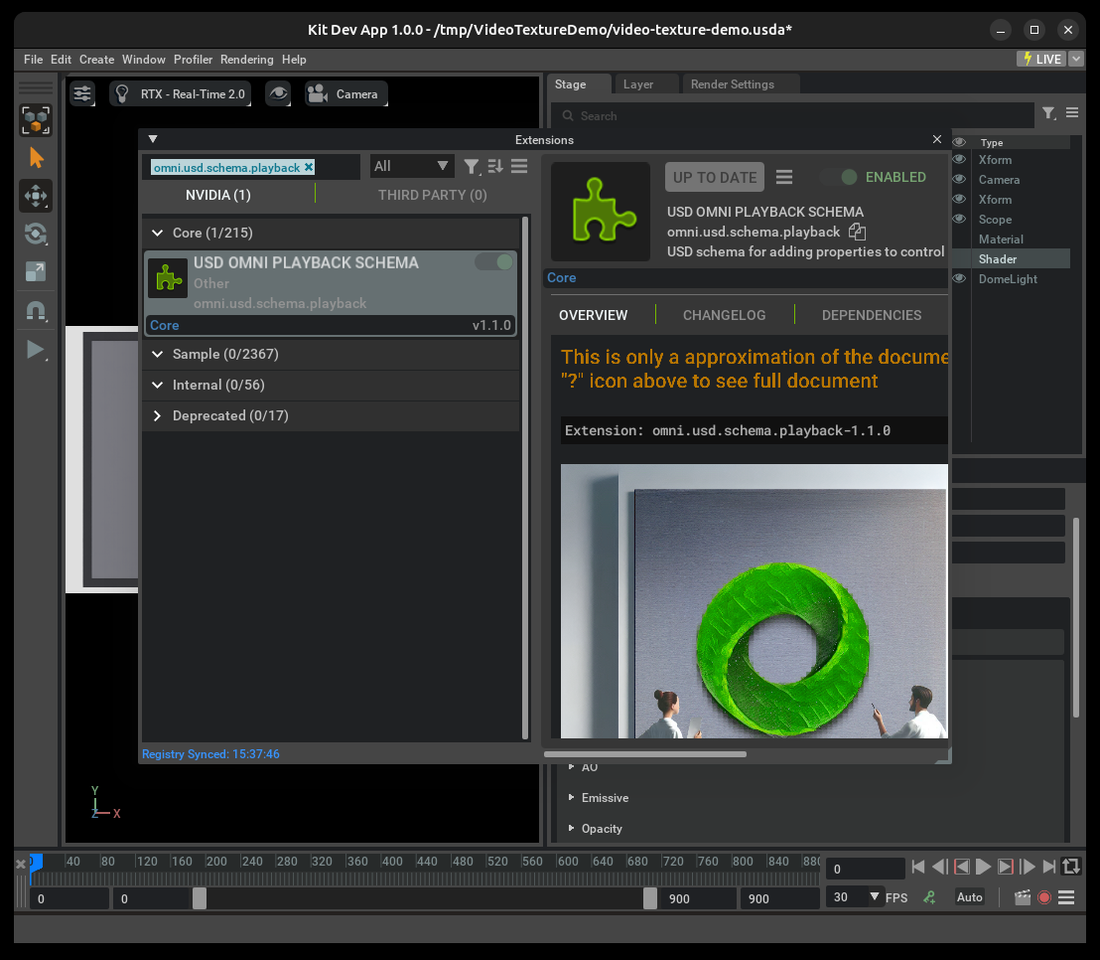
Search for
omni.anim.window.timeline, then enable Animation Timeline.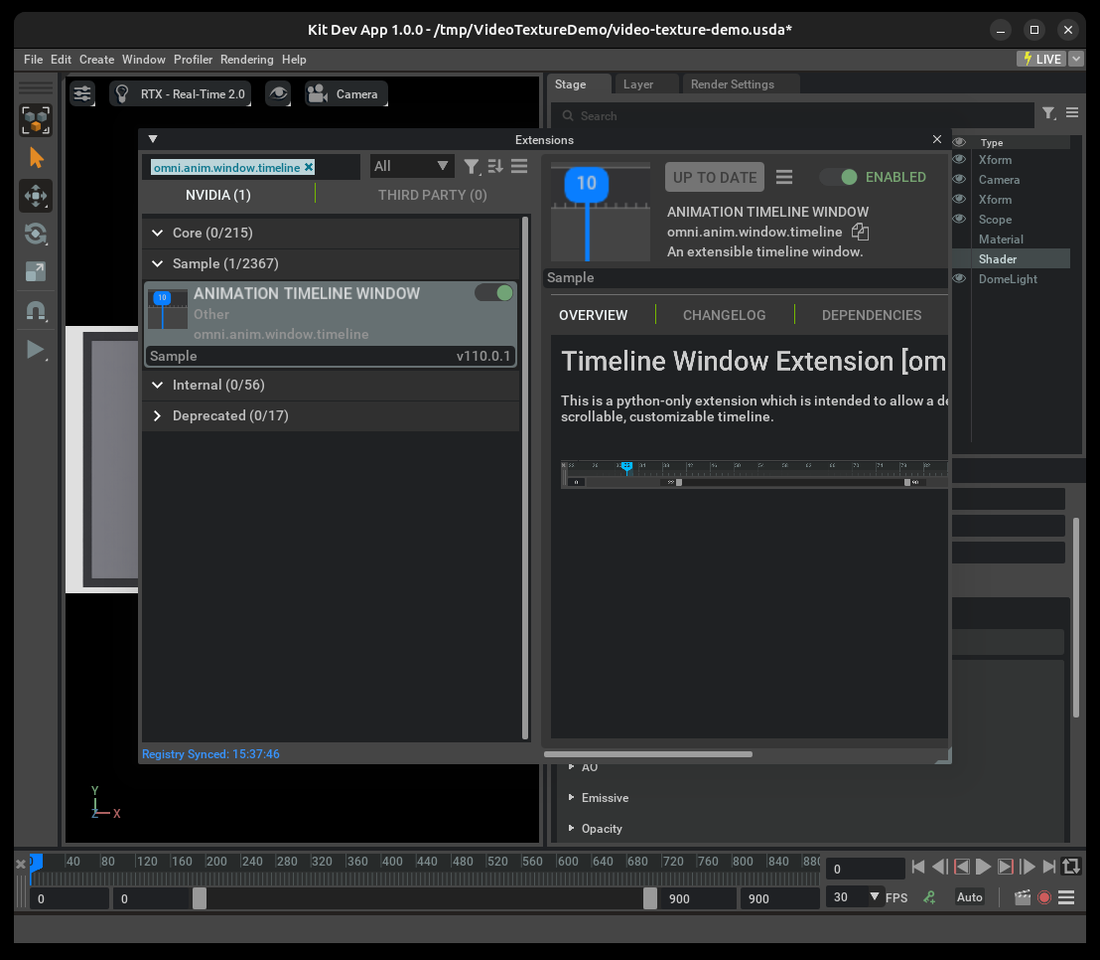
Assign a Video to a Material#
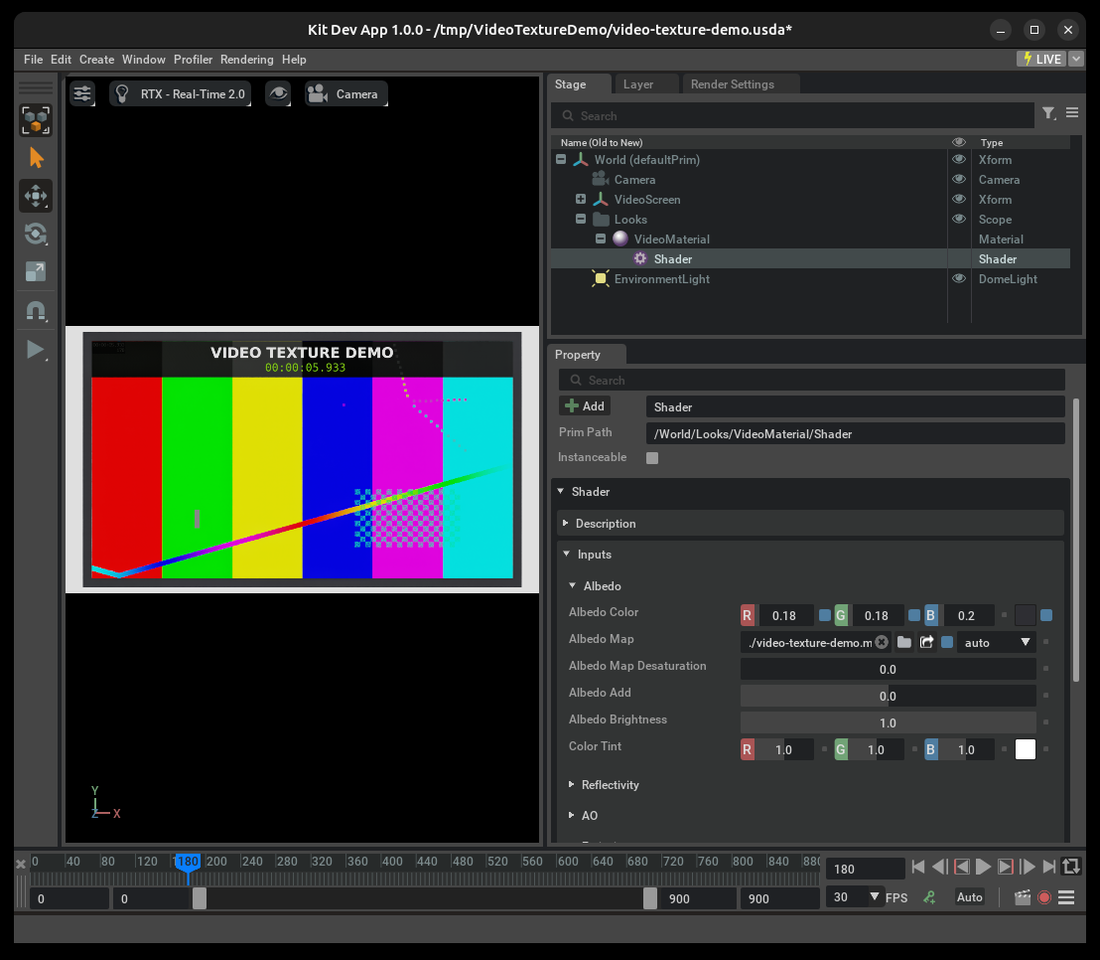
The following example uses an OmniPBR material bound to a plane. The Albedo Map input is initially empty, so the plane appears gray.
In the Stage panel, select the
Shaderprim below the material.In the Properties panel, expand Shader > Albedo and find Albedo Map.
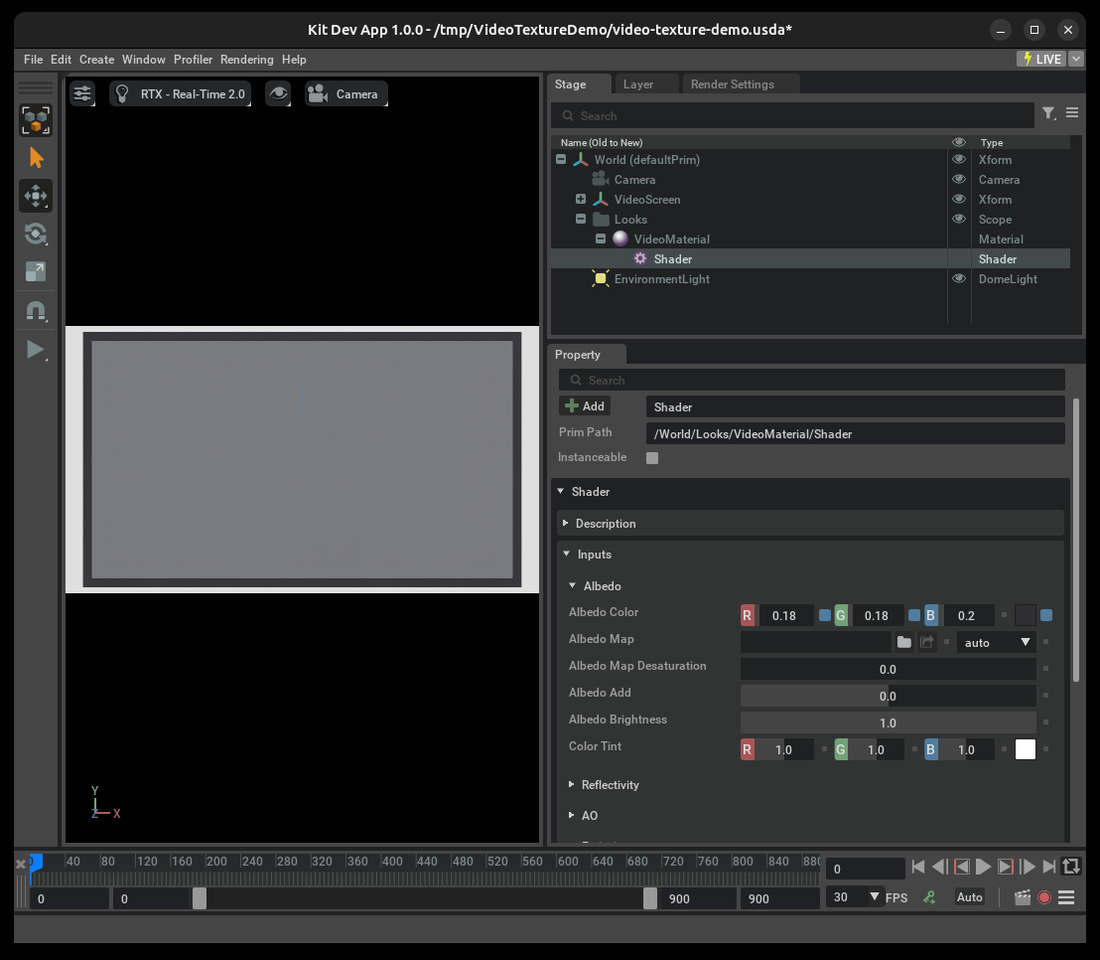
Select the folder button beside Albedo Map.
In the file picker, select a supported video file, then select Select.
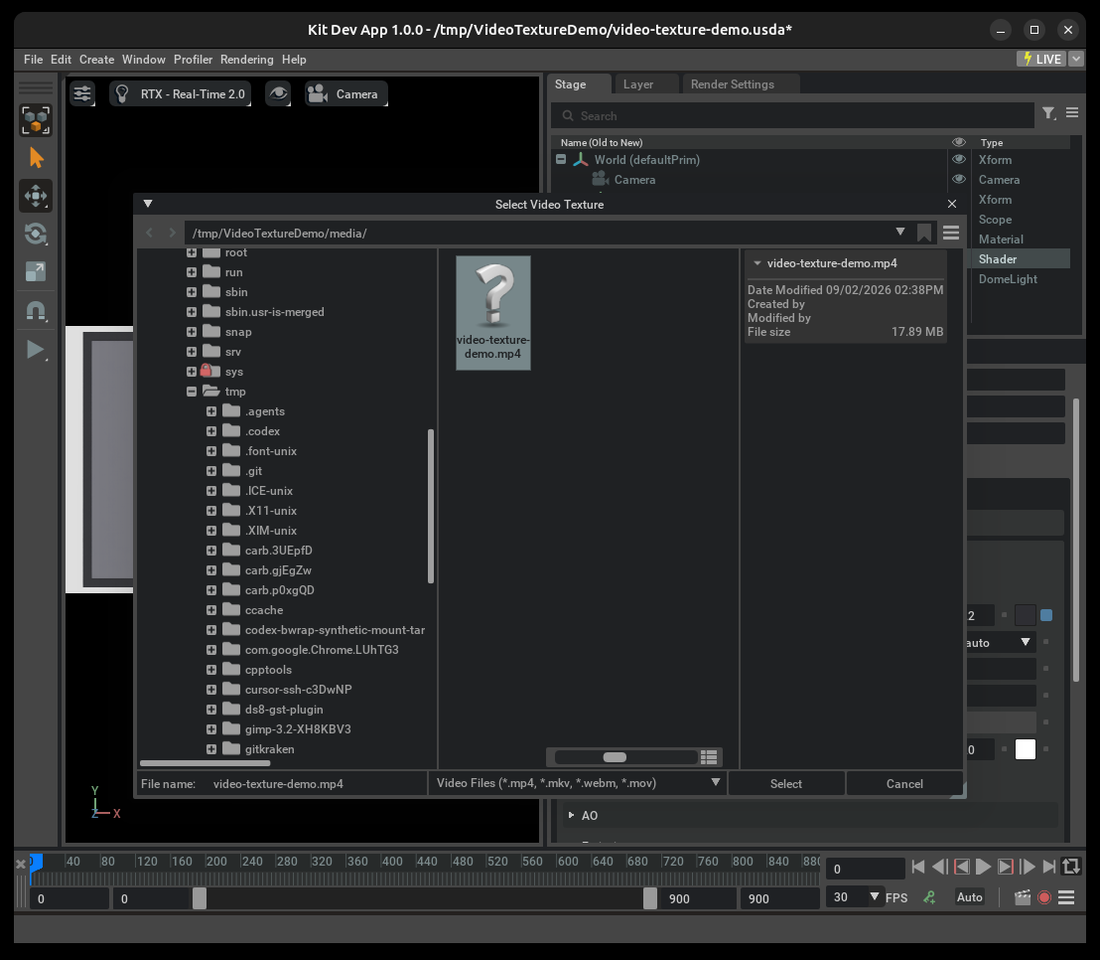
After the decoder produces a frame, the video appears on the material.
Add Playback Controls#
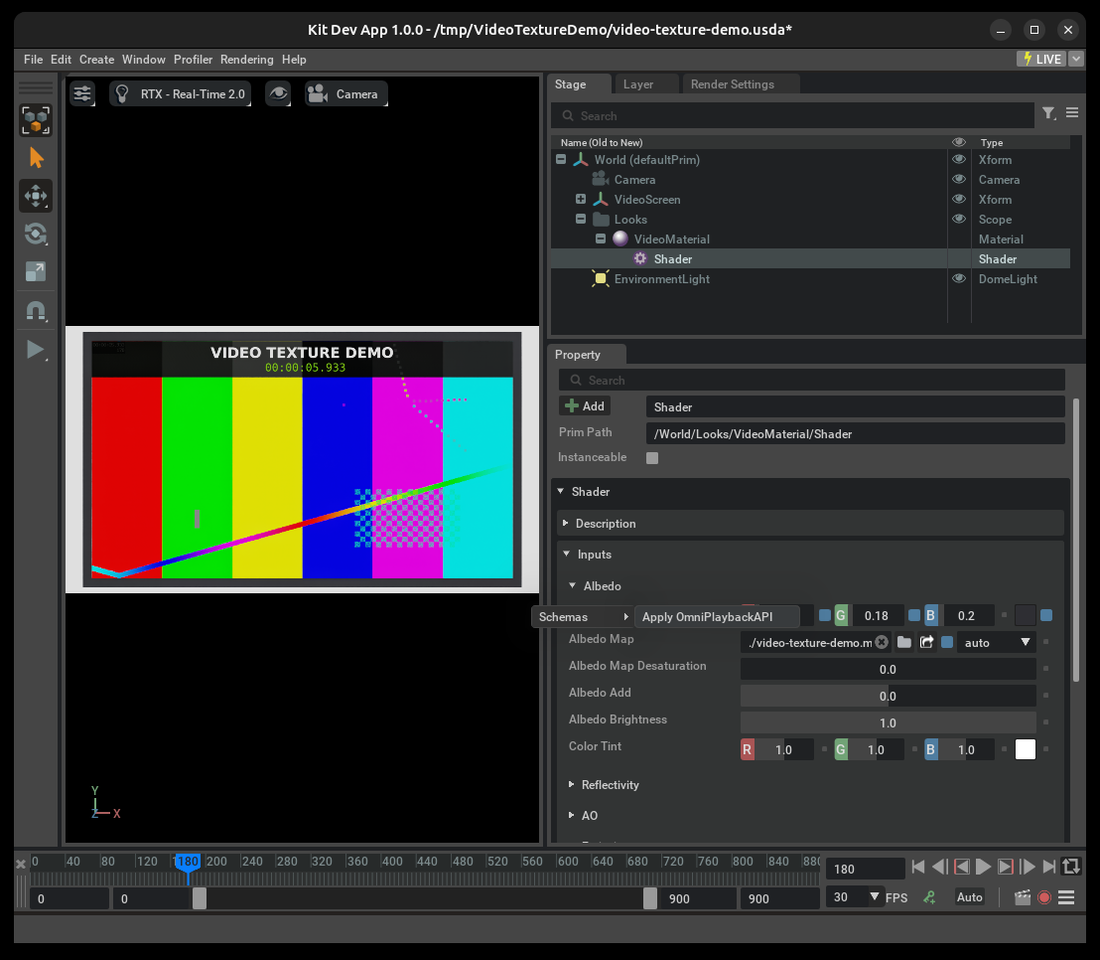
Right-click Albedo Map.
Select Schemas > Apply OmniPlaybackAPI.
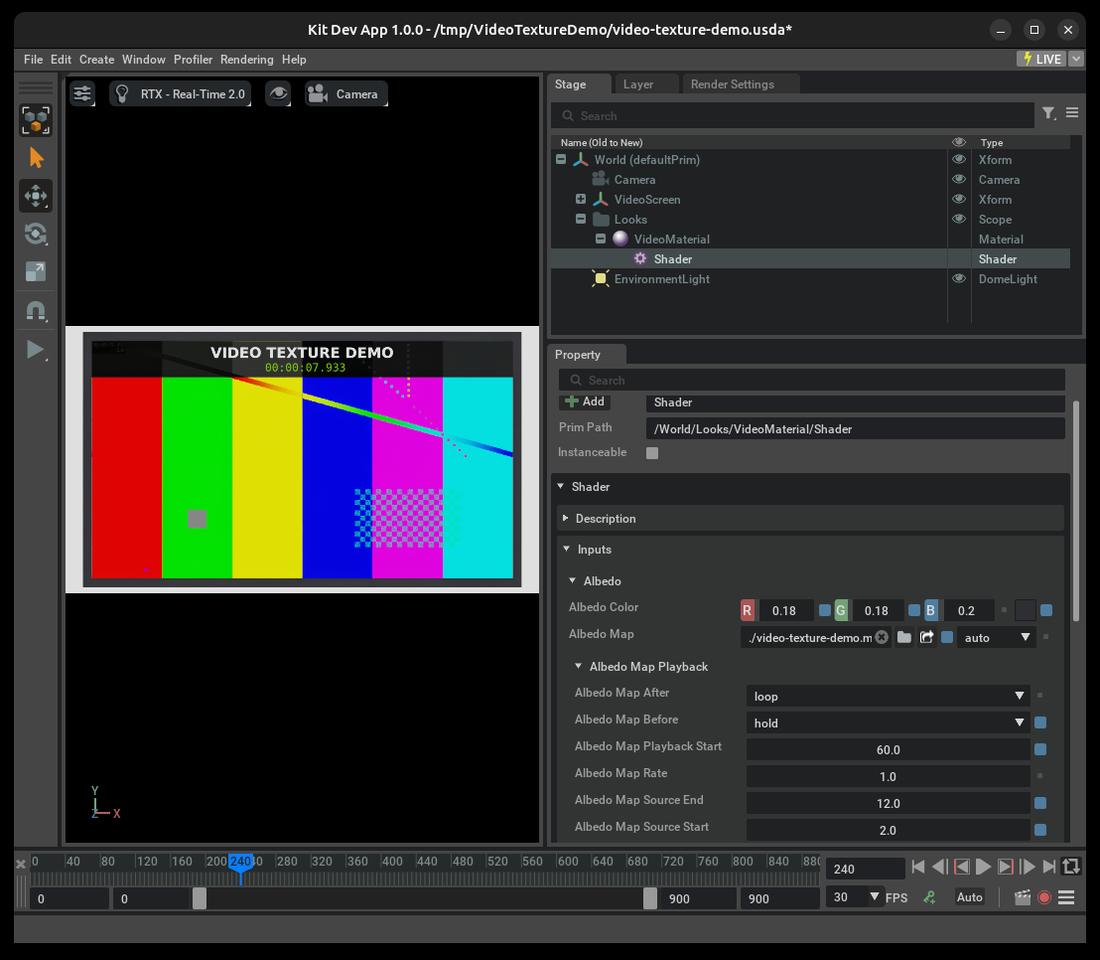
Expand Albedo Map Playback in the Properties panel.
Configure the playback start timecode, playback rate, source range, and behavior before or after that range as needed.
Control Playback with the Timeline#
The selected video frame follows the stage timeline. Drag the blue current-time marker or enter a timecode in the Timeline panel to seek the video. Select Play to advance the stage and video together.
For details about playback buttons, frame rate, and looping controls, refer to Animation Timeline.
Playback Start uses stage timecodes, while Source Start and Source End use seconds in the video. For example, the following stage runs at 30 timecodes per second. At timecode 240, the stage is at 8 seconds. With Playback Start set to 60 and Source Start set to 2, the selected video frame is at source second 8.
Timeline seeking and looping depend on whether the video source is seekable. Refer to Platform and Stream Requirements and Network Video Sources for details.
Supported Media#
A file type identifies the container, not the encoded video format. A supported container must contain a video track that the NVIDIA hardware decoder on the target system can decode.
Validated Combinations#
The following combinations are validated and are the recommended authoring targets:
Container and Extension |
Video Codec |
Support Details |
|---|---|---|
MP4 ( |
H.264/AVC |
Validated with H.264 High Profile, 8-bit YUV 4:2:0 video. Audio tracks are ignored. |
Matroska ( |
H.264/AVC |
Validated with H.264 Main Profile, 8-bit YUV 4:2:0 video. |
MP4 ( |
H.265/HEVC |
Validated on supported GPUs. Available profiles, bit depths, chroma formats, and resolutions depend on the GPU architecture. |
WebM ( |
VP9 |
Validated with VP9 Profile 0, 8-bit YUV 4:2:0 video. |
MP4 ( |
AV1 |
Validated with AV1 Main Profile, 8-bit YUV 4:2:0 video on supported GPUs. Refer to Known Limitations for frame-dropping behavior. |
Additional Decoder and Container Support#
The bundled Linux x86-64 decoder also advertises VP8, MPEG-1, MPEG-2, MPEG-4, and DivX 4/5 in addition to the validated codecs. Cross-platform video texture tests do not cover all of these formats. Treat their availability as platform- and hardware-dependent, and validate the exact container, codec profile, chroma format, bit depth, resolution, and frame rate on every target system.
The renderer bundles demuxers for these container families:
ISO Base Media File Format and QuickTime, commonly
.mp4,.m4v, and.movMatroska and WebM, commonly
.mkvand.webmAudio Video Interleave, or AVI, commonly
.aviFlash Video, commonly
.flv
The file extension does not determine compatibility. For example, an MP4 file still fails if its video track uses a codec or profile that the GPU cannot decode. Compatible raw elementary streams can also work when the bundled typefinder and parser recognize them, but they are not validated authoring targets.
Platform and Stream Requirements#
Video textures have the following platform and stream requirements:
Video textures use NVIDIA hardware decoding on Windows x86-64 and Linux x86-64 or AArch64. There is no CPU-decoder fallback. Playback fails if the pipeline selects a software decoder.
On Windows, video textures require NVIDIA display driver version 570.65 or later.
Codec profiles, bit depths, chroma formats, and maximum resolutions vary by GPU architecture. Refer to the NVDEC video decoder capabilities before selecting a deployment format. AV1 in particular requires AV1-capable hardware.
Author one video track per asset. Omniverse RTX Renderer ignores audio and non-video tracks and does not support additional video tracks.
Omniverse RTX Renderer converts decoded frames to 8-bit RGBA textures, regardless of the source bit depth. Refer to Current Color Limitations for the resulting high dynamic range and wide-gamut restrictions.
Seeking, timeline scrubbing, and looping require a seekable source. Live streams normally support forward playback only.
Network Video Sources#
Author a network URL directly on the material’s asset-valued texture input. The URL must resolve from the system running Omniverse Kit.
# Author one of these values on the material input.
asset inputs:diffuse_texture = @rtsp://camera.example.com/live@
# asset inputs:diffuse_texture = @https://media.example.com/video.mp4@
# asset inputs:diffuse_texture = @omniverse://nucleus.example.com/Projects/video.mp4@
Do not author user names, passwords, bearer tokens, or other reusable secrets in a video URL. The URL is stored in the USD layer and can appear in renderer logs. Use deployment-specific authentication or a credential-free proxy when a source requires protected access.
RTSP Streams#
The renderer recognizes an rtsp:// prefix as a video source, so the URL does not need a video filename extension. The RTSP session must provide one supported video stream. The bundled Real-time Transport Protocol (RTP) pipeline must be able to depayload that stream, and the GPU must be able to decode it. Omniverse RTX Renderer ignores audio streams. Additional video streams are unsupported.
An RTSP camera feed is live and does not provide a seekable range. Other RTSP servers can expose recorded media or a time-shifted window. Those streams can be seekable. The renderer queries the stream pipeline for seeking support and its available time range.
If the pipeline reports a seekable range, timeline scrubbing and looping can operate within that range. Otherwise, the renderer consumes frames in presentation timestamp order and paces them against forward stage-timeline progress. A requested loop behavior changes to hold, and the renderer writes a warning to the log.
HTTP and HTTPS#
An http:// or https:// URL must point directly to a supported media file. The URL path must include a recognized video extension, such as .mp4 or .webm, so the renderer identifies the asset as a video texture. Query parameters after the extension are allowed. A media content type without a recognized path extension is not sufficient.
The bundled video texture pipeline does not support HTTP Live Streaming (HLS) or Dynamic Adaptive Streaming over HTTP (MPEG-DASH) playlist URLs. Author the URL of the media file itself.
The decoder reads an HTTP media file directly from the server. Seeking and looping work only when the server, source element, and media container expose a seekable byte and time range. If any part of that path is not seekable, timeline scrubbing is unavailable and loop changes to hold. The video texture authoring API does not expose custom HTTP request headers.
Omniverse Assets#
For an omniverse:// URL, NVIDIA Omniverse™ Nucleus authentication and asset access use the application’s existing client session. The URL path must include a recognized video extension.
The renderer does not progressively decode an omniverse:// video from the server. It downloads the complete asset to a local file before starting the decoder. The resulting local file is normally seekable, so timeline scrubbing and looping can work after the download completes. Large videos can therefore increase initial load time and require enough local storage for the complete file.
The renderer caches the downloaded file by its complete omniverse:// URL and shares that local copy between video textures that use the same URL. Use a checkpoint, timestamp, or other versioned query in the URL when the stage must refer to a specific revision. Changing the complete URL creates a separate local cache entry.
Playback Controls#
Playback attributes are as follows:
rateis a playback-speed multiplier. The default is1.0.sourceStartis the first selected source time, in seconds. The default is0.0.sourceEndis the last selected source time, in seconds. The default is-1.0, which selects the available duration of the video.playbackStartis the stage timecode at whichsourceStartbegins. Its conversion to seconds uses the stage’stimeCodesPerSecondvalue.beforeandafterselect the result outside the configured time range. Their allowed values areloop,black, andhold. The default isloop.
hold returns the nearest boundary frame. black returns zero in every channel. loop wraps within the selected source range.
Looping and arbitrary timeline seeks require a seekable source and a known source range. If the decoder cannot seek or determine a usable range, Omniverse RTX Renderer changes a requested loop behavior to hold and writes a warning to the log. For seekable files whose duration cannot be discovered, author both sourceStart and sourceEnd explicitly.
Color Space#
Use the standard USD colorSpace metadata on the video asset input when its encoding is known:
colorSpace = "sRGB"treats the decoded RGB values as sRGB color.colorSpace = "raw"treats the values as linear, untransformed data. Use this value for masks, roughness, normals, and other non-color inputs.If no color space is authored, Omniverse RTX Renderer uses the transfer function signaled by the video. A linear transfer uses a linear texture. Other or missing signals default to sRGB.
The authored value takes precedence over the video’s signal. It selects how the GPU samples the decoded texture. It does not convert the video between color spaces.
Current Color Limitations#
Omniverse RTX Renderer currently stores decoded video textures as 8-bit RGBA. It does not correctly convert transfer functions that cannot be represented as linear or sRGB, including perceptual quantizer (PQ) and hybrid log-gamma (HLG). These transfer functions can produce incorrect brightness. When Omniverse RTX Renderer detects such a transfer function, it logs a warning unless the video asset input explicitly specifies the raw color space.
The conversion pipeline does not currently support videos that signal BT.2020 color primaries and matrix coefficients. These videos can fail before producing a frame. For predictable cross-platform results, ensure that a file’s container color metadata agrees with the color information in its encoded video stream.
Performance and Resource Usage#
Omniverse RTX Renderer can share a loaded video texture when multiple material inputs use the same resolved asset URL and identical texture configuration, including playback controls and color space. If the URL or configuration differs, Omniverse RTX Renderer creates a separate video texture and decoder resource.
Each unique video texture uses hardware-decoder capacity and GPU memory. In a multi-GPU application, it can require decoding and texture resources on every active GPU that renders it. The practical number of concurrent video textures depends on the GPU architecture, source resolution and frame rate, codec, and the rest of the rendering workload. No platform-independent stream limit exists.
Reuse the same URL and configuration when video textures should remain synchronized and share resources. Validate the intended number of concurrent streams at their deployment resolution and frame rate on every target system.
Known Limitations#
Video textures have the following limitations:
The decoder can drop some frames from AV1 streams. The decoded images remain coherent, but exact frame-to-timeline selection can be unreliable.
Reverse playback is not supported. Author a nonnegative
ratevalue.When you author an explicit finite source range, use a nonnegative
sourceStartvalue. SetsourceEndto a value greater thansourceStart. To use the duration reported by the video, keepsourceEndat its default value of-1.0.A video texture is shared across views, so it can represent only one video timestamp during a render update.
If views use different animation times and the application does not set a global animation-time override, Omniverse RTX Renderer skips the video-texture update. Omniverse RTX Renderer continues rendering the previous video texture contents.
Troubleshooting#
If the texture stays on its placeholder, verify that the target system can decode the file and inspect the log for decoder negotiation errors.
If looping changes to holding, use a seekable file and author an explicit
sourceStartandsourceEndrange.If the image is too light or too dark, verify both the input’s authored
colorSpacemetadata and the transfer function signaled by the video.If playback begins at the wrong stage time, check the stage’s
timeCodesPerSecondvalue and the schema’splaybackStarttimecode.