


Customize Camera Light#
Camera Light replaces the stage lighting with a light aligned with the camera. Use it to inspect geometry, materials, or dark areas without editing the light prims in your stage. The light follows the camera as you navigate.
This guide shows you how to customize Camera Light in the Render Settings window and with Python. For setting names, defaults, and rendering limitations, refer to the Camera Light settings reference.
Enable and Customize Camera Light#
Follow these steps to enable and customize Camera Light:
Open the Render Settings window. In Omniverse Kit-based applications, select Window > Render Settings. Other applications can place Render Settings in the Rendering menu.
Select the Common tab.
Select the checkbox in the Camera Light section header, then expand the section if it is collapsed.
Choose a Light Type:
Distant illuminates the scene along the view direction without distance falloff. Increase Angle to broaden specular highlights.
Spot places a light at the camera and applies cone falloff without inverse-square dimming as the distance changes. Adjust Radius to change the emitter size, Cone Angle to change the illuminated area, and Cone Softness to soften the cone edge. Spot is an inspection light and does not cast shadows.
Adjust Color and Intensity. Enable Normalize to normalize intensity by the light size when changing Angle or Radius. With Normalize disabled, increasing Radius also increases the emitted power of a Spot light.
Selecting Spot shows Radius, Cone Angle, and Cone Softness. Selecting Distant shows Angle instead.
You can also toggle Camera Light from the Viewport Render Mode menu. Clear the Camera Light checkbox or turn off the menu option to return to the stage lighting. Turning it off does not reset the customization values.
Camera Light Examples#
These examples use the Pixar Kitchen Set OpenUSD sample asset with the same camera and exposure in Path Tracing. Intensity is adjusted for each light type to show both sets of controls. The examples are not a brightness comparison between Distant and Spot.
The following example uses Distant with Intensity set to 500, Normalize enabled, and Angle set to 0:
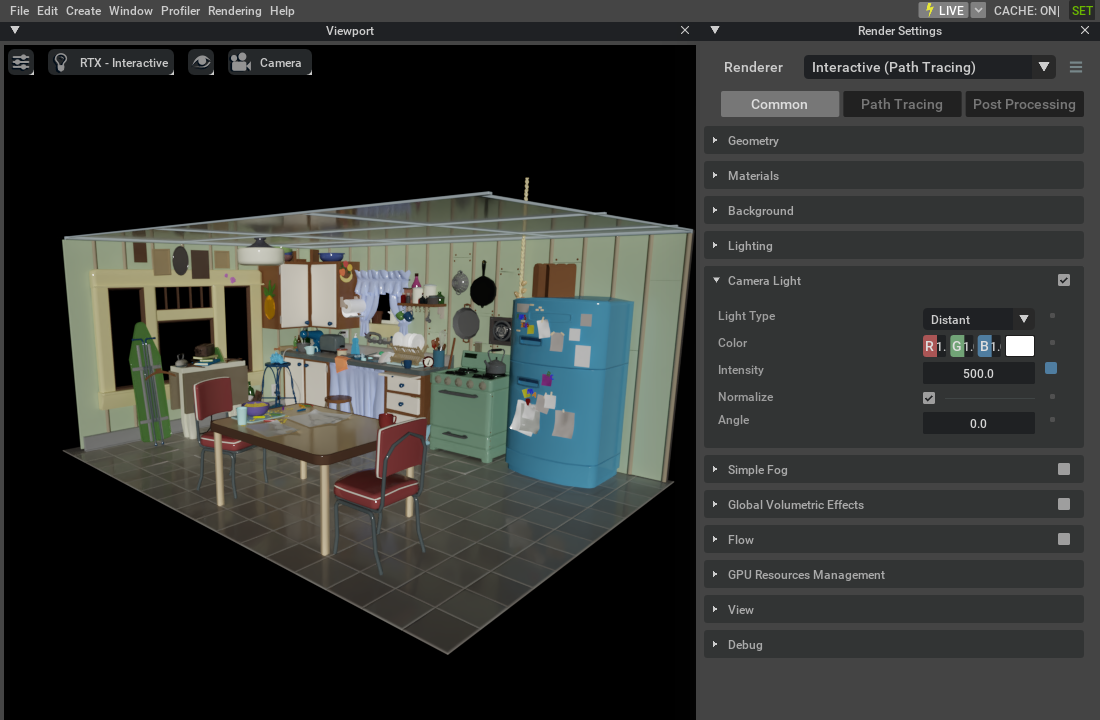
Distant Camera Light illuminates the scene without distance falloff.#
The following example uses Spot with Intensity set to 6,000, Normalize disabled, Radius set to 300, Cone Angle set to 30, and Cone Softness set to 0.5:
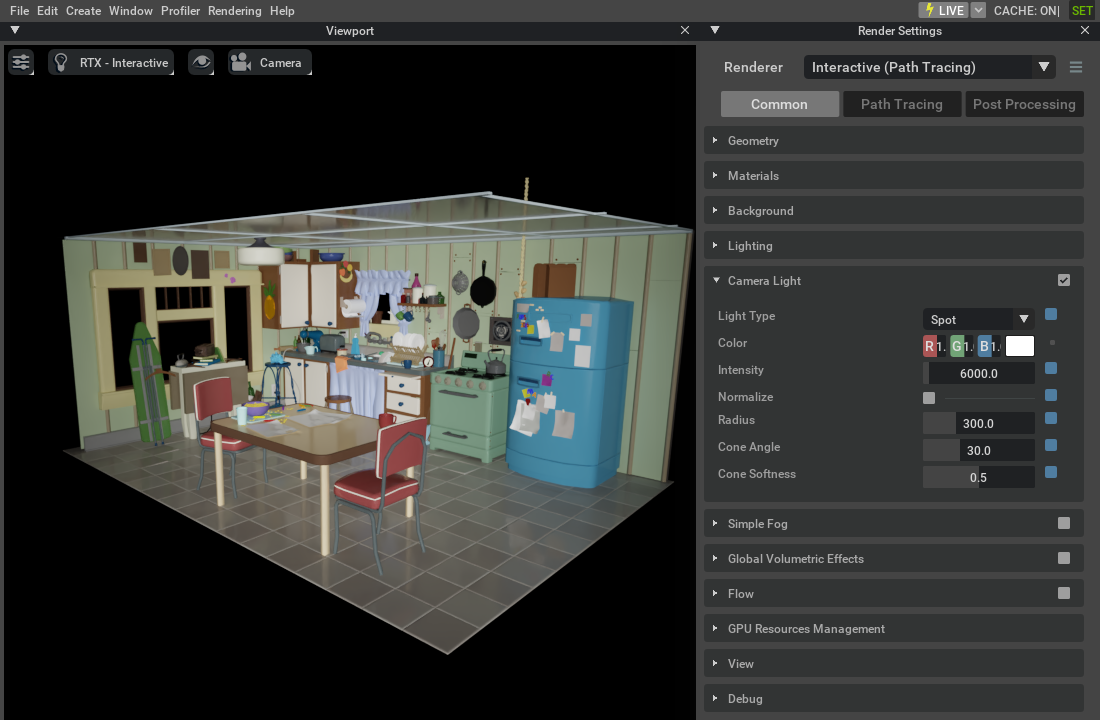
Spot Camera Light uses a finite emitter at the camera and angular cone falloff without inverse-square distance attenuation. Occluding geometry does not cast shadows from this light.#
Use these values as a starting point. Adjust Intensity for your scene scale, exposure, and desired appearance. When Normalize is disabled, changing the Spot Radius also changes its brightness.
Note
Changing a Camera Light setting automatically restarts Path Tracing accumulation.
Configure Camera Light with Python#
You can change the same settings from a Kit Python extension or the Script Editor after the RTX renderer has initialized. For example, configure the Spot light shown in the Kitchen Set example:
import carb.settings
settings = carb.settings.get_settings()
settings.set("/rtx/useViewLightingMode", True)
settings.set("/rtx/viewLighting/lightType", 1)  # 0 = Distant, 1 = Spot
settings.set("/rtx/viewLighting/color", (1.0, 1.0, 1.0))
settings.set("/rtx/viewLighting/intensity", 6000.0)
settings.set("/rtx/viewLighting/normalize", False)
settings.set("/rtx/viewLighting/radius", 300.0)
settings.set("/rtx/viewLighting/coneAngle", 30.0)
settings.set("/rtx/viewLighting/coneSoftness", 0.5)
In the same Python session, run the following code to return to the stage lighting without resetting these values:
settings.set("/rtx/useViewLightingMode", False)
These settings remain active until another component changes them or the application exits. If your extension changes them temporarily, save the previous values and restore them when it shuts down.
Note
Use the controls above or Carbonite settings to customize Camera Light. The render-settings extension mirrors these settings to RenderProduct attributes in one direction. Editing those attributes does not update the settings that control the rendered camera light.