


Time-Varying Structural Analysis#
This example visualizes an EnSight Gold structural simulation of a bumper beam deforming against a pole. It covers time mapping, playback, field coloring, on-demand statistics, and temporal interpolation.
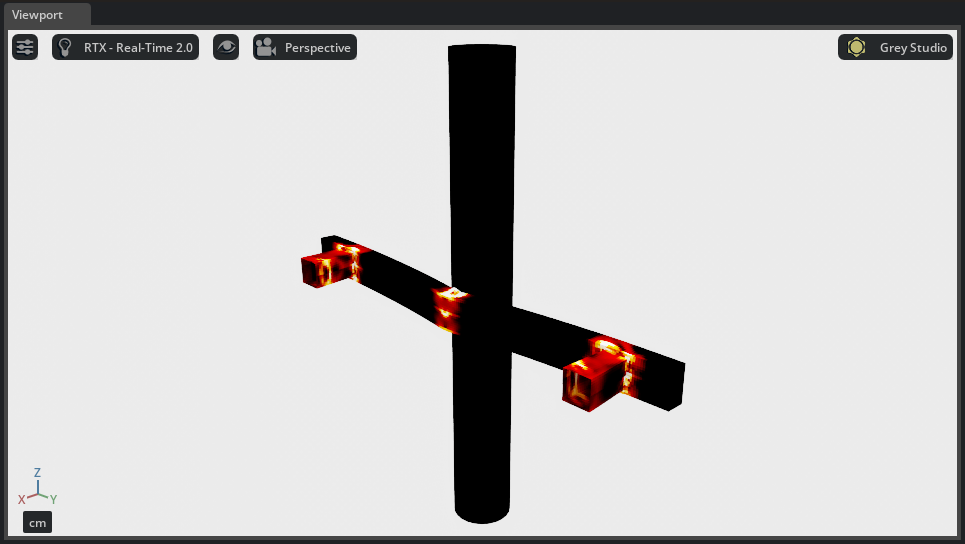
Dataset#
Use:
{path to}/kit_cae_user_guide_data/examples/01_time-varying-structural/bumper_beam.case
Field |
Association |
Description |
|---|---|---|
|
element |
Maximum plastic strain across the five through-thickness layers |
|
element |
Plastic strain at the upper shell surface, integration layer 5 |
|
element |
Plastic strain at the lower shell surface, integration layer 1 |
|
node |
Nodal contact pressure |
The mesh contains approximately 13,500 nodes with quadrilateral and triangular shell elements. The case contains 51 indexed samples and does not provide physical time values.
Import and Map Time#
Launch Kit-CAE.
Linux:
./repo.sh launch -n omni.cae.kitWindows:
repo.bat launch -n omni.cae.kitSelect File > Import, select
bumper_beam.case, enable Import to Stage, and select Import.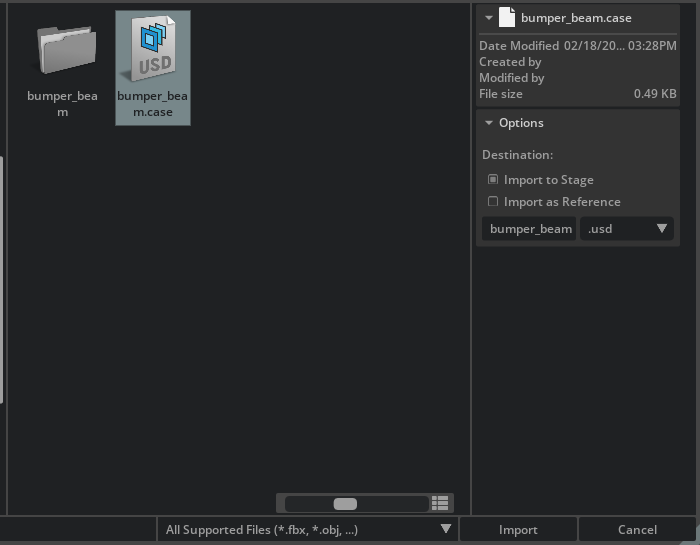
Select the imported
bumper_beamroot. Under CAE File Format Time, set Source toTimeStepand Scale to0.0333333333.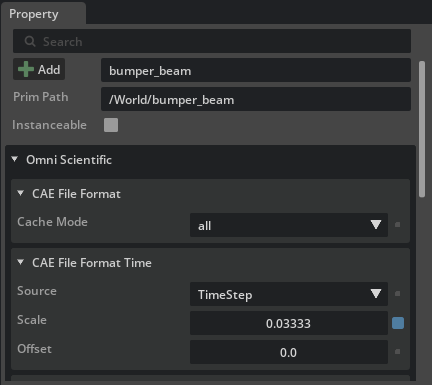
The case provides 51 indexed samples but no physical time values, so TimeStep supplies source values 0 through 50. A Scale of 0.0333333333 assigns 1/30 second to each saved sample, and the default Offset of 0 leaves the sequence at the start of the timeline. At 60 time codes per second, the samples land at time codes 0, 2, ... 100, leaving one intermediate time code between each pair.
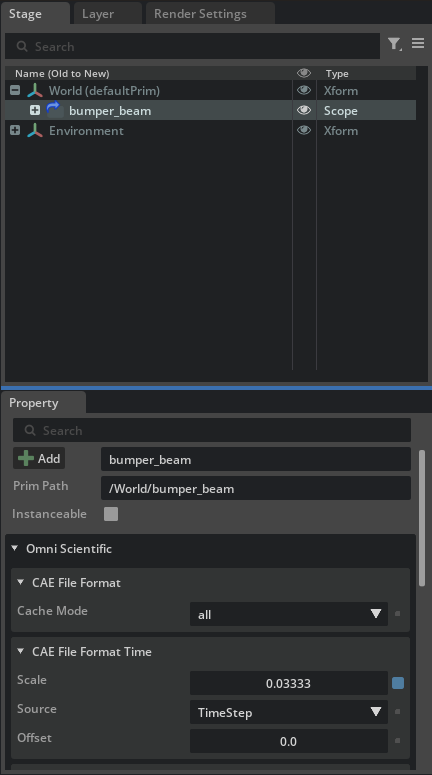
Visualize the Deformation#
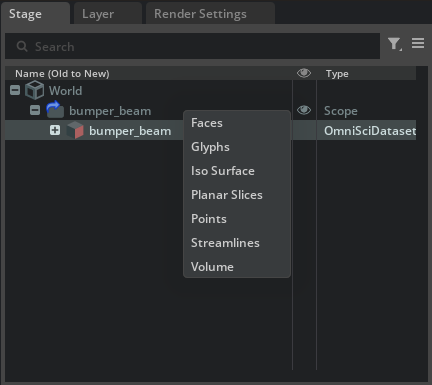
Expand the imported root and select the dataset prim named
bumper_beam.Right-click and select Create > CAE Operators > Faces.
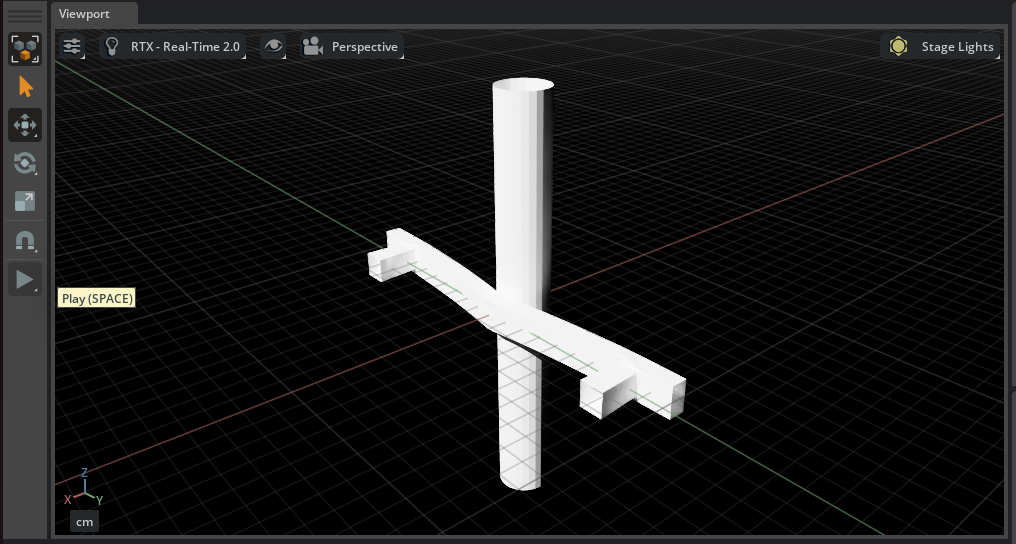
Select Play or press Space. Scrub the timeline once to populate the cache if the first playback is uneven.
Select the Faces operator. Under Colors [Field Selection], use Add Field to select
PlasticStrain.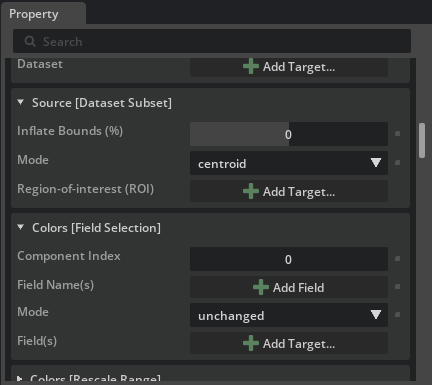
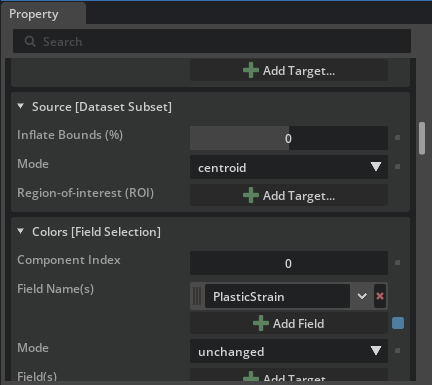
The default range maps the full field extent at the current time.
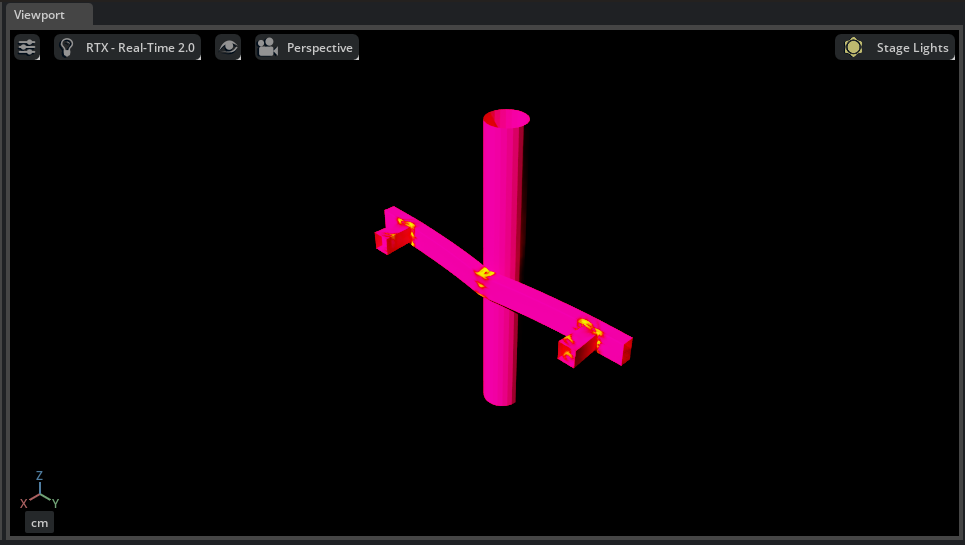
Inspect the Field#
Select the imported
bumper_beamdataset.In Arrays, select
PlasticStrain. Expand Array Details and select Compute Details.At time code
0, the beam has not deformed and the strain values are zero.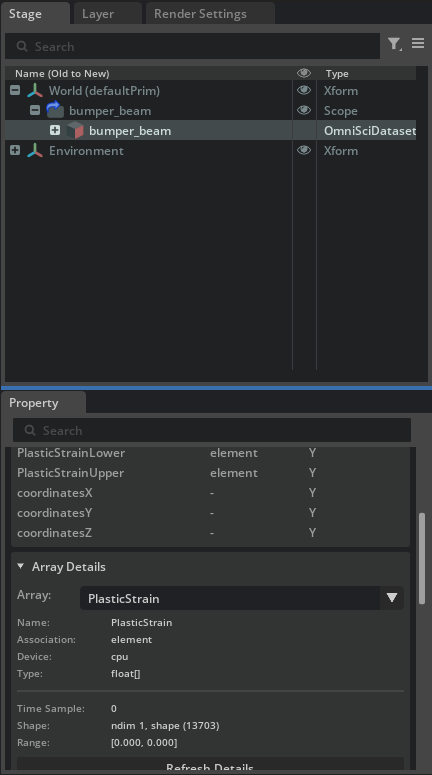
Move the timeline to the final source sample. The previous values remain visible with an obsolete-data warning. Select Refresh Details.
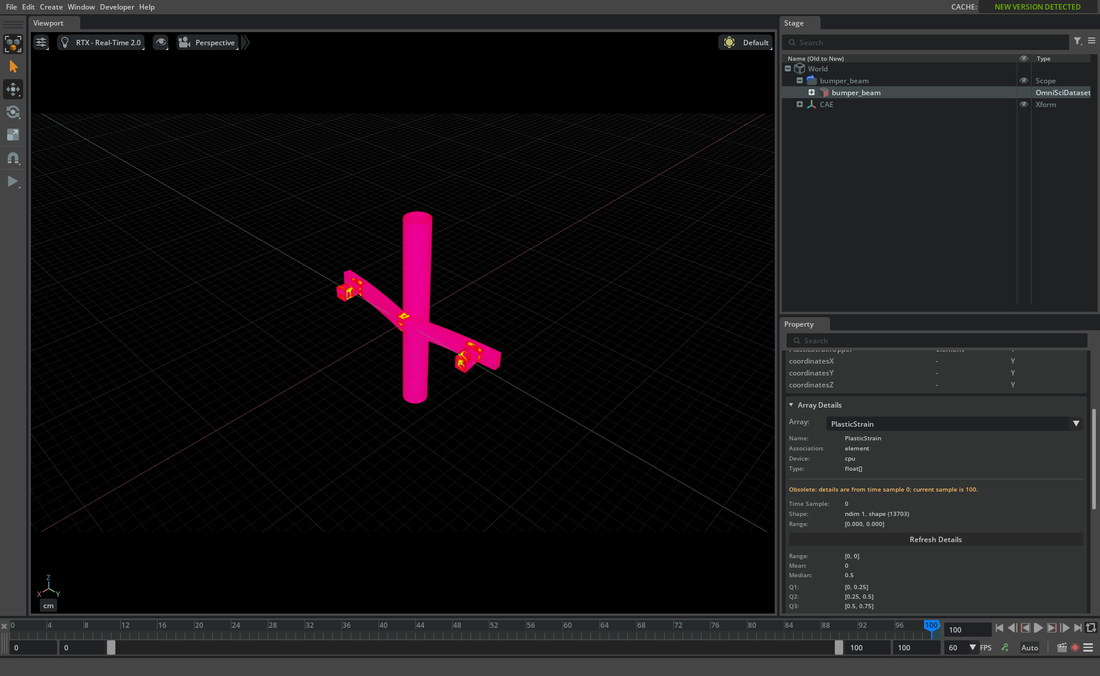
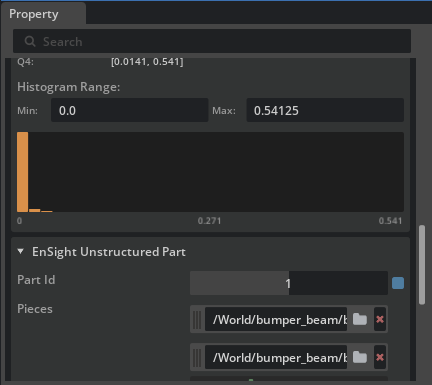
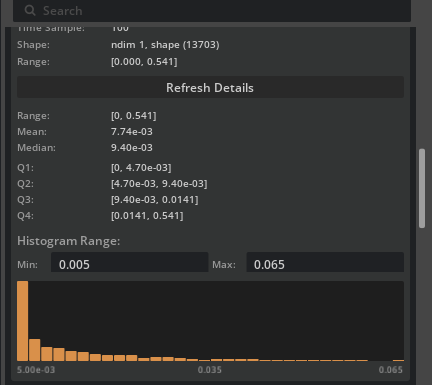
At the final sample, the full PlasticStrain range is approximately 0 through 0.541. Set the histogram minimum to 0.005 and maximum to 0.065 to focus on the nonzero values before choosing a fixed color domain.
Set a Fixed Color Range#
Select the Faces operator and set the colors Rescale Mode to
disable.Expand Materials > ScalarColor > Shader and set domain to
0through0.065.Select another lut if needed.
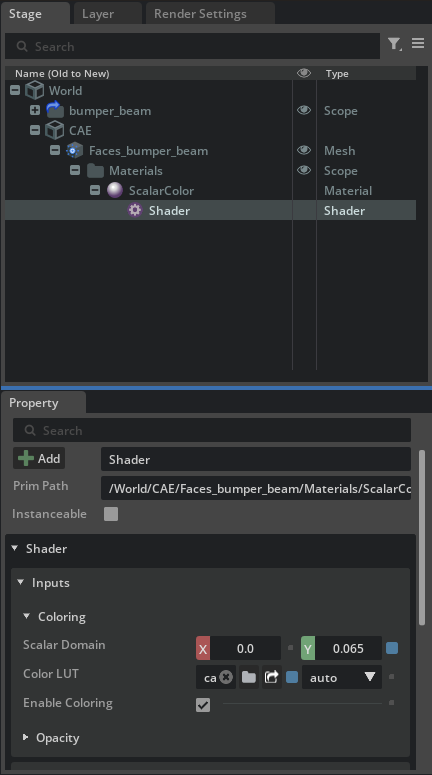
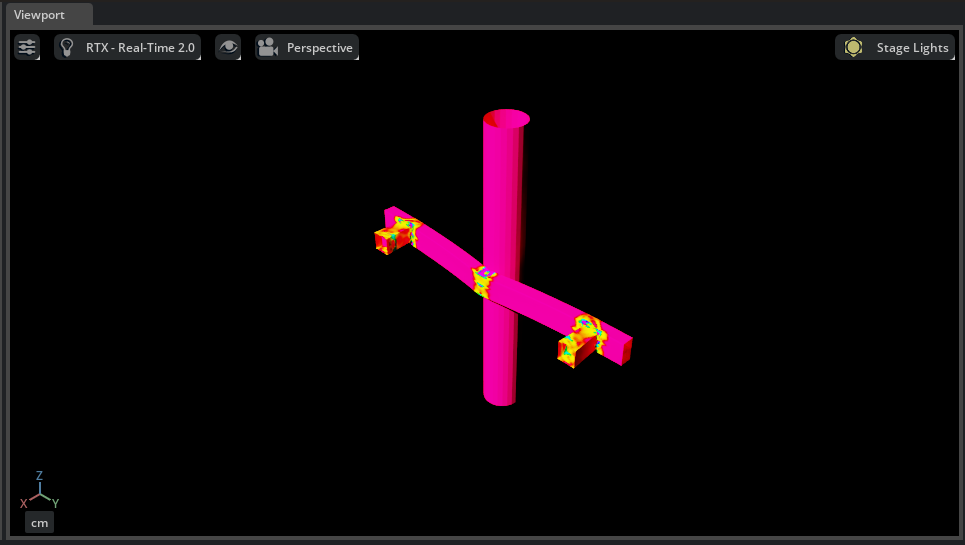
The same domain now applies throughout playback.
Enable Temporal Interpolation#
Select the Faces operator.
Select the + menu in the Properties panel, then select CAE > Operator Temporal.
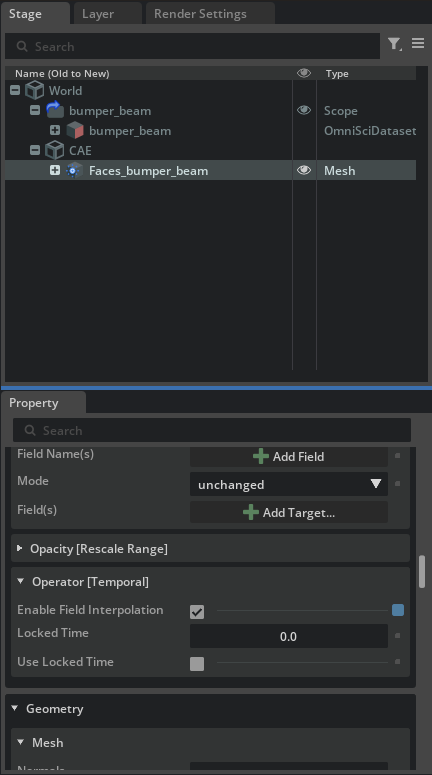
Under Operator [Temporal], enable Enable Field Interpolation.
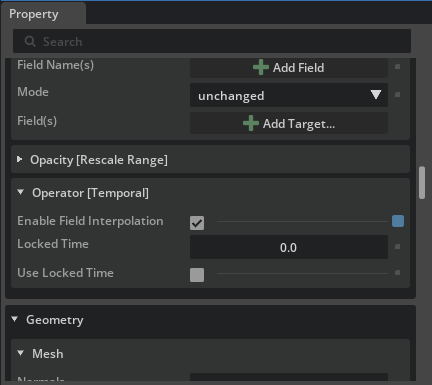
Scrub odd time codes such as 1 or 3. Kit-CAE interpolates between the neighboring source samples, giving 101 inclusive timeline positions from 0 through 100.