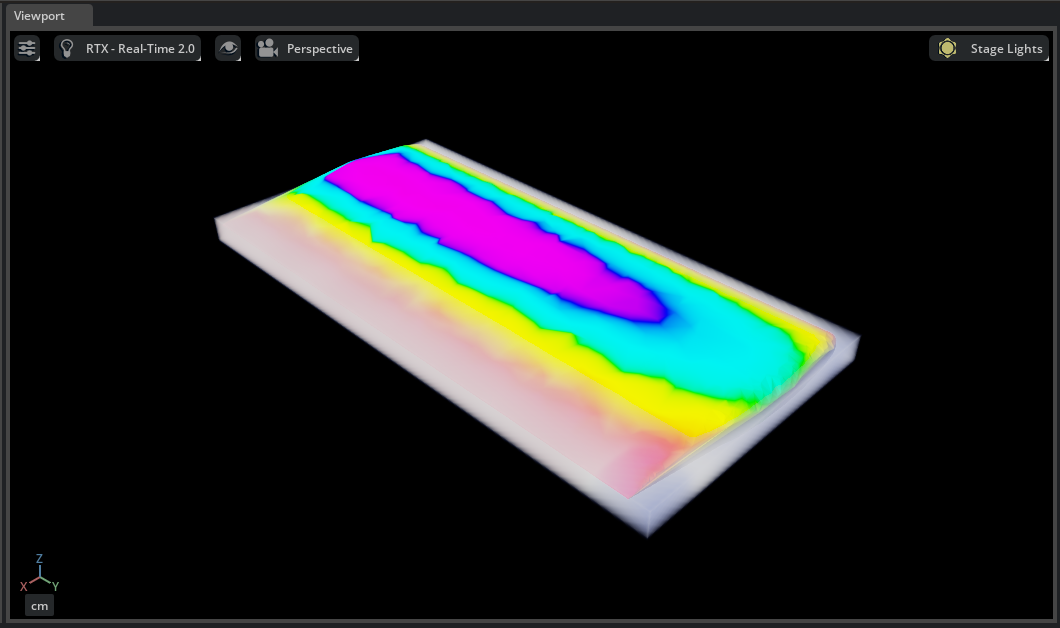

Multi-Domain Simulation#
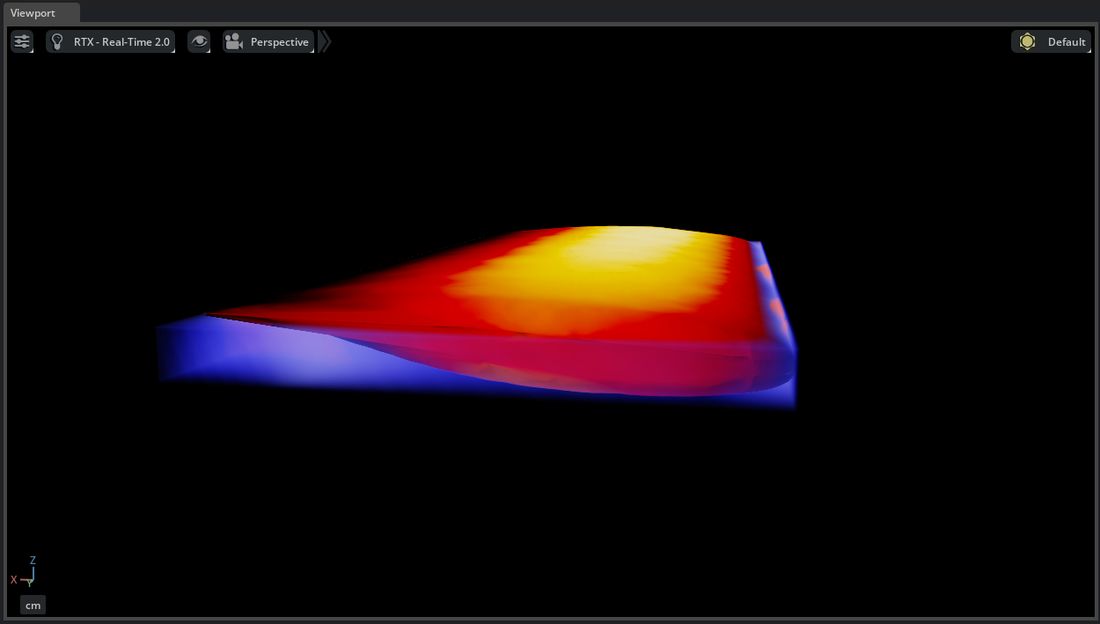
This example composes CFD pressure data and structural bending stress in one stage. The CGNS and EnSight Gold files share a 101-sample timeline, so both visualizations update together during playback.
Dataset#
Use the files in:
{path to}/kit_cae_user_guide_data/examples/03_multi-domain
bscw_cfd.cgnsprovides the node-associatedCppressure coefficient at 4,991 points around the wing.bscw_struct.caseprovides the node-associatedBendingStressfield on the wing surface.
The data is derived from unsteady URANS results on the Benchmark Supercritical Wing at M = 0.74 and Re = 4.49 × 10⁶ under prescribed pitch and plunge motion.
Note
This example requires the sample data described in Examples. If you have not built Kit-CAE, see Get Started first.
Import Both Domains#
Launch Kit-CAE.
Linux:
./repo.sh launch -n omni.cae.kitWindows:
repo.bat launch -n omni.cae.kitSelect File > Import, select
bscw_struct.case, enable Import to Stage, and select Import.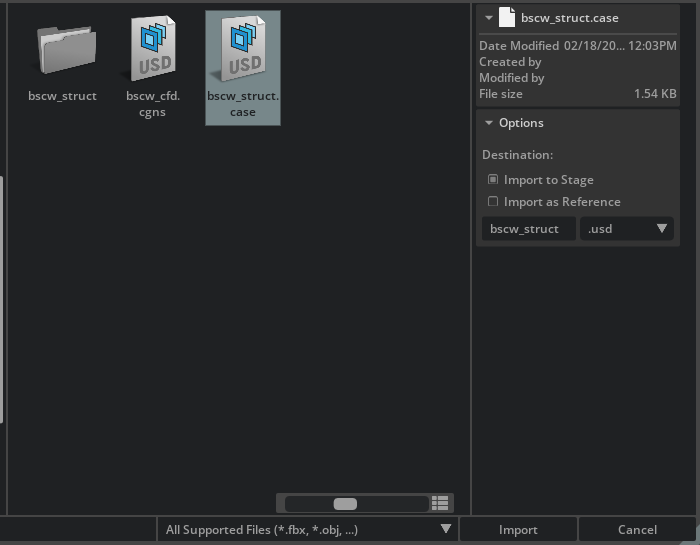
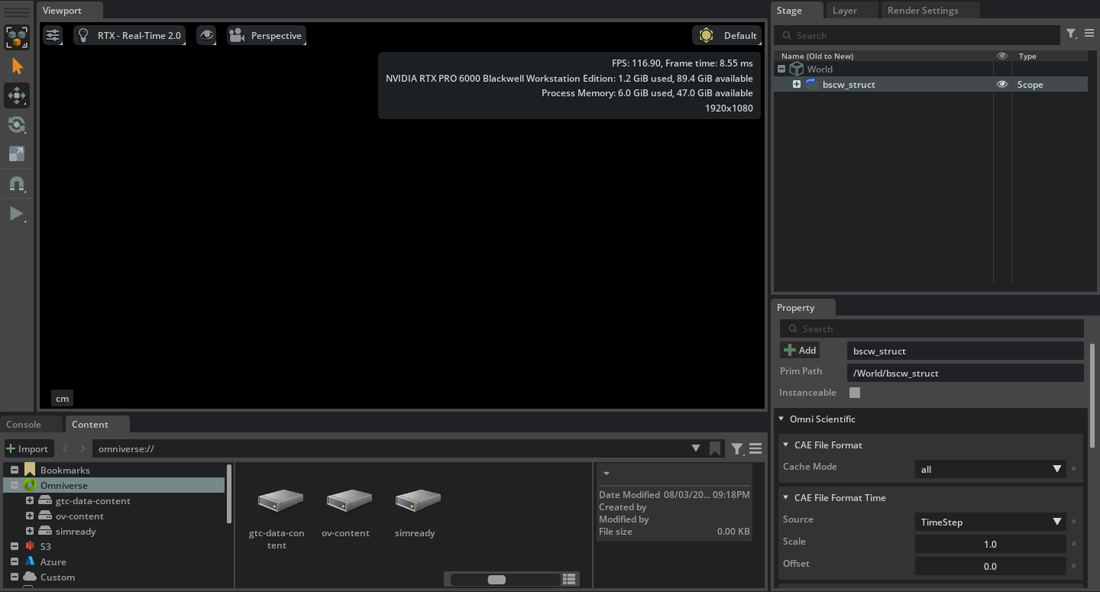
Import
bscw_cfd.cgnsthe same way.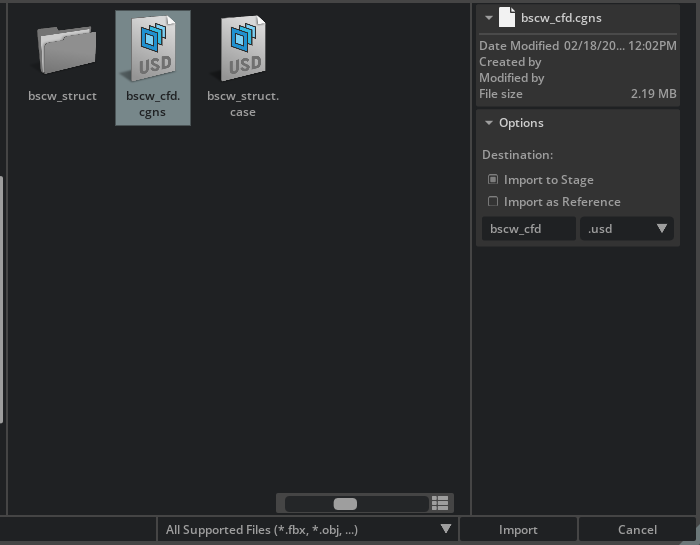
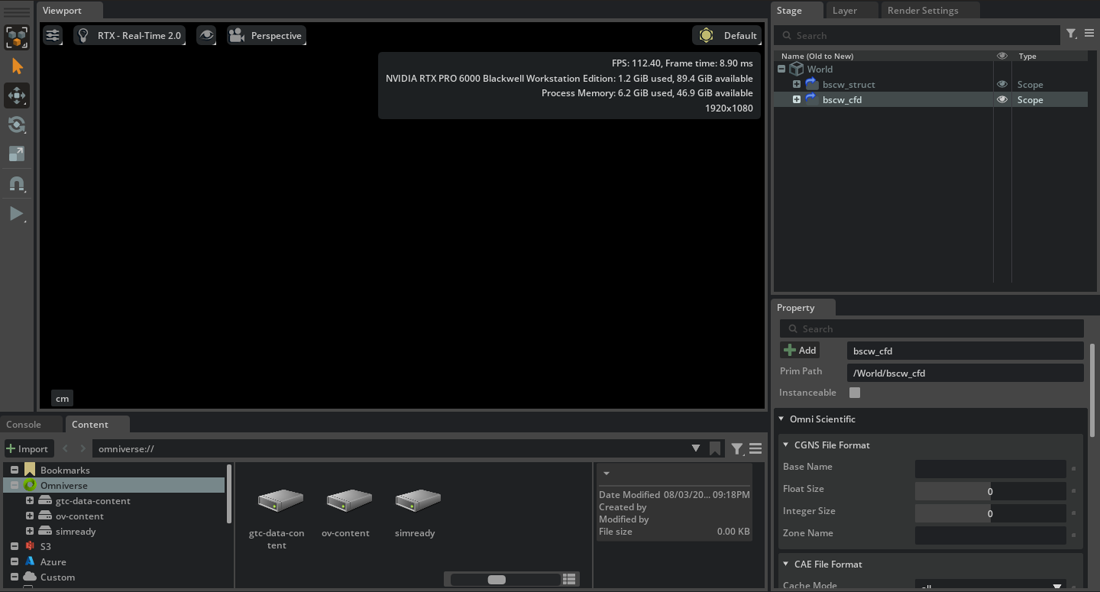
The Stage panel now contains one imported root for each solver output. Nothing appears in the Viewport until you create operators.
Visualize the Structural Domain#
Expand the EnSight hierarchy and select the dataset named
wing_surface.Right-click and select Create > CAE Operators > Faces.
Select Play or press Space to animate the deformation. Scrub the timeline once to populate the cache if needed.
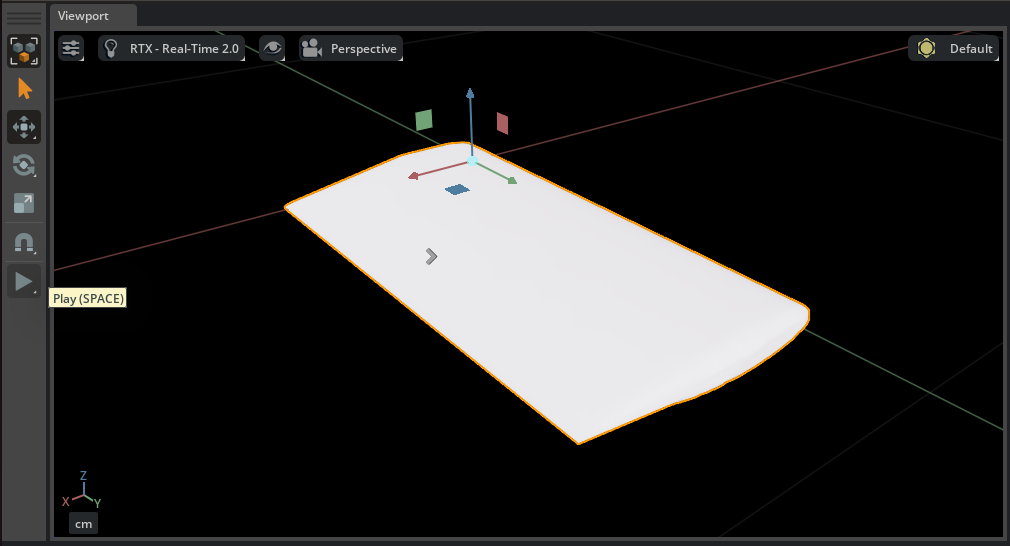
The first pass through a transient dataset populates its cache. Later playback is smoother. Select the wing and press F if you need to frame it.
Visualize the CFD Domain#
Expand the CGNS hierarchy to
Base > Zone > Elements.Hide the Faces operator while configuring the CFD volume.
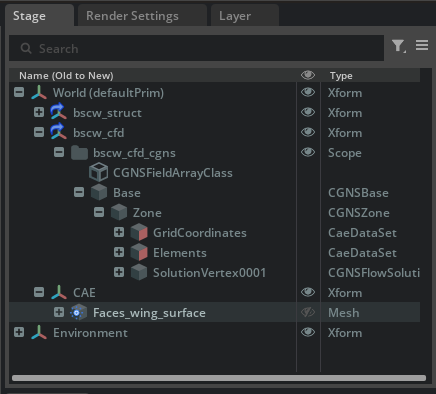
Right-click
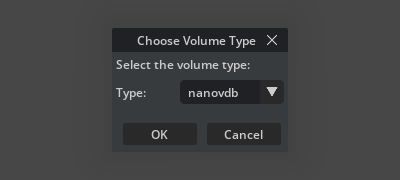
Elementsand select Create > CAE Operators > Volume. Choose nanovdb.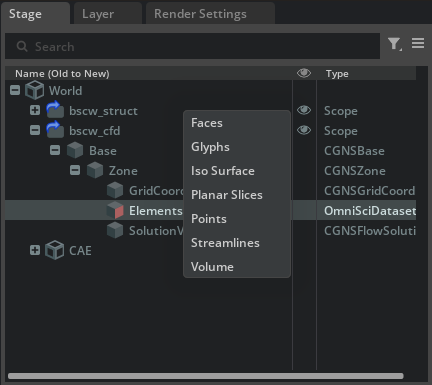
Under Colors [Field Selection], use Add Field to select
Cp.Start with Max Resolution
256under Source [Dataset Voxelization] and increase it when more detail is required.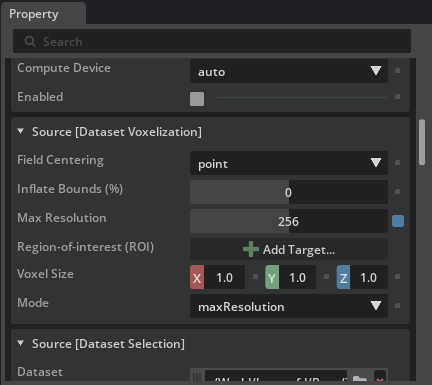
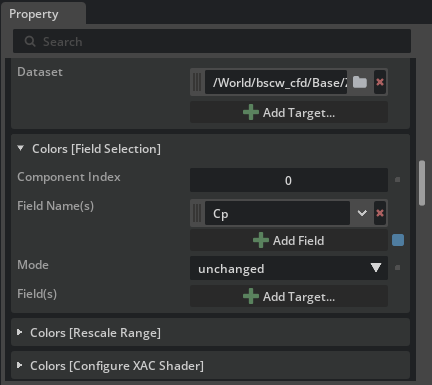
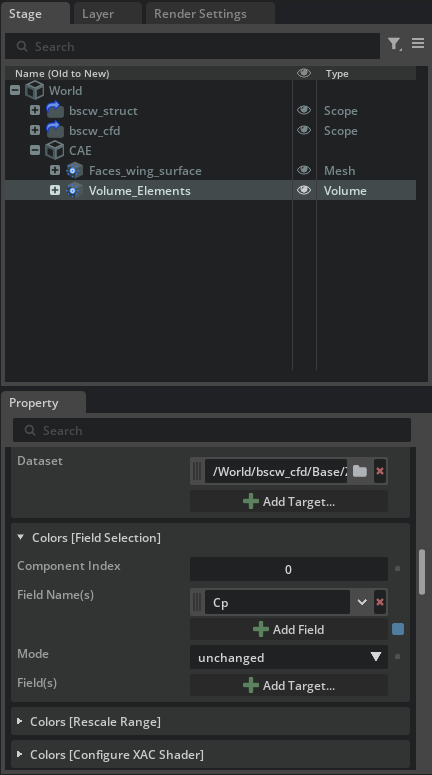
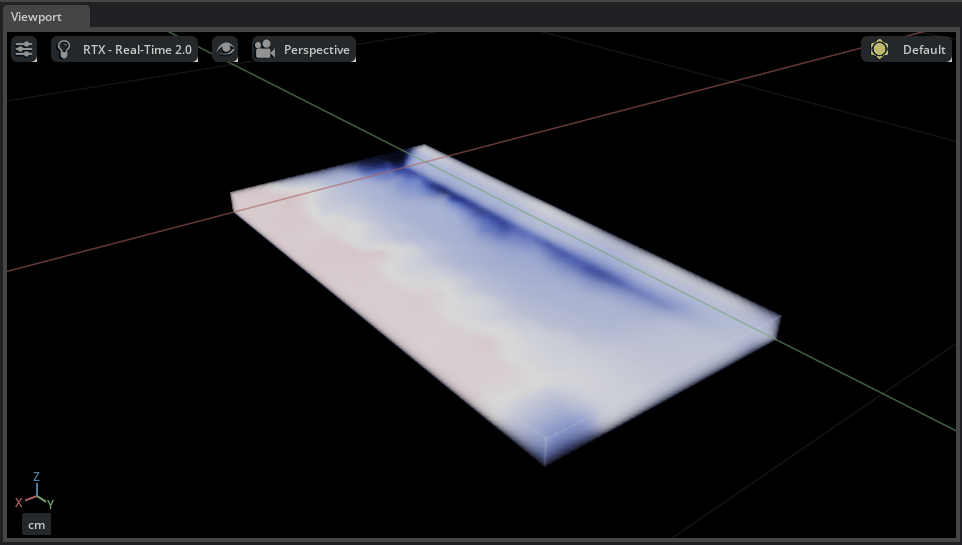
The pressure-coefficient field now appears around the wing.
Bring the Domains Together#
Show both the Faces and Volume operators.
Select the Faces operator. Under Colors [Field Selection], use Add Field to select
BendingStress.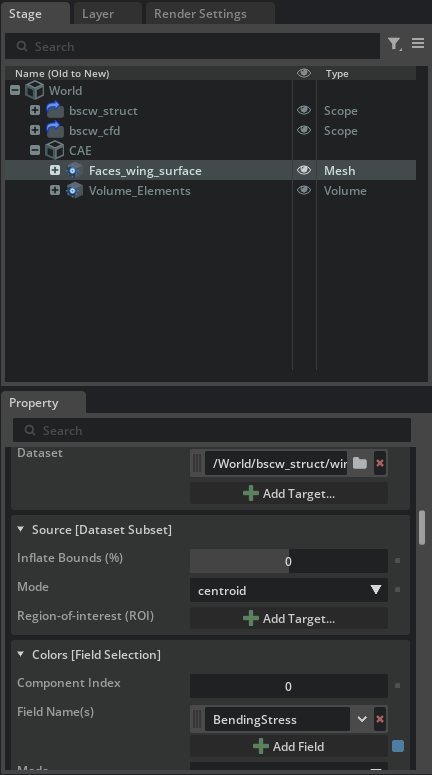
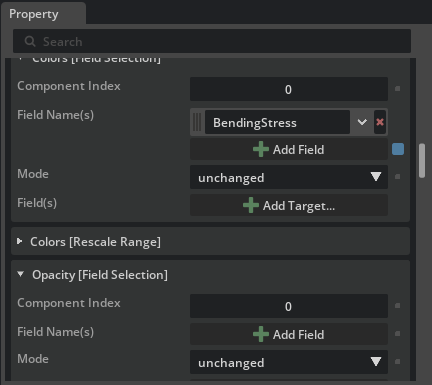
Set the Faces colors Rescale Mode to
disable. On Materials > ScalarColor > Shader, set domain to1.1through24.2.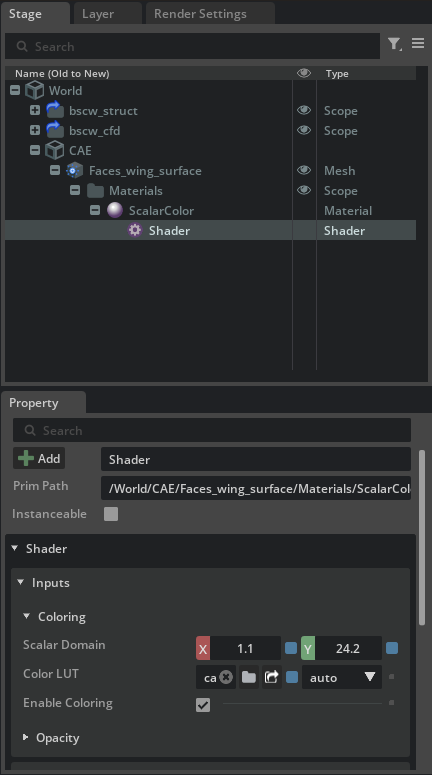
Scrub or play the timeline.
The pressure field and bending-stress surface remain synchronized even though they originate in different native formats.