


Import Data#
Kit-CAE imports scientific datasets through the standard File > Import dialog with format-specific options for CAE data.
Import a Dataset#
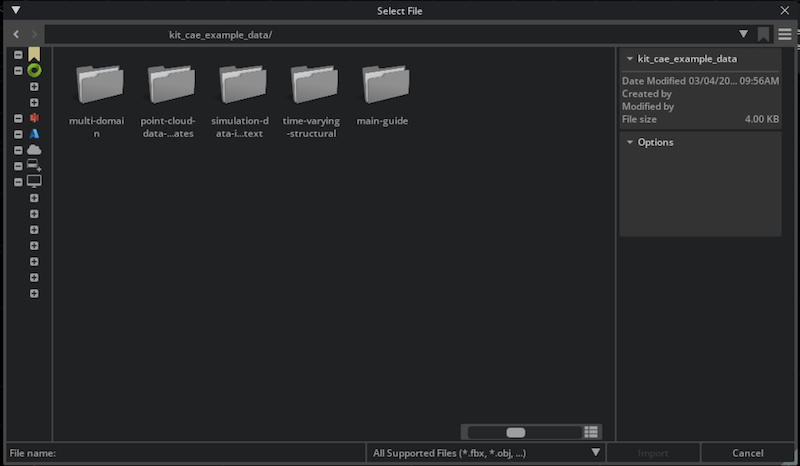
Click File > Import and browse to the directory containing your data file.
Ensure the file type filter matches your format (for example,
*.cgns,*.npz, or*.*for all files).Check Import to Stage (recommended) to bring the data directly into the current stage rather than as a reference.
Click Import.
Supported formats:
CGNS: Hierarchical scientific data with full SIDS data model support. Best for structured and unstructured meshes from commercial CFD solvers.
NumPy (
.npz,.npy): Point cloud and array data from Python workflows. Useful for machine learning pipelines and quick prototyping.VTK: Structured and unstructured grids (VTI, VTU, VTP, VTS, and legacy VTK). An optimized reader handles large VTU files efficiently.
EnSight Gold: Mesh and field data with polyhedral element support and cached metadata for faster re-reads. Common output format for commercial solvers.
OpenFOAM: Direct import of OpenFOAM case directories, including parallel decomposed cases. No file conversion needed.
Time Series Import#
When a file contains time steps, the import dialog displays additional time options.
Time Step vs. Time Value
For CGNS files, there are two time concepts:
Time step: An integer index (0, 1, 2, 3, …)
Time value: The actual simulation time (for example, 0.001s, 0.002s, …)
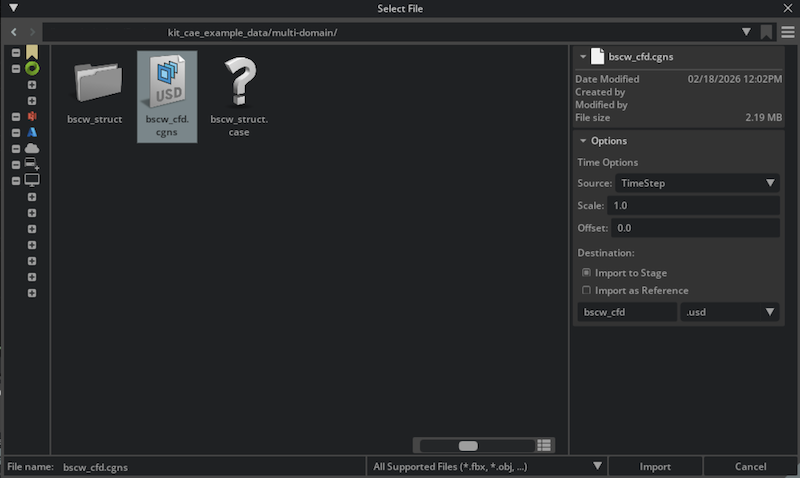
Scale and Offset
These controls map file time steps to stage time samples:
Scale: Multiplies the time step index. A scale of 10 means step 0 appears at sample 0, step 1 at sample 10, step 2 at sample 20, and so on.
Offset: Shifts all time samples by a constant. An offset of 100 places the first time step at sample 100.
This mapping enables interpolation between time steps for smooth animations. For a hands-on walkthrough of time series import with a structural dataset, see Time-Varying Structural Analysis.
Import Multiple Files#
To import multiple files, select them in the import dialog. Each file displays its own import options.
Note
There is currently no way to select multiple files and apply the same options to all of them simultaneously. If you need to aggregate multiple files into a single USDA, create the file manually or with a custom script. For an example of how time steps are represented in a saved USDA, import one of the time-series example datasets (such as Time-Varying Structural Analysis) and inspect the resulting .usda file.
Note on Units#
Kit-CAE uses centimeters (cm) as its default unit. No automatic unit conversion is performed on import. If your data uses a different unit system, apply a transformation manually.
Try It: Import the Vehicle Dataset#
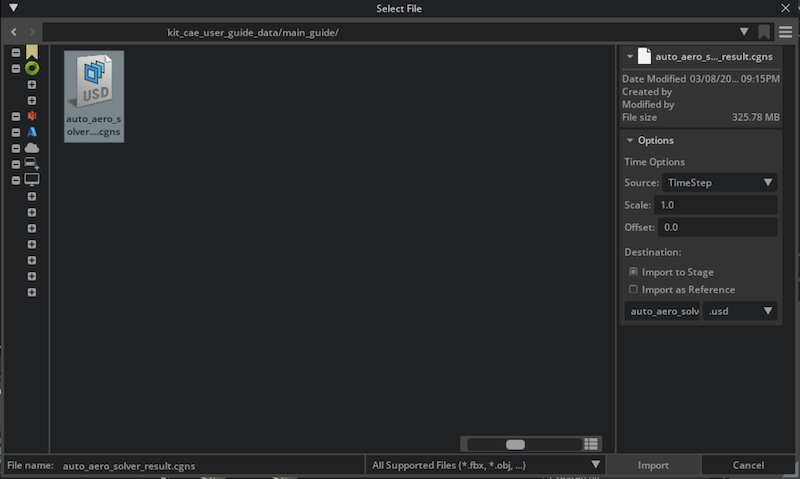
Use the auto_aero_solver_result.cgns file from the sample data you downloaded in Get Started.
Click File > Import and navigate to:
{path to}/kit_cae_user_guide_data/main_guideSelect
auto_aero_solver_result.cgns.Check Import to Stage and click Import.
After import, a new prim appears in the Stage panel under
/World. Nothing is visible in the viewport yet; this is expected. You have not created any visual operators on the data.