


Create Sources#
Sources are immutable helper entities. To create one, right-click a prim in the Stage panel and navigate to Create > CAE Sources. Unlike operators, sources do not re-execute when the stage reloads. They are plain USD prims with no CAE operator API schemas applied.
The sources available depend on the type of entity selected. A bounding box and unit sphere are available by default on any dataset prim. Other sources (such as slice planes) appear only on specific entity types; for example, the slice source is available on volume operator results.
Bounding Box#
A bounding box visualizes the spatial extent of a dataset. It is also commonly used as a Region of Interest (ROI) to limit the domain for operators like streamlines and volume rendering.
In the Stage panel, select a dataset node.
Right-click and navigate to Create > CAE Sources > Bounding Box.
A new bounding box prim is created under
/World/CAE/.Press F to zoom to fit the bounding box in the viewport.
The bounding box uses the dataset’s bounds at the time of creation and is then disconnected from the data. Changes to the dataset do not update the bounding box. You can rename, transform, and scale the bounding box to define a custom Region of Interest. For example, scale by X: 2, Y: 1, Z: 1 to extend the ROI to include a vehicle’s wake region.
The bounding box serves two purposes: as a visual reference showing the spatial extent of your data, and as a Region of Interest (ROI) for operators. When assigned as an ROI to a Streamlines or Volume operator, it limits computation to the region inside the box. This is useful for focusing on a specific area (for example, the wake behind a vehicle) without processing the entire domain.

Unit Sphere#
A unit sphere provides seed geometry for streamline operators and flow emitters. Each vertex on the sphere becomes a starting point for a streamline trace or a particle emission source.
In the Stage panel, select a dataset node (or a bounding box).
Right-click and navigate to Create > CAE Sources > Unit Sphere.
A new prim named
/World/CAE/UnitSphereis created. The sphere is positioned and sized based on the bounds of the selected object.Scale and position the sphere to control where streamlines originate or where flow particles emit from.
Position the sphere at an inlet to see the full flow path, or at a region of interest to examine local circulation. Any geometry in the stage can also serve as a seed source. To use custom geometry (for example, a line, a rake of points, or an imported mesh), select it in the Streamlines operator’s Seeds property instead of the Unit Sphere.

Try It: Create a Bounding Box and Unit Sphere#
In the previous Try It you explored the vehicle dataset’s structure. Now create sources that you will use with operators in the next sections.
Create a Bounding Box#
In the Stage panel, select
/World/auto_aero_solver_result/auto_aero_solver_result_cgns/Base/Fluid_Domain/Fluid_Domain.Right-click and select Create > CAE Sources > Bounding Box.
A new prim
/World/CAE/BoundingBox_Fluid_Domainappears in the Stage panel.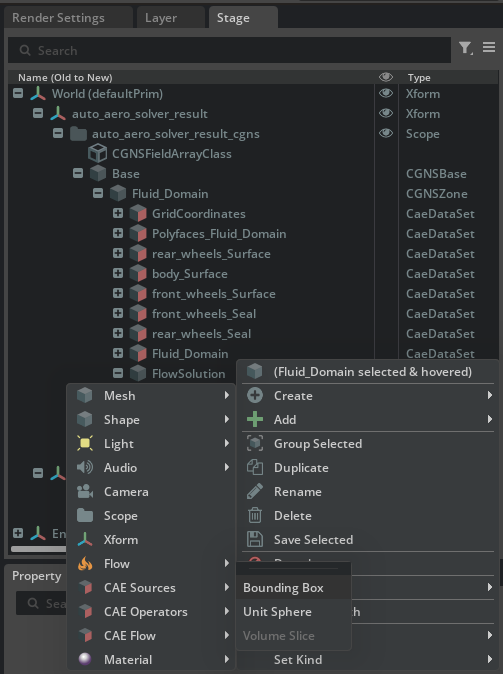
Press F to zoom to the bounding box in the viewport.
Create a Unit Sphere#
Select the bounding box you just created at
/World/CAE/BoundingBox_Fluid_Domain.Right-click and select Create > CAE Sources > Unit Sphere.
A new
UnitSphereprim appears under/World/CAE/. The sphere is sized and positioned based on the bounding box.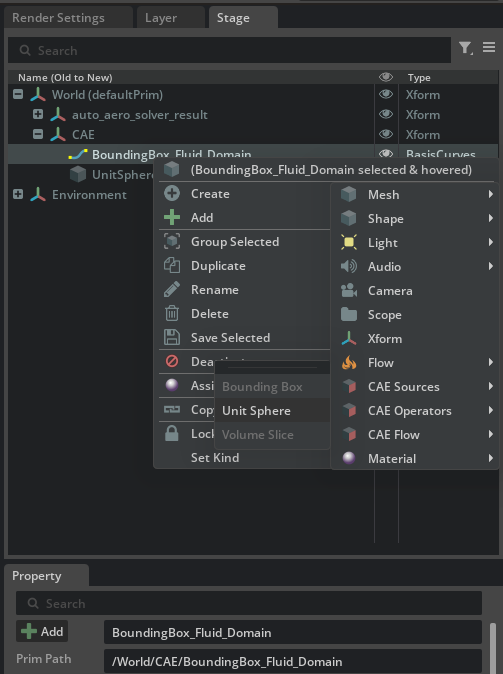
Position the sphere in front bounding box. We will later you use this sphere as the seed source for the streamlines operator.
