


Write scripts#
Python Scripting in OmniVerse#
In addition to Extensions there are several ways to Script using Python.
Understanding the Python Environments#
Understanding the different ways to use Python in Omniverse is crucial when deciding where to start. If you are new to using Python in Omniverse, read the following descriptions.
Developing Extensions
Using Behavior Scripting Components
Writing scripts using the Script Editor
Understanding each environment’s purpose and context is key when choosing between them.
Extensions#
Extensions are the most common domain for programming in Omniverse. They are the building blocks of an Omniverse application. Virtually all user interface elements in an Omniverse application such as Omniverse USD Composer or View are created using Extensions. Examples include the Content Browser, the Viewport, and the Stage. Extensions often create their own UI and are persistent in an application as long as they are set to load in the Extension Manager.
The modular nature of Extensions allows them to be used in any Omniverse application, thereby augmenting the functionality of that application. If you are familiar with the popular JavaScript library React, you will notice that Extensions are modeled after React Components.
Get started by exploring the Programming Your Extension section
Python Behavior Scripting#
Python Behavior Scripting is a convenient way to attach Python code to a specific asset (Prim) in your scene (Stage). It is a Python class that contains a reference to the Prim it is attached to. When you attach a Python script to a Prim, a new instance is created. This means that you can attach a Python to any number of Prims and each one will be its own instance and will behave separately from the others. If you are familiar with Unity, it is very similar to attaching a Script Component to a Game Object. For Unreal developers, it is similar to attaching a Component Actor to a Blueprint.
Like an Extension, a Python Behavior Scripting component implements on_startup(), on_shutdown() and on_update() which fires every tick when the simulation is running. When the parent Prim is deleted, the script is shutdown and destroyed.
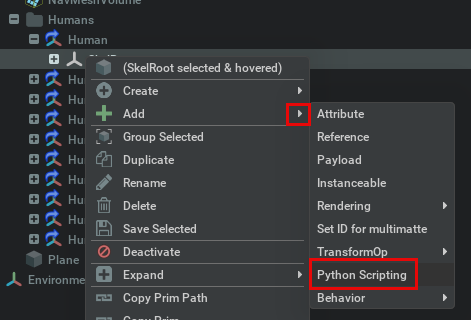
After adding the script to a Prim, you can add a Python script in the prim Properties panel.

The Script Editor#
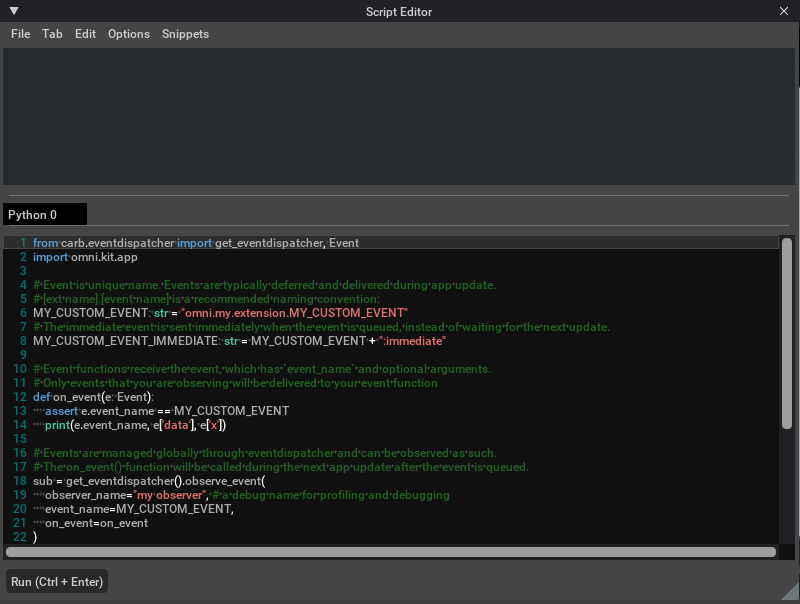
The Script Editor is an extension that lets you manually execute an entire file or multi-line block of Python code. It is similar to a command-line environment and can import and leverage much of the Kit API and USD schemas. This makes it a great way to perform simple tasks or tests without creating an extension.
Which coding environment should I use?#
The environment you choose depends on what you want to achieve. The following examples show several scenarios and which technology fits best.
You are building a reusable tool#
Suppose you are building the Randomizer Tool. Its purpose is to add randomized rotations (transforms) to objects (Prims). You want this tool to act on many Prims at once and need its UI to be persistent so you can use it whenever needed.
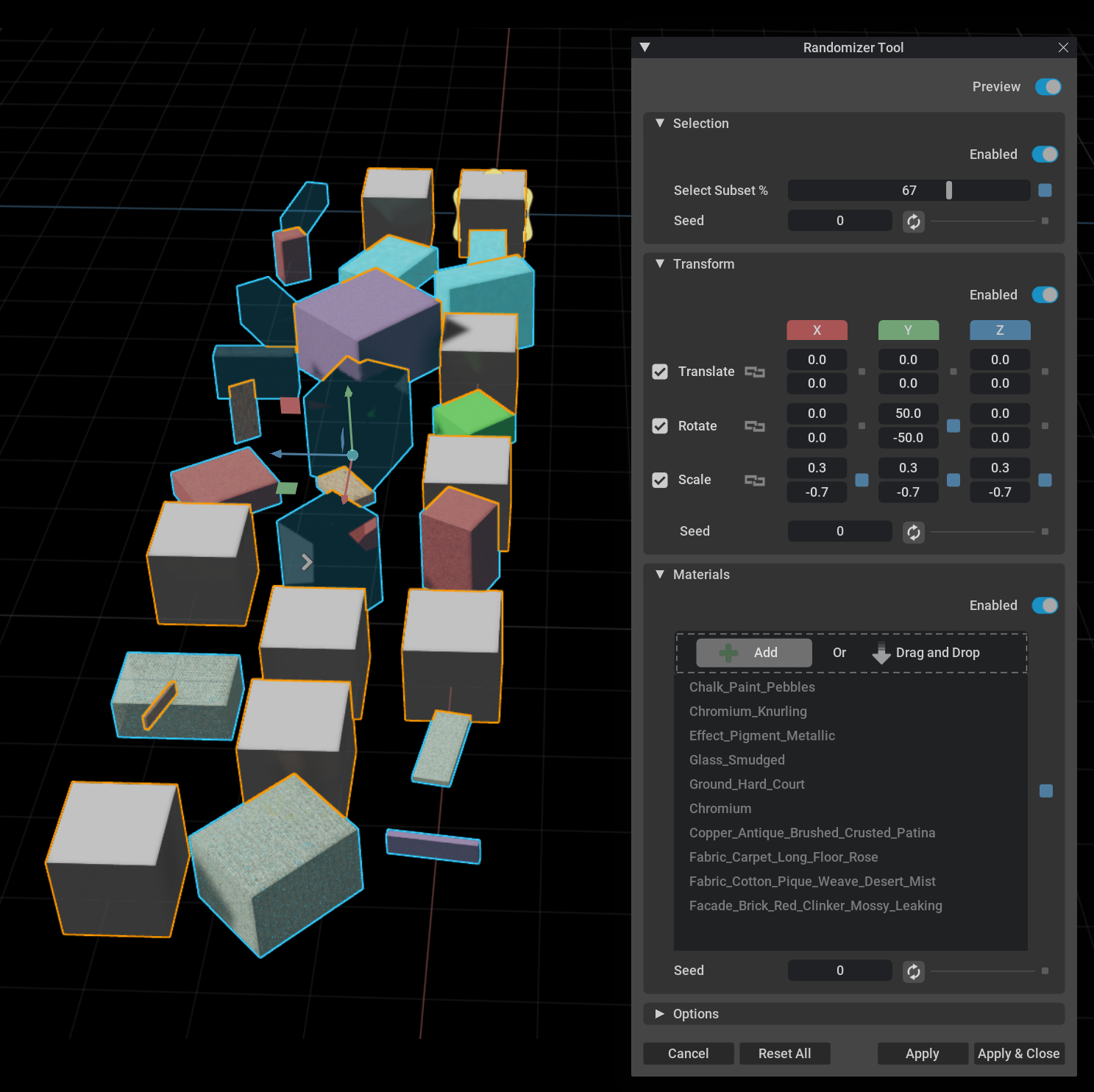
Extension is the appropriate environment. An extension provides persistent UI and survives session changes.
Python Behavior Scripting is not appropriate because if the parent Prim is deleted, the tool is destroyed.
The Script Editor is not appropriate because the Randomizer Tool must be persistent across application sessions.
You are creating a programmatic animation#
Suppose you want to render an animation of exactly three bouncing balls. The balls do not need to interact and each one will bounce twice and then get destroyed.
Extension would be overkill. Unlike a Python Behavior Scripting component, an extension keeps running after the ball is deleted from the scene unless you disable it in the Extension Manager. There are no complex interactions between the bouncing balls, and you do not need to create new ones with modifiable parameters.
Python Behavior Scripting fits this scenario. You can write a script to animate a ball Prim so it bounces. Python Behavior Scripting is designed to act on a specific prim and does not require a UI. You can attach the same script to as many ball prims as you want, and the script shuts down when the Prim is deleted.
The Script Editor has drawbacks for this case: you must specify the ball Prim when you run the script, and deleting the prim does not automatically dispose of the script.
Summary#
You have seen when to use Extensions (persistent tools and UI), Python Behavior Scripting (per-prim, simulation-driven logic), and the Script Editor (quick tests and one-off scripts). For extension development, refer to Programming Your Extension. For Behavior Scripting, refer to the Behavior Scripting documentation in the product.