

Kit Testing#
Goal: Download and configure the Kit SDK, then connect from Kit to your Storage deployment to browse and test storage.
Download the Kit SDK#
(Shared by both routes.)
Choose Your Testing Route#
Omniverse Kit 109 and above can be used to test Storage API deployments. There are now two testing routes, depending on your Kit version:
Route |
Testing route |
|---|---|
No launch-script changes are required. Kit discovers the Storage deployment automatically — just download, launch, and connect. |
|
You must set the Discovery service URL ( |
Both routes share the same Download the Kit SDK step above. After downloading, follow the numbered steps for your Kit version below.
Route A — Kit 110.2 and Later#
Step 1: Launch Kit#
Launch the Kit batch or shell script, we’re using the app.full script in this example.
./omni.app.full.sh # or .bat file on Windows
Step 2: Connecting to the Storage Deployment#
With Kit running, connect to your Storage deployment:
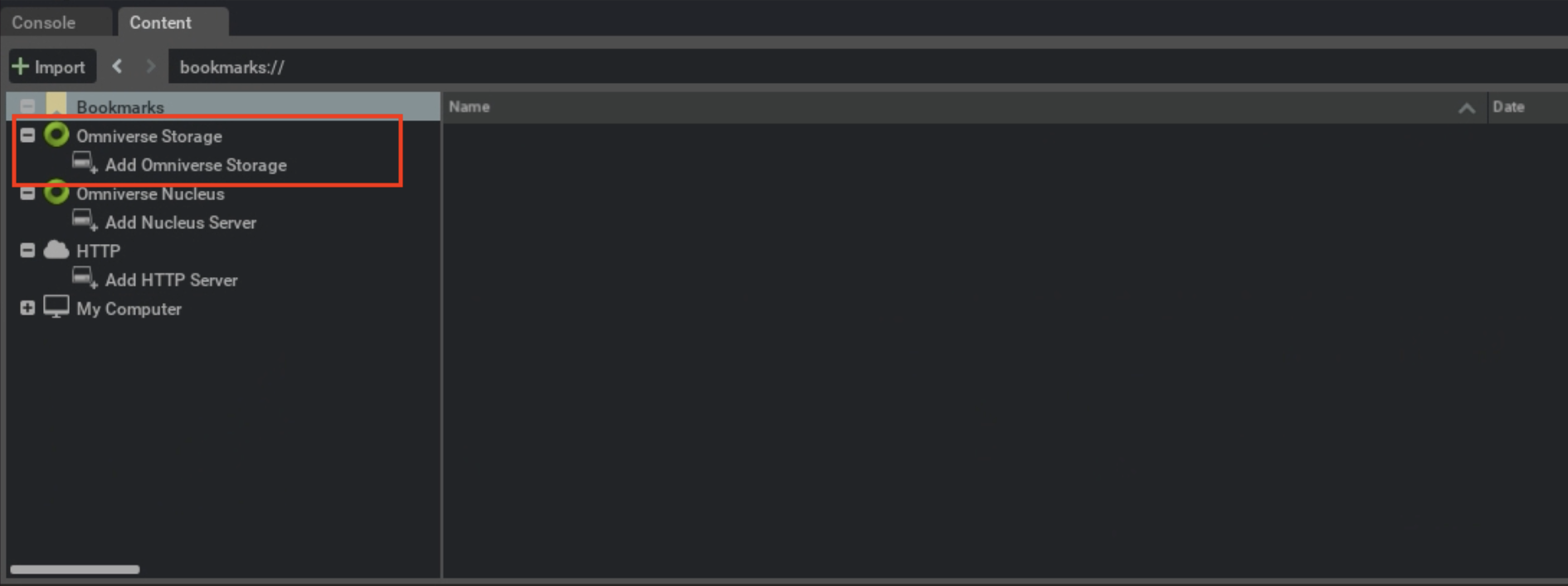
Open the “Add New Connection” Window Click the “Add New Connection” button to open the New Connection window.
Enter Your Storage URL Enter your storage URL in the “Connection Path” field.
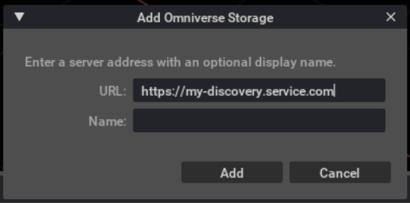
Add the Connection Click the “Add” button.
Browse and Test Storage Your discovery service should be listed on the left and it will display all the storage paths it’s configured to serve.
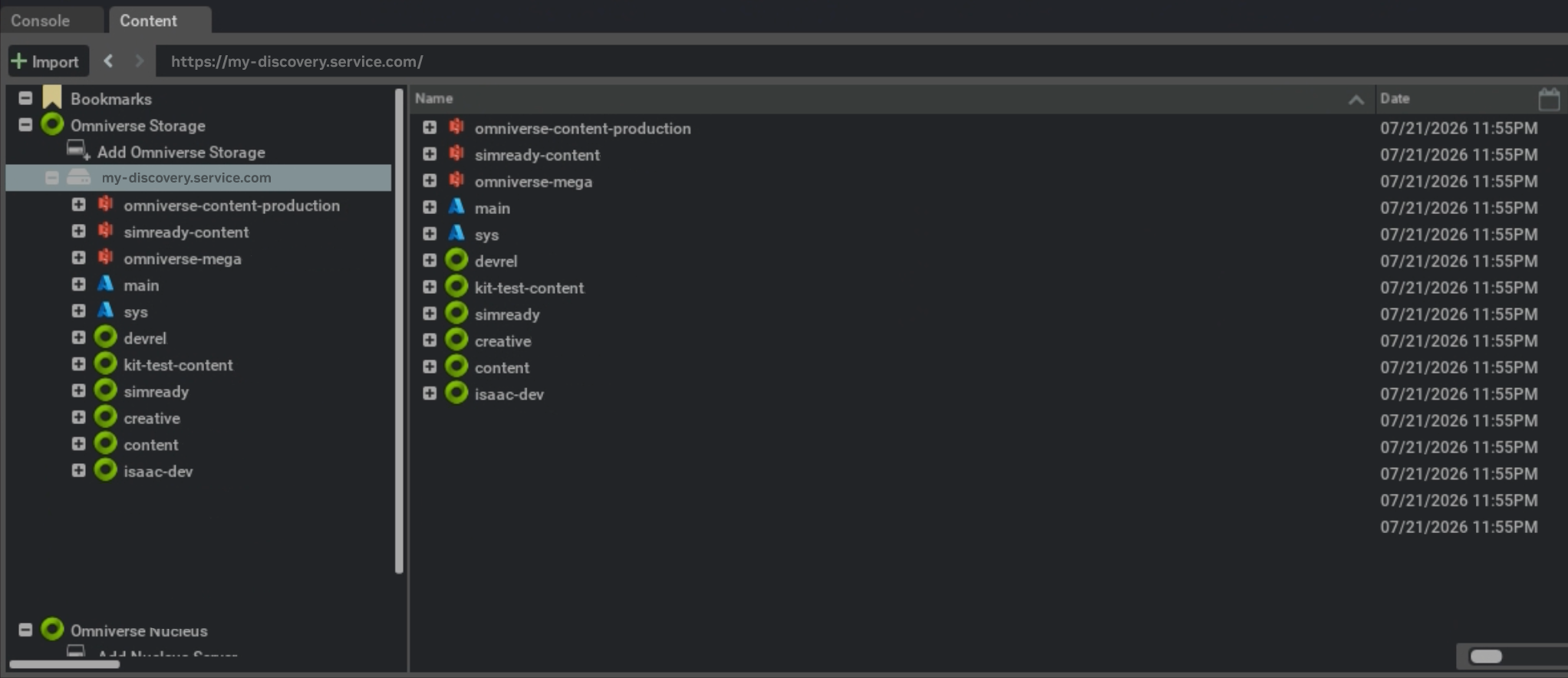
Browse in the Content Browser; try creating, opening, editing, and saving files to verify access.

Route B — Kit 109 through 110.1#
Step 1: Configure and Launch Kit#
Configure Kit for Your Deployment Set the Discovery service URL in the Kit launch script (
omni.app.full.shon Linux, or the.batfile on Windows) usingOMNI_STORAGE_DISCOVERY.Insert the line below into your launch script before the executable line (for example, before the
${EXEC:-exec}line inomni.app.full.sh). Replace{discovery-url}with your Discovery service URL.# for local deployment or deployments that do not use secure connections use http://{discovery-url} instead of https://{discovery-url} export OMNI_STORAGE_DISCOVERY=https://{discovery-url}
Launch Kit Save your launch-script changes and start Kit:
./omni.app.full.sh
Step 2: Connecting to the Storage Deployment#
With Kit running, connect to your Storage deployment:
Open the “Add New Connection” Window Click the “Add New Connection” button to open the New Connection window.
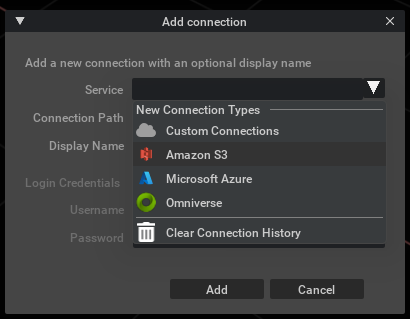
Enter Your Storage URL Enter your storage URL in the “Connection Path” field.
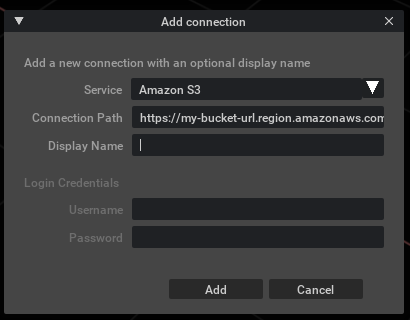
Add the Connection Click the “Add” button.
Browse and Test Storage Your bucket should appear in the list on the left. Browse in the Content Browser; try creating, opening, editing, and saving files to verify access.
Connecting with Kit App Streaming Deployments#
It’s possible to connect your Storage deployment to Kit App Streaming deployments. Please follow the instructions in the Kit App Streaming Documentation on how to configure connection to your Storage deployment.