
Storage Navigator Configuration#
Goal: Deploy the Storage Navigator (web-based file browser for Omniverse Storage APIs) so you can browse, upload, download, and manage files via your deployment.
Storage Navigator is a JavaScript web app for browsing and managing storage. Deploy it after your services and ingress are in place for a full experience.
Note
Complete all previous steps and have a working deployment accessible via ingress before continuing.
CORS Storage Configuration#
When browser-based clients or presigned URLs point directly at S3 or Azure Blob, the bucket or blob service must have CORS configured or the browser will block cross-origin requests.
AWS S3 Bucket CORS
Example cors.json:
[
  {
    "AllowedHeaders": ["*"],
    "AllowedMethods": ["GET", "PUT", "POST", "DELETE", "HEAD"],
    "AllowedOrigins": ["https://your-app-domain.com", "https://*.your-domain.com"],
    "ExposeHeaders": ["ETag", "Content-Length"],
    "MaxAgeSeconds": 3600
  }
]
Apply with the AWS CLI:
aws s3api put-bucket-cors --bucket BUCKET_NAME_HERE --cors-configuration file://cors.json
Replace AllowedOrigins with your web app origin(s). Avoid * in production when credentials are sent. ExposeHeaders (e.g. ETag) may be needed for conditional uploads.
Azure Blob Storage CORS
CORS is configured at the Blob service level of the storage account. In Azure Portal: Storage account → Resource sharing (CORS) → Blob service → add rules. Via Azure CLI:
az storage cors add \
  --account-name <storage-account> \
  --services b \
  --methods GET PUT POST DELETE HEAD OPTIONS \
  --origins "https://your-app-domain.com" "https://*.your-domain.com" \
  --allowed-headers "*" \
  --exposed-headers "ETag" "Content-Length" \
  --max-age 3600
Update the deployment certificates#
Ensure you have a certificate for this domain deployed in the storage-apis namespace.
# cert DNS namespace needed for the storage navigator
"navigator.{DNS_URL}"
Update Navigator to use the ingress#
Update the configuration to use ingress so you can access the Navigator.
# cd up to your deployment directory
cd ..

# update the configuration to use the ingress
helm upgrade --install storage-navigator ./storage-navigator -f storage-navigator/navigator-values.yaml -f ingress-values.yaml --namespace storage-apis

# validate the pod is running
kubectl get pods -n storage-apis
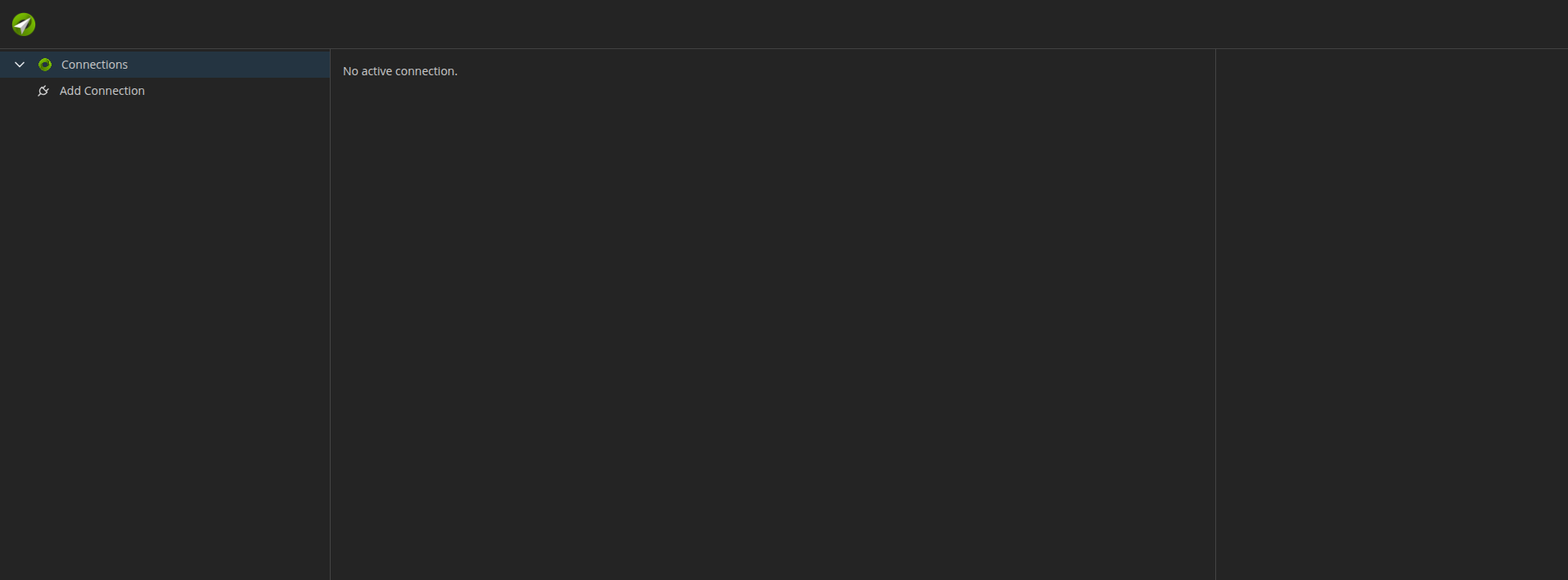
Once the pod is running, open https://navigator.{DNS_URL} in your browser. You should see the interface shown below.
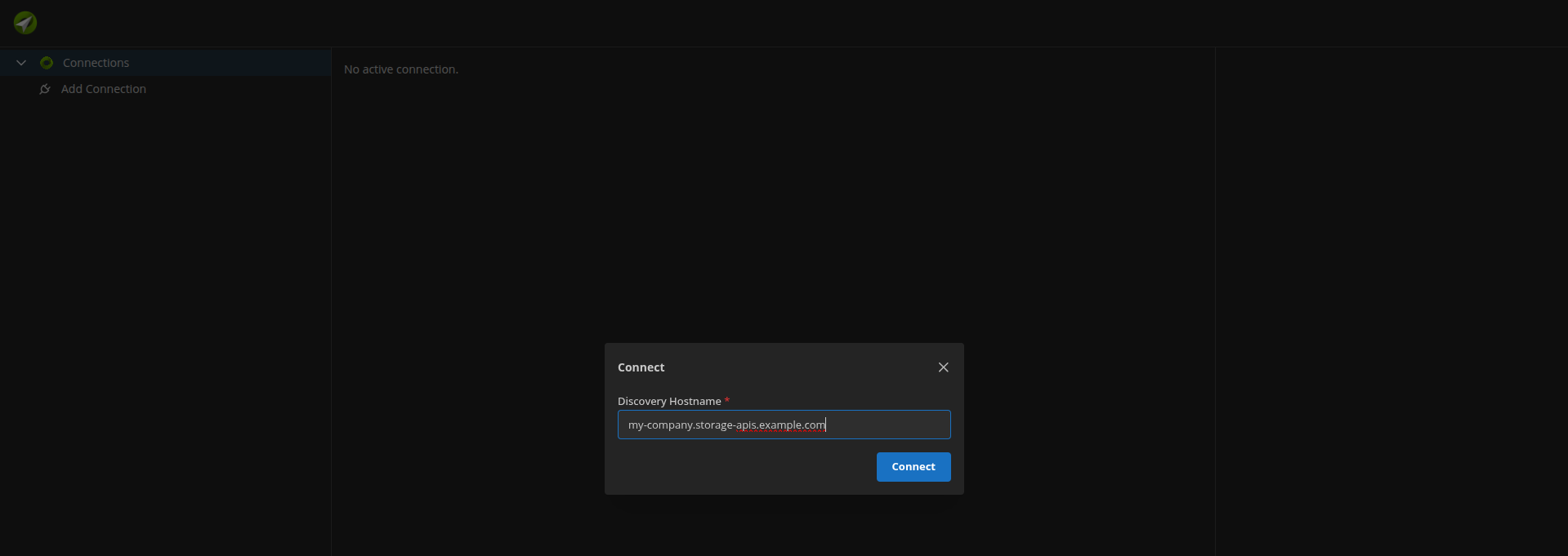
Connect to the stack: click Add Connection, enter the Discovery Service hostname, then click Connect.
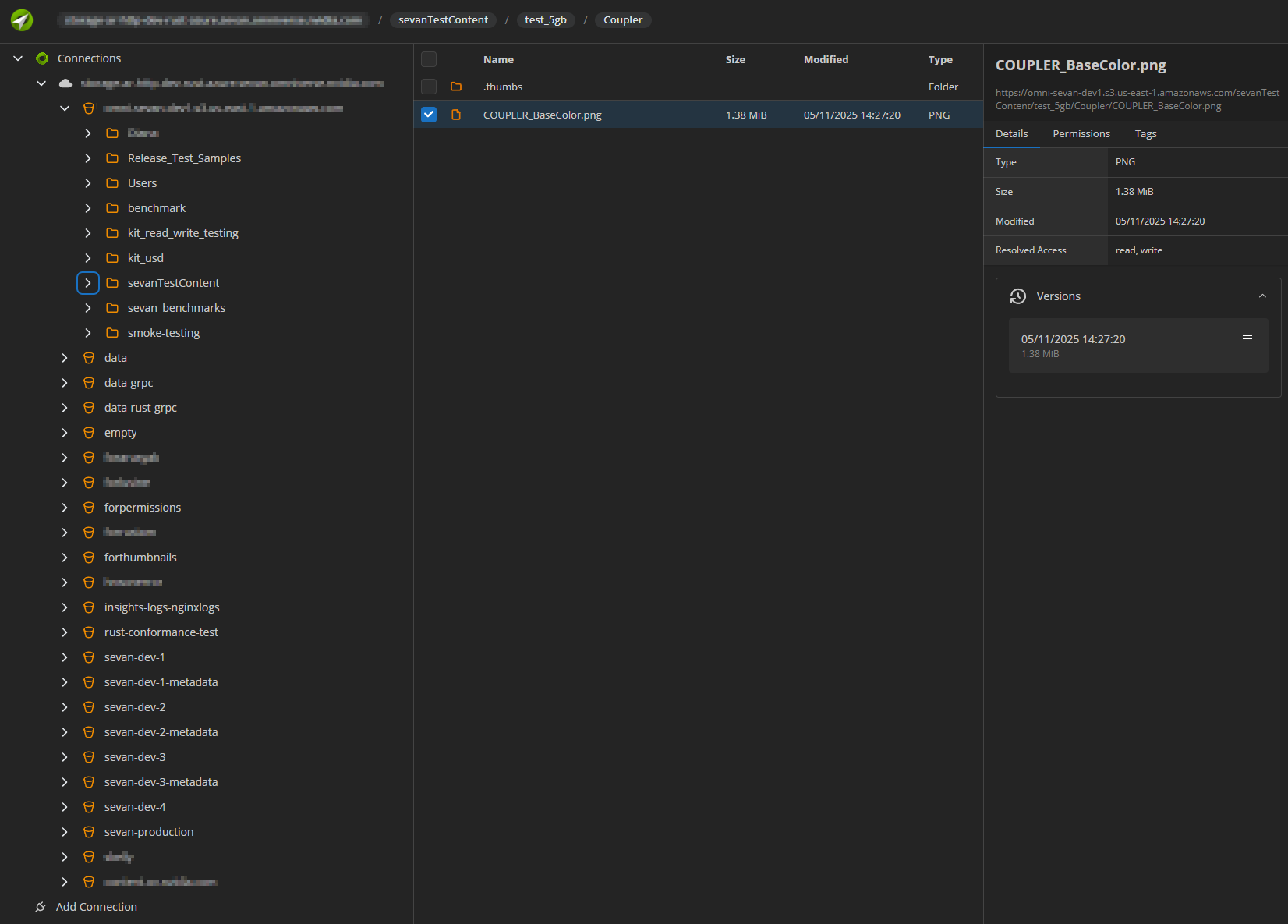
You can now browse storage and upload or download files.