

Getting Started#
Get the Storage APIs and Service Adapter Example#
NGC
Next, you will need to get an NGC account and generate an API key.
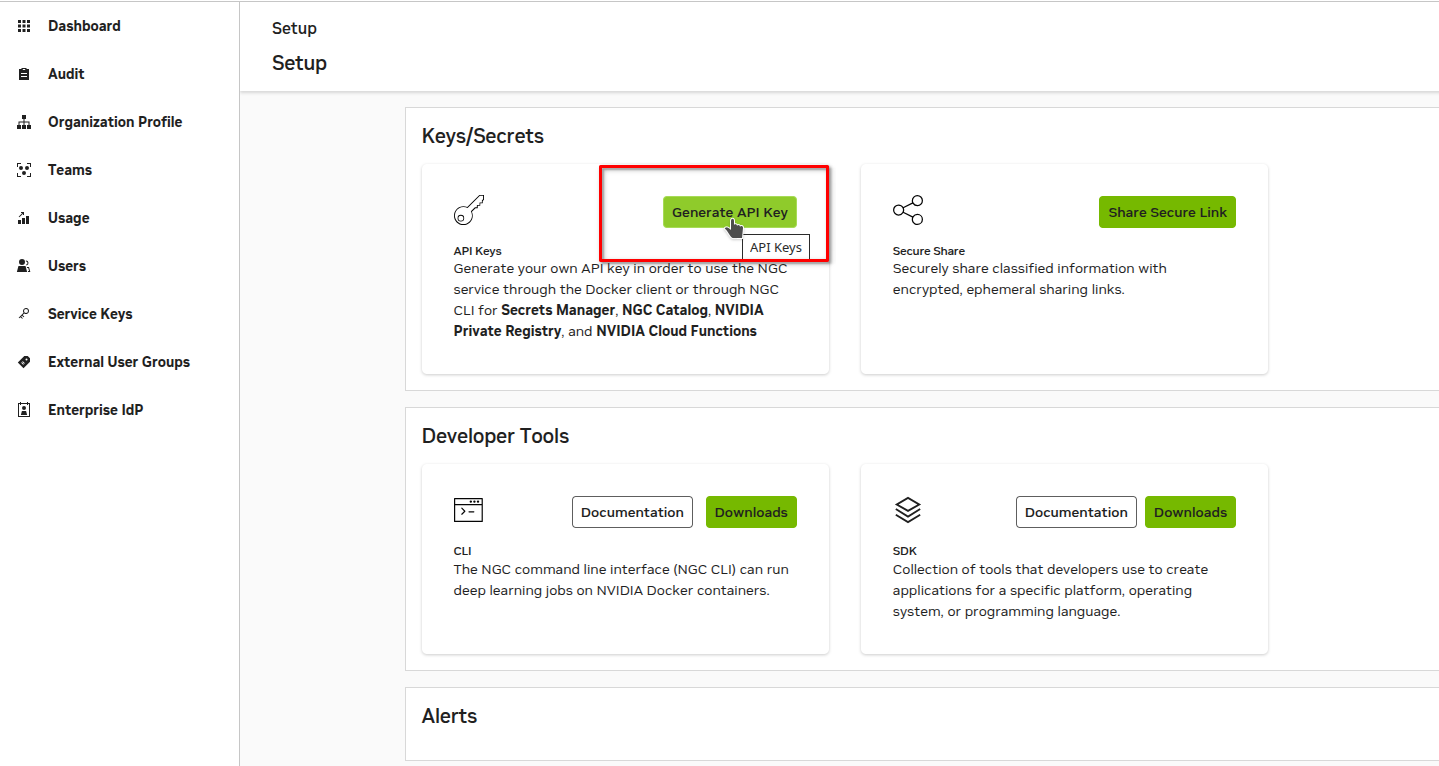
You will need your key to have the following permissions to access the registry.
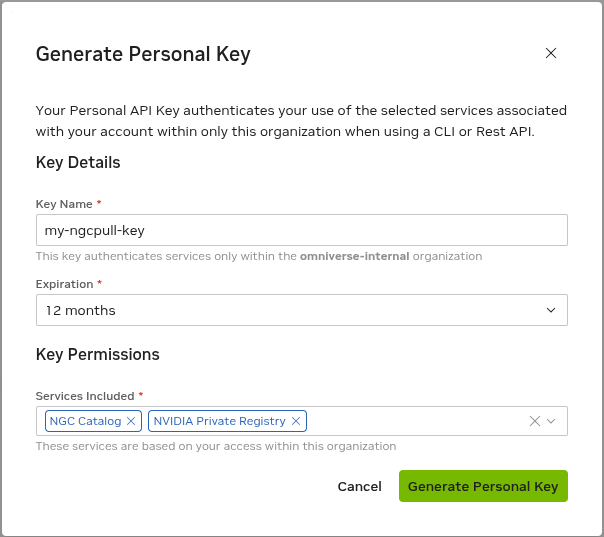
Now, setup your NGC CLI and run the command below to download the Storage API specifications and the Service Adapter example from the NGC registry.
The resource versions are located https://registry.ngc.nvidia.com/orgs/nvidia/teams/omniverse/resources/storage-api/version.
ngc registry resource download-version "nvidia/omniverse/storage-api:1.0.0-beta.4"
Testing the Service Adapter Example#
This package includes the API specifications, and example code for a local filesystem service.
# unzip the package from where ngc download put it
unzip storage-api-1.0.0-beta.4.zip -d ./storage-api-1.0.0-beta.4

# change to the directory to the filesystem example
cd ./storage-api-1.0.0-beta.4/filesystem_example
You can run and test this service locally in Python to understand how the service will function. Below is the overview of the sample and instructions to get it running and validated.
To persist data, you should create a directory, something like ~/storage-data. Keep the directory path handy, you will need it later when you are containerizing the service.
Note
Before starting the service, verify that ports 8011 and 50051 are not already in use on your machine. Existing MicroK8s deployments or other services using these ports can cause conflicts — kube-proxy iptables rules may intercept traffic on those ports, causing curl to return “Connection refused” even though the local service appears to start correctly.
Check with: ss -tlnp | grep -E '8011|50051'
Note
Running local-filesystem-service without a subcommand automatically selects the filesystem backend.
Use the explicit backend form when you need backend-specific options (for example --static-dir or --base-uri): local-filesystem-service filesystem --static-dir /data/storage.
In the container and MicroK8s steps in this guide, we pass filesystem explicitly so storage backend options are applied consistently.
A reference Python implementation of a storage service that serves files from a local filesystem using a content and a version tree to store old versions of files. This service provides both REST and gRPC interfaces for file operations, and serves as a reference implementation of the USD Storage API specification.
Features#
File operations: stat, read, write, enumerate, delete
Multipart upload support for large files
Directory operations: list, create, delete
Versioning support: enumerate versions, read old versions
Generic metadata store
Installation#
The commands below assume you are already in the filesystem_example directory and use Python 3.10, 3.11, or 3.12.
Install Poetry and dependencies#
# Create a separate environment for Poetry
python -m venv .poetry_venv
.poetry_venv/bin/pip install poetry

# Create the service environment in .venv inside the current directory
.poetry_venv/bin/poetry config virtualenvs.in-project true --local

# Install dependencies
.poetry_venv/bin/poetry install
Activate the environment#
source .venv/bin/activate
Note
Required for direct commands: local-filesystem-service is installed in the service’s virtual environment. Activate that environment in each new terminal where you run the command; otherwise, you may see command not found. In each terminal, first navigate to filesystem_example, then run the activation command above. The .poetry_venv environment contains Poetry, not the service.
If you installed the service previously, Poetry may reuse an environment outside this directory even after enabling virtualenvs.in-project. In that case, activate the existing environment instead:
# Poetry reports your actual environment path, for example:
# /home/username/storage-api/filesystem_example/.venv
# The command below uses that path automatically; no replacement is needed.
source "$(.poetry_venv/bin/poetry env info --path)/bin/activate"
Start the service#
local-filesystem-service
The service starts its gRPC server on port 50051 and its REST server on port 8011.
Optional: run through Poetry#
As an alternative to activating the environment, run the service through Poetry, which selects the service’s virtual environment automatically:
.poetry_venv/bin/poetry run local-filesystem-service
Usage#
These commands require the service environment to be active as described above. Stop a running service with Ctrl+C before starting another instance on the same ports.
Quick Start#
# Get help first!
local-filesystem-service --help

# Start with filesystem backend (default settings)
local-filesystem-service

# Help for the specific parameters setting up the local filesystem
local-filesystem-service filesystem --help

# Start with custom configuration
local-filesystem-service filesystem --static-dir /data/storage

# The service is started as a python module, so this is equivalent:
python -m local_filesystem_service filesystem --static-dir /data/storage
Service Modes#
Combined Service (gRPC + REST):
local-filesystem-service [COMMON_OPTIONS] BACKEND [BACKEND_OPTIONS]
with BACKEND being filesystem as the only option in this version.
gRPC Only:
# via script
local-filesystem-grpc [COMMON_OPTIONS] BACKEND [BACKEND_OPTIONS]

# via module
python -m local_filesystem_service.grpc_service [COMMON_OPTIONS] BACKEND [BACKEND_OPTIONS]
REST Only:
# via script
local-filesystem-rest [COMMON_OPTIONS] BACKEND [BACKEND_OPTIONS]

# via module
python -m local_filesystem_service.rest_service [COMMON_OPTIONS] BACKEND [BACKEND_OPTIONS]
Note: Each backend (e.g., filesystem) has its own subcommand with specific options.
CLI Structure#
Common Options (apply to all backends):
--grpc-port: Port for gRPC server (default: 50051)--http-port: Port for HTTP/REST server (default: 8011)--reload: Enable auto-reload for development (REST service only)
Backend Subcommands:
Each backend has its own subcommand. For example, the filesystem backend:
--base-uri: Base URI for resource addresses (default:file-storage://fileservice)--static-dir: Directory for file storage (default: system temp directory)--folder-mode: Folder simulation mode:native,no_empty, orplaceholder(default:native)--redirect-host: Host for redirect URLs (default:http://localhost)--redirect-port: Port for redirect URLs (default: 8011)
Example:
python -m local_filesystem_service --grpc-port 50052 filesystem --static-dir /data
Environment Variables#
All CLI options can also be set via environment variables:
FILESERVICE_STATIC_DIR: Directory where files will be storedFILESERVICE_SERVER_BASE_URI: Base URI for the service, default is “file-storage://fileservice”FILESERVICE_TEST_FOLDER_MODE: Folder simulation mode, default is “native”GRPC_SERVER_PORT: Port for the gRPC serverHTTP_SERVER_PORT: Port for the HTTP serverREDIRECT_HOST: Host for redirect URLsREDIRECT_PORT: Port for redirect URLs
CLI options take precedence over environment variables.
Testing the Service#
Once started, test the service:
# Test REST API
curl http://localhost:8011/v1beta/capabilities/services

# View OpenAPI documentation for a specific endpoint
open http://localhost:8011/v1beta/fileobject/docs
# or for the filefolder API
open http://localhost:8011/v1beta/filefolder/docs

# Test file upload, size hint is a required parameter
curl -X PUT "http://localhost:8011/v1beta/fileobject/by-address/file-storage%3A%2F%2Ffileservice%2Ftest.txt?data_object_size=64" \
  -H "Content-Type: application/octet-stream" \
  -d "Hello World"

# Test file download
curl http://localhost:8011/v1beta/fileobject/by-address/file-storage%3A%2F%2Ffileservice%2Ftest.txt
With the service running, open the interactive API explorer at http://localhost:8011/docs to browse every REST endpoint and try requests directly in the browser.
Upload a file#
Replace ./scene.usdz with your local file. This example stores it as scene.usdz.
FILE="./scene.usdz"
SIZE=$(wc -c < "$FILE" | tr -d '[:space:]')

curl -fsS -X PUT \
  "http://localhost:8011/v1beta/fileobject/by-address/file-storage%3A%2F%2Ffileservice%2Fscene.usdz?data_object_size=${SIZE}&upload_preference=body" \
  -H "Content-Type: application/octet-stream" \
  --data-binary "@${FILE}"
upload_preference=body requests a direct upload. Without it, the service may return HTTP 300 with instructions for a redirected or multipart upload.
A successful upload returns HTTP 201 with the file’s identity and metadata.
Run Conformance Tests (Synthetic Test Data)#
The Storage API package includes a conformance_tests/ directory. The conformance suite validates behavior expected by generic clients and, by default, uses a test data generator that creates and cleans up synthetic test data through the Storage API itself.
The following excerpt is included directly from the upstream conformance README in storage-protos:
Prerequisites#
Python 3.10, 3.11, or 3.12
Poetry package manager
# Run  these commands within the conformance tests subdirectory
cd conformance_tests

# Create virtual environment for poetry
python -m venv .poetry_venv

# Install poetry
.poetry_venv/bin/pip install poetry
Build from source#
# Install dependencies
.poetry_venv/bin/poetry install

# Activate the poetry-created virtual environment
source .venv/bin/activate
Usage#
The test suite is exposed as a Python package with a small command line entrypoint. Once installed in an environment, the tests can be invoked against any Storage API implementation that is reachable from the test runner.
1. Start a Storage API implementation#
Start the Storage API service you want to validate and ensure it is reachable from the machine running the test suite. For the reference filesystem service refer to its documentation.
# Start the service with default ports
local-filesystem-service filesystem --static-dir /tmp/storage
This starts a Storage API implementation with the following default endpoints:
REST endpoint:
http://localhost:8011gRPC endpoint:
localhost:50051Resource address base:
file-storage://fileservice
These defaults match the conformance test suite defaults, so no additional configuration is required for a basic local run.
2. Running the tests via the entrypoint#
After installing the omniverse-storageapi-conformance-tests package into an environment (for example via
poetry install in the conformance_tests directory), the tests can be run with:
# After successfully running `poetry install` above, activate the environment poetry created:
source .venv/bin/activate

# In this environment, the run hook has been installed for the test suite:
run-conformance-tests
This command:
Uses
pytestunder the hoodLoads the default test data generator plugin (
conformance_tests.example_fixtures.storageapi_testdata_generator)Executes the full Gherkin-based conformance suite against the configured Storage API endpoints
Any extra command line arguments are forwarded directly to pytest. For example, to select a subset of tests
or increase verbosity:
run-conformance-tests -k "stat" -vv
For the full configuration reference (environment variables, custom test data generators, boto3 fixtures, OpenAPI checks), see usd-storage/api-storage-core/storage-protos/conformance_tests/README.md.
Clean up#
Now that you have tested the service, you can stop the service (ctrl+c) and free your ports for the next steps.
Next Steps#
Next, we will be creating a runnable container for this example service.