


Hub Workstation Cache#
Overview#
Hub Workstation Cache is a service that helps speed up USD workflows on your local workstation. This stand-alone service runs locally and benefits Kit-based applications or Client Library tools.
Hub Workstation Cache is performance-optimized and supports storage-derived data from newer versions of Kit-based applications.
Download the Hub Workstation Cache from the NGC Catalog.
Warning
Hub Workstation Cache requires Client Library 2.49.2 or greater. If using older versions of Client Library, you may experience errors when loading files.
Installing Hub with Install Scripts#
Hub Workstation Cache is simple to manually install with the scripts included in the archive files which are downloaded from the NGC Catalog. Under File Browser, choose which package to download (either Windows or Linux), and click the three dots under Actions to download it. Extract the data, and install using the ./scripts/install.[bat/sh] file.
Installing Hub with Kit Cache Status Indicator#
Installing Hub Workstation Cache is simple using the Cache Status Indicator extension within your Kit app.
Note
This requires Cache Status Indicator 3.0.0 or greater.
First, search for the Cache Status Indicator extension within your Kit app. Install and load the Cache Status Indicator. Set the extension to autoload so it always loads in your application.

This loads the extension and adds a UI element to the upper-right corner of your application. The UI element notifies you when a new version of the Cache Status Indicator is available to download.

Click the indicator to download and install Hub Workstation Cache.

The indicator changes to Downloading… during this process.

Once the installation completes, Hub prompts you to restart your applications. (Hub does not connect to running Kit applications until you restart them.)

After you restart your application, the indicator displays a green SET, letting you know it is ready to use.

Clicking the cache indicator now takes you to the Hub Settings documented below.
Uninstalling Hub with Install Scripts#
The installed Hub directory contains an uninstall.[bat/sh] file.
To uninstall, make sure all your Omniverse applications are shut down.
Next, run the uninstall.[bat/sh] file directly.
Note
If you provide the -d argument, the hub directory is removed as well, rather than only the contents of the directory.
Hub Configuration and Settings#
You manage Hub Workstation Cache through a settings page at http://localhost:14090/index.html.

Cache Path
This is where Hub stores all your cache data. Make sure this is a local disk on your workstation.
Cleanup Threshold (%)
How much data should get cleaned up once you have reached or exceeded your allocated storage amount.
Cache Collection Interval(s)
Duration, in seconds, for when storage utilization is checked for cleanup to make sure it stays within the allocated threshold.
Cache Max Size (Gb)
This is the initial storage allocation Hub uses when caching data. Your utilization can be higher than the allocated space until cleanup finishes.
Apply
Button to make sure modifications to the settings are saved.
Cache size/Cached files
This is the current size of data and file count stored in your cache location.
Clear
Clears all the data stored in your cache that is not in use.
Download Support Bundle
This zips up all the data needed to report bugs to NVIDIA.
Hub as a Docker Container#
Added in Hub Workstation Cache version 2.0.0, Hub can run as a Docker container. This is useful for deploying Hub on a single-user workstation, or on a server that is not running Omniverse.
Preamble#
To simplify use, meet the following requirements:
There should be a directory for the Hub cache on the host system, owned by the user account that runs the Hub container.
The path to this directory should be consistent for all Hub clients. It is strongly recommended for this path to be
/var/cache/hub.The Hub container should have its network configured in
hostmode.
If a bare metal application connects to Hub in a container, the Hub cache path must be the same on the host system as it is within the Hub container. That is, the directory should be /var/cache/hub on the host system.
However, if all Hub clients are in containers as well, the Hub cache directory can exist within the user’s home directory tree and be mapped into the Hub and client containers as /var/cache/hub.
Note
Containerized deployments of Hub are assumed to always be running in shared mode.
The Hub container serves three TCP ports: 14090 for the HTTP settings interface, 14092 for the MessagePack RPC interface, and 14093 for the Protobuf RPC interface. When the container is run with --network=host as recommended below, these ports are reachable directly on the host.
Sample Docker Commands#
Including a bare metal client:
docker run --rm -v "/var/cache/hub":"/var/cache/hub" -u $(id -u ${USER}):$(id -g ${USER}) --network=host hub-local
Only containerized clients:
docker run --rm -v "$HOME/.cache/ov/hub":"/var/cache/hub" -u $(id -u ${USER}):$(id -g ${USER}) --network=host hub-local
Client Configuration#
Clients using the Hub client (packaged with the omni-client library) must also configure their environment so the Hub client can find Hub in this configuration. Configure it as follows:
Install the Hub executable somewhere on the filesystem. For example, this is
/usr/local/bin/hub.Set the
OMNICLIENT_HUB_EXEenvironment variable to the full path of the installed Hub executable. This tells the Hub client where a Hub executable is. This is needed because the Hub executable is used to communicate configuration information back to the Hub client even when Hub itself is not running locally.Set the
HUB__CACHE__PATHenvironment variable to the full path of the Hub cache. This tells the locally-installed Hub executable where to coordinate with the containerized version of Hub that does the caching.Set the
HUB__ARGS__DETECT_ONLYenvironment variable totrue. This tells the locally-installed Hub executable that it should only be looking for a running Hub instance and should not start one if no Hub instance is found.
Sample Client Environment#
Here is a sample client environment. Not every Hub client needs to install the Hub executable in the same location.
HUB__CACHE__PATH=/var/cache/hub
HUB__ARGS__DETECT_ONLY=true
OMNICLIENT_HUB_EXE=/usr/local/bin/hub
Protobuf RPC Interface#
Added in Hub Workstation Cache version 2.2.0, Hub exposes a Protobuf RPC interface over TCP. This interface provides the same functionality as the legacy MessagePack RPC interface, allowing you to integrate with Hub using standard Protobuf tooling.
Protocol Overview#
The RPC protocol uses Protobuf for message representation. Each message is framed using a 4-byte length prefix, and communication occurs over a persistent TCP connection. The expected workflow is for a client to open a single connection and send all requests for its working set across that connection, as Hub maintains state on a per-connection basis.
There are three categories of Hub transaction:
Service-level transactions manage client state and interrogate the service as a whole.
Cache-aside transactions operate on whole files.
Block-cache transactions operate on blocks of data.
Upon connecting, a client identifies itself with the service-level ClientConnect request, after which it can perform both cache-aside and block-cache operations. When a client resumes after a shutdown, state can be reclaimed for connected files and blocks with the CacheAsideConnect and BlockCacheConnect requests.
Protobuf Definitions and Examples#
The Protobuf definitions are included in the Hub package available on NGC, located at rpc/proto/nvidia/omniverse/hub/v1alpha/hub.proto. Sample client code is available in the rpc/examples directory. The full definitions are shown below for reference.
syntax = "proto3";

package nvidia.omniverse.hub.v1alpha;

option go_package = "pb.api.nvidia.com/omniverse/hub/v1alpha;hub";
option java_multiple_files = true;
option java_outer_classname = "HubProto";
option java_package = "com.nvidia.omniverse.hub.v1alpha";

// Common result codes matching hub_rpc::ResultCode
enum ResultCode {
  RESULT_CODE_SUCCESS = 0;
  RESULT_CODE_ERROR_ABANDONED = 1;
  RESULT_CODE_ERROR_ALREADY_EXISTS = 2;
  RESULT_CODE_ERROR_TOO_LARGE = 3;
  RESULT_CODE_ERROR_HANDLE_NOT_FOUND = 4;
  RESULT_CODE_ERROR_INTERNAL = 5;
  RESULT_CODE_ERROR_NOT_FOUND = 6;
  RESULT_CODE_ERROR_PENDING_WRITE = 7;
}

// Semantic versioning
message SemVer {
  uint64 major = 1;
  uint64 minor = 2;
  uint64 patch = 3;
}

// Interface types
enum Interface {
  INTERFACE_UNKNOWN = 0;
  INTERFACE_CACHE_ASIDE = 1;
  INTERFACE_BLOCK_CACHE = 2;
}

message InterfaceVersion {
  Interface interface = 1;
  uint32 version = 2;
}

message VersionInfo {
  SemVer software_version = 1;
  repeated InterfaceVersion interface_versions = 2;
}

// =============================================================================
// Hub Service (common operations)
// =============================================================================

message ClientConnectParams {
  string client_name = 1;
  string client_uuid = 2; // UUID as string
}

message ClientConnectResult {}

message HubVersionInfoParams {}

message HubVersionInfoResult {
  VersionInfo version_info = 1;
}

// =============================================================================
// Cache Aside Service
// =============================================================================

/**
   Requests the version of the cache-aside protocol. This is constant across Hub releases unless the protocol changes.
*/
message CacheAsideVersionInfoParams {}

message CacheAsideVersionInfoResult {
  SemVer version = 1;
}

/**
   Allows a client to resume a session after a disconnection. Orphaned connections to the enumerated files will be claimed by this client.
*/
message CacheAsideConnectParams {
  repeated FileConnectItem files = 1;
}

message FileConnectItem {
  string key = 1; // A unique identifier for the file
  string provider = 2; // Provider supplied on open
  string extension = 3; // File extension supplied on open
  uint64 handle = 4; // Internal file handle
  bool open_for_write = 5; // Is this open for read or write
}

message CacheAsideConnectResult {
  ResultCode result_code = 1;
  repeated ResultCode file_result_codes = 2;
}

/**
   Opens a file with read access. Hub will track this internally using the supplied client-id to prevent conflicts with other clients.
*/
message CacheAsideOpenForReadParams {
  string key = 1; // A unique identifier for the file
  string provider = 2; // Original source of the file
  string extension = 3;
}

message CacheAsideOpenForReadResult {
  ResultCode result_code = 1;
  optional string local_file = 2;
  optional uint64 handle = 3;
}

/**
   Opens a file with write access. Hub will track this internally using the supplied client-id to prevent conflicts with other clients.
*/
message CacheAsideOpenForWriteParams {
  string key = 1; // A unique identifier for the file
  string provider = 2; // Original source of the file
  string extension = 3; // File extension, ie. "usd"
  uint64 size = 4; // File size
}

message CacheAsideOpenForWriteResult {
  ResultCode result_code = 1;
  optional string local_file = 2; // System path of the opened file
  optional uint64 handle = 3; // Internal file handle
}

/**
   Closes an open file handle to indicate that reading or writing is complete.
*/
message CacheAsideCloseParams {
  uint64 handle = 1;
}

message CacheAsideCloseResult {
  ResultCode result_code = 1;
}

/**
   Closes an open file handle and if there are no remaining references to the file, marks the file as eligible for garbage collection.
*/
message CacheAsideRemoveParams {
  uint64 handle = 1;
}

message CacheAsideRemoveResult {
  ResultCode result_code = 1;
}

// =============================================================================
// Block Cache Service
// =============================================================================

/**
   Allows a client to resume a session after a disconnection. Orphaned connections to the enumerated blocks will be claimed by this client.
*/
message BlockCacheConnectParams {
  repeated BlockConnectItem blocks = 1;
}

message BlockConnectItem {
  bytes key = 1;
  optional string extension = 2;
  uint64 handle = 3;
  bool open_for_put = 4;
}

message BlockCacheConnectResult {
  repeated ResultCode result_codes = 1;
}

/**
   Opens a block with read access. Hub will track this internally using the supplied client-id to prevent conflicts with other clients.
*/
message BlockCacheGetParams {
  repeated bytes keys = 1;
  uint64 timeout_us = 2;
}

message BlockCacheGetResult {
  repeated BlockGetResult results = 1;
  string base_path = 2;
}

message BlockGetResult {
  ResultCode result_code = 1;
  optional BlockInfo block = 2;
}

message BlockInfo {
  uint64 handle = 1;
  BlockLocation location = 2;
}

message BlockLocation {
  string path = 1;
  uint64 id = 2;
  uint64 offset = 3;
  uint64 size = 4;
}

/**
   Releases one or more open block handles to indicate that reading is complete.
*/
message BlockCacheCloseParams {
  repeated uint64 handles = 1;
}

message BlockCacheCloseResult {
  repeated ResultCode result_codes = 1;
}

/**
   Opens a block with write access. Hub will track this internally using the supplied client-id to prevent conflicts with other clients.
*/
message BlockCachePutParams {
  repeated BlockPutItem blocks = 1;
}

message BlockPutItem {
  bytes key = 1;
  uint64 size = 2;
  uint64 rank = 3;
  optional string extension = 4;
}

message BlockCachePutResult {
  repeated BlockPutResult results = 1;
  string base_path = 2;
}

message BlockPutResult {
  ResultCode result_code = 1;
  optional BlockInfo block = 2;
}

/**
   Releases one or more open block handles and commits the pending write operation on those blocks.
*/
message BlockCacheCommitParams {
  repeated uint64 handles = 1;
}

message BlockCacheCommitResult {
  repeated ResultCode result_codes = 1;
}

/**
   Releases one or more open block handles and aborts the pending write operation on those blocks.
*/
message BlockCacheAbortParams {
  repeated uint64 handles = 1;
}

message BlockCacheAbortResult {
  repeated ResultCode result_codes = 1;
}

/**
   Requests metadata for one or more blocks.
*/
message BlockCacheStatParams {
  repeated bytes keys = 1;
  uint64 timeout_us = 2;
}

message BlockMetadata {
  uint64 last_accessed = 1;
  uint64 accesses = 2;
  uint64 size = 3;
}

message BlockStatResult {
  ResultCode result_code = 1;
  optional BlockMetadata metadata = 2;
}

message BlockCacheStatResult {
  repeated BlockStatResult results = 1;
}

// =============================================================================
// Request / Response
// =============================================================================

/**
   An error result, containing user-readable information about the error that occurred.
*/
message ErrorInfoResult {
  string message = 1;
}

/**
   Each request type is represented by a distinct parameter set, and has a matching result type. There are currently three categories of requests: cache-aside requests, used for operating on files, block-cache requests, used for operating on blocks of data, and service-level requests. Cache-aside requests and block-cache requests have a corresponding name prefix to disambiguate which API is being used.
*/
message RequestParams {
  oneof params {
    ClientConnectParams client_connect = 1;
    HubVersionInfoParams hub_version_info = 2;

    CacheAsideVersionInfoParams cache_aside_version_info = 3;
    CacheAsideConnectParams cache_aside_connect = 4;
    CacheAsideOpenForReadParams cache_aside_open_for_read = 5;
    CacheAsideOpenForWriteParams cache_aside_open_for_write = 6;
    CacheAsideCloseParams cache_aside_close = 7;
    CacheAsideRemoveParams cache_aside_remove = 8;

    BlockCacheConnectParams block_cache_connect = 9;
    BlockCacheGetParams block_cache_get = 10;
    BlockCachePutParams block_cache_put = 11;
    BlockCacheCloseParams block_cache_close = 12;
    BlockCacheCommitParams block_cache_commit = 13;
    BlockCacheAbortParams block_cache_abort = 14;
    BlockCacheStatParams block_cache_stat = 15;
  }
}

/**
   Response types use names that correspond to the request type name, but with "result" in place of "params". The result type for a given request_id will always either contain the result type that corresponds to the request type, or contain an error type if there was a processing error not representable by the standard result type.
*/
message ResponseResult {
  oneof result {
    ClientConnectResult client_connect = 1;
    HubVersionInfoResult hub_version_info = 2;

    CacheAsideVersionInfoResult cache_aside_version_info = 3;
    CacheAsideConnectResult cache_aside_connect = 4;
    CacheAsideOpenForReadResult cache_aside_open_for_read = 5;
    CacheAsideOpenForWriteResult cache_aside_open_for_write = 6;
    CacheAsideCloseResult cache_aside_close = 7;
    CacheAsideRemoveResult cache_aside_remove = 8;

    BlockCacheConnectResult block_cache_connect = 9;
    BlockCacheGetResult block_cache_get = 10;
    BlockCachePutResult block_cache_put = 11;
    BlockCacheCloseResult block_cache_close = 12;
    BlockCacheCommitResult block_cache_commit = 13;
    BlockCacheAbortResult block_cache_abort = 14;
    BlockCacheStatResult block_cache_stat = 15;

    ErrorInfoResult error_info = 16;
  }
}

/**
   A request object. Different types of requests are represented by supplying different parameter sets. The request_id should be unique across all pending requests for a given client.
*/
message Request {
  uint64 request_id = 1;
  RequestParams params = 2;
}

/**
   A response object. Each request type has a corresponding response type, and the request_id will match the value supplied in the corresponding request.
*/
message Response {
  uint64 request_id = 1;
  ResponseResult result = 2;
}
Port Configuration#
The Protobuf port can be configured in hub.toml using the ext_port field under [transport.tcp]. The rpc_port field is used by the legacy MessagePack protocol.
[transport.tcp]
host = "127.0.0.1"
rpc_port = 14092  # MessagePack RPC port
ext_port = 14093  # Protobuf RPC port
Cache Cleaner Tool#
Warning
The Cache Cleaner tool is deprecated and will be removed in the next release of Hub Workstation Cache.
Note
This tool is not available for Hub Workstation Cache running on AARCH64 architecture.
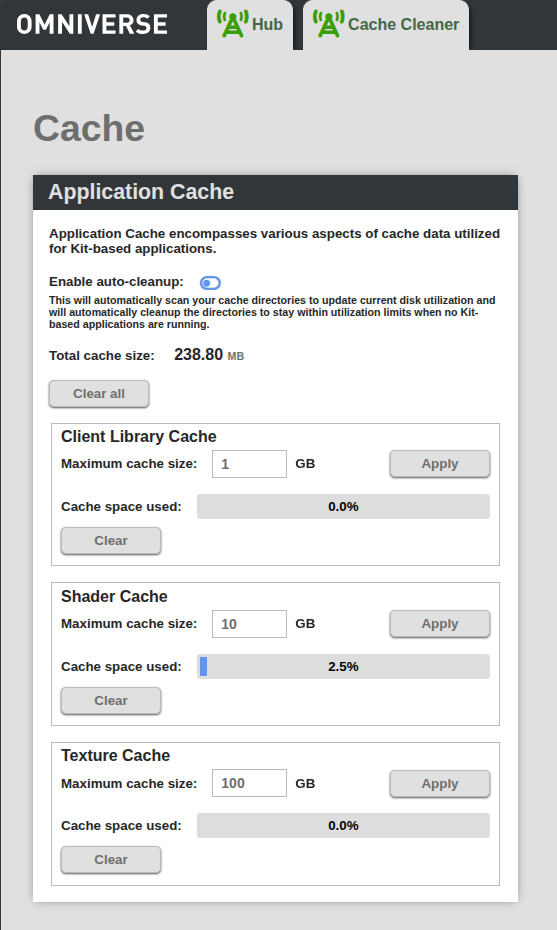
In Hub 1.1.0, a Cache Cleaner tool is included for use with Kit 107 and below applications. This tool manages the derived data those Kit versions create, keeping the derived cache from growing unbounded.
To use the Cache Cleaner tool in Hub with Kit versions lower than 109.0.1, you need to launch Hub from the command line. Go into the Hub install directory and run the following command:
hub --with-cleaner
Or, if you are using Kit version 109.0.1 or greater, you can launch Kit with an environment variable:
export OMNICLIENT_HUB_WITH_CLEANER=1
Once Hub is running, you can go to the Hub Settings page and click the Cache Cleaner button.
Known Issues and Workarounds#
Updating of Hub Workstation Cache does not remove the old versions that were installed.
Workaround: Delete the old version of Hub Workstation Cache after updating.
Some Windows users may experience errors with Hub not being found in the application when using Kit-based applications 107.3 and below, even if Hub is installed.
Workaround: Create a symlink as follows:
mklink /d %APPDATA%\ov %LOCALAPPDATA%\ovThis issue is fixed in Kit 109.0.1 and greater.
Release Notes#
2.3.0:
Updated the Hub Client to support the new Protobuf protocol.
Addressed security vulnerabilities.
Cache Cleaner tool set to be deprecated - it will be removed in the next release of Hub Workstation Cache.
2.2.0:
Added a Protobuf RPC Interface over TCP, providing the same functionality as the MessagePack RPC interface.
Fixed cache size and file count not updating in the settings page after clearing the cache.
2.1.0: (Unreleased)
Increased the maximum message frame length for the MessagePack RPC interface.
2.0.0:
Performance improvements for derived data.
Added support for Linux AARCH64 architecture.
Hub can now run as a docker container.
1.1.0:
Added new Cache Cleaner for more information.
Performance improvements to support Kit 109 derived data creation.
Overall stability improvements.
1.0.2:
Install script now supports installing to a non-default location.
Updated default library root location on Windows to
%LOCALAPPDATA%\ov\pkg.
1.0.1:
Added an uninstall script.
1.0.0:
Initial Release.