


Clash Detection Examples#
The omni.physx.clashdetection.examples extension provides examples that demonstrate
how to run clash detection headlessly, how to export and bake results. It is intended as a
learning resource.
Warning
No stability guarantees. All APIs used are internal
implementation details of the omni.physx.clashdetection.examples extension.
They are not part of the official Clash Detection public API.
Classes, functions, signatures, module paths, and
carb.settingskeys may be renamed, moved, or removed in any release without prior notice and without a deprecation period.No backwards-compatibility commitment is made for any symbol documented here.
Do not rely on these APIs in production code or shipping extensions.
The stable, supported API is provided by the lower-level extensions
omni.physx.clashdetection (C++ engine) and omni.physx.clashdetection.core
(Python data structures and serialization). See
Clash Detection Core API for the supported developer interface.
Opening the Examples Window#
Once the extension is enabled, open the examples window from the main menu:
Window > Physics > Clash Detection Examples
The window contains two collapsible sections:
Available Clash Detection Examples - seven runnable examples, each triggered by a Run button. The examples do not display results in a dedicated UI panel; instead they print progress and outcome to the Omniverse console. Exported files and composed stages are written to a temporary directory that is opened automatically in the system file browser after each run.
Available Clash Detection Sample Stages - an Open button that loads the bundled sample dynamic stage into the active USD context so it can be explored in the viewport.
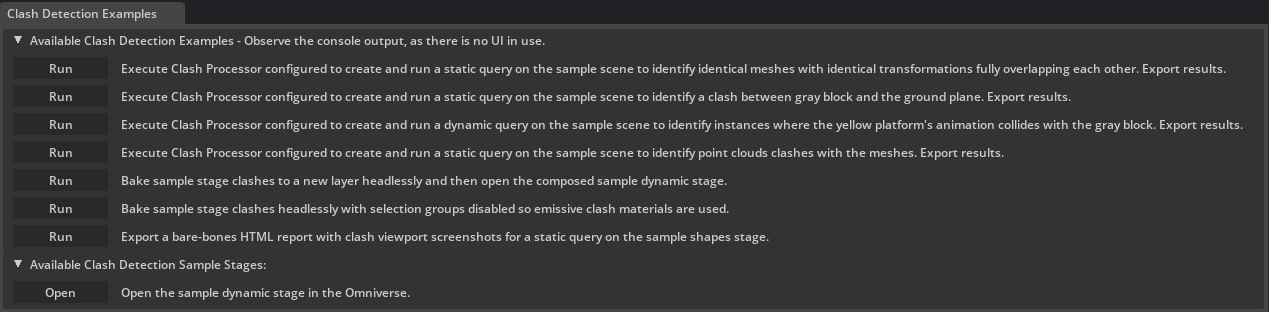
Sample Stages#
All examples operate on one of two bundled USD stages shipped with the extension:
- time_sampled.usda
A dynamic scene that contains an animated yellow platform (
/Root/STATION_TIME_SAMPLED), a set of static primitives including a gray block and a ground plane (/Root/Xform_Primitives), and a point cloud (/Root/Points) constrained to a region-of-interest volume (/Root/ROI). The platform moves over time and intersects the static objects at various points in the animation. This stage is used by the detection and export examples.- time_sampled_shapes.usd
A scene with geometry suited for bake and screenshot-export workflows. It is used by the bake examples and the HTML screenshot export example because those workflows write clash data layers next to the stage file, so a writable copy of the stage is always made before running.
Available Examples#
Static Clash Detection#
Runs a static hard-clash query on time_sampled.usda that checks whether the gray block
(/Root/Xform_Primitives/Cube) penetrates the ground plane (/Root/Xform_Primitives/Plane)
at a single point in time. No tolerance is applied, so only genuine geometry overlaps are reported.
After the query completes the results are exported to both an HTML table and a JSON file in the temporary output directory, which is then opened in the system file browser (Windows only). Each row in the export describes one detected clash: its ID, the minimum penetration distance, the clashing element count, and the stage paths of the two objects involved.
Dynamic Clash Detection#
Runs a dynamic clash query on time_sampled.usda that sweeps the animation from the 3-second
mark to the 20-second mark and checks whether the animated yellow platform
(/Root/STATION_TIME_SAMPLED) comes within 5 scene units of any object in the static primitives
group (/Root/Xform_Primitives). Because a non-zero tolerance is set, the query detects soft
clashes - moments where the two objects are closer than the clearance distance even if they do not
actually penetrate each other.
Results are written to HTML and JSON in the temporary output directory, which is opened automatically (Windows only). Each detected clash record includes the time range over which the clash persists, the minimum distance measured, and the paths of the clashing pair.
Duplicate Mesh Detection#
Searches the entire scene in time_sampled.usda for meshes that are geometrically identical
and share the exact same world transformation - in other words, objects that are placed directly on
top of one another. This mode does not require specifying search sets; the whole scene is scanned
automatically.
Duplicate detection is a static operation: animation is not considered. The example is useful for finding authoring errors where the same mesh was accidentally imported or instanced twice at the same location. Results are exported to HTML and JSON.
Point Clouds Clash Detection#
Runs a static clash query on time_sampled.usda that tests whether any point in the point cloud
at /Root/Points overlaps the mesh geometry at /Root/Xform_Primitives or
/Root/STATION_TIME_SAMPLED. The search is spatially limited to the region-of-interest volume
defined at /Root/ROI, so only points that fall within that bounding volume are considered.
Verbose progress logging is enabled for this example, so detailed timing and result counts are printed to the console in addition to the standard output. Results are exported to HTML and JSON.
Dynamic Bake - Selection Groups#
Demonstrates a complete headless bake pipeline on time_sampled_shapes.usd. The example:
Copies the source stage to a temporary directory so the original file is not modified.
Runs a dynamic clash query over 0–15 seconds with a 5-unit clearance tolerance.
Bakes the detected clash geometry into two new USD layers written next to the stage copy:
Over_CLASH_MESHES.usd- contains the baked clash mesh overrides with keyframe animation that mirrors the clash timeline.Over_CLASH_MATERIALS.usd- contains the material definitions referenced by the meshes.
Creates a composed stage (
composed_clash_bake_stage_<id>.usda) that sublayers the source stage together with both bake layers, inheriting the original time metadata.Opens the composed stage in the Omniverse viewport so the baked clashes can be reviewed immediately, and opens the output directory in the system file browser.
In this variant the clashing objects are highlighted using selection group colors: each pair of clashing meshes receives a distinct colored overlay that matches the clash detection UI highlight scheme.
Dynamic Bake - Emissive Materials#
Identical to the selection-groups bake above, but the clashing geometry is visualized using emissive shader materials instead of selection group colors. In this mode the bake generates additional geometry: clash polygon meshes, wireframe outlines, and edge outlines are written into the meshes layer on top of the affected prims. The emissive approach produces a self-illuminated glow effect on the clashing surfaces that remains visible regardless of scene lighting.
The output structure - stage copy, two bake layers, composed stage, and output directory - is the same as the selection-groups variant.
HTML Report with Viewport Screenshots#
Demonstrates combining headless clash detection with a live Kit viewport to produce an HTML report that contains a rendered screenshot for every detected clash.
The example runs on time_sampled_shapes.usd and follows this sequence:
Copies the source stage to a temporary directory.
Runs a static clash query at the 0.8-second timecode headlessly (no viewport required for this step) and saves the results into the stage copy’s clash data layer.
Opens the stage copy in the active Kit USD context and waits for all sublayers to finish loading.
For each detected clash:
Sets the timeline to 0.8 seconds.
Opens the Clash Detection Viewport window and drives it to highlight the current clash and center the camera on it.
Waits for the renderer to produce a stable frame (30 render frames by default).
Captures a PNG screenshot from the Clash Detection Viewport.
Assembles the screenshots and clash metadata (ID, minimum distance, element count, timecode, object paths) into a single HTML file written to the output directory.
Opens the output directory in the system file browser.
The resulting HTML file can be shared as a standalone clash report. Each table row links to the screenshot captured from the viewport at the moment the clash was detected.