
Validation and Errors#
Material Graph continuously validates the graph as you edit and reports issues in real time. Problems are classified by severity so you can focus on errors that affect rendering first and address cosmetic warnings later.
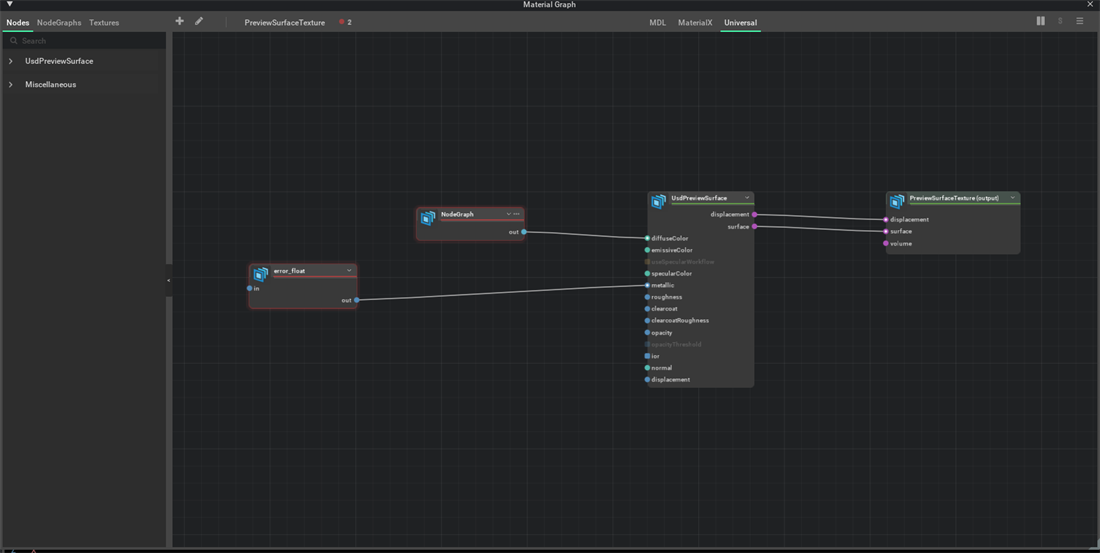
In this example, the unresolved error_float shader remains visible through its USD-authored fallback ports. Both it and the containing NodeGraph are marked red, and the toolbar reports two errors.
Severity Levels#
Errors (Red)#
An error means the issue affects rendering. Errors are raised when:
A node that is connected to material outputs has a shader definition that cannot be resolved in the current render context.
A connection links two ports whose data types are incompatible, such as
color3ftofloat.
Warnings (Yellow)#
A warning flags a problem that does not affect the final render output. Warnings are raised when:
A node that is not connected to material outputs has an invalid or missing shader definition. Because the node’s result never reaches the material outputs, the renderer ignores it.
Visual Indicators#
Material Graph marks invalid elements in the active context graph directly on the canvas so you can spot problems at a glance. Issues whose source genuinely lies outside the active graph are still included in the toolbar count and tooltip even when no source node is visible on the canvas.
Node Fringe#
An external glow appears around the silhouette of any node that has a validation issue:
Red glow: The node has an error.
Yellow glow: The node has a warning.
Header Accent Line#
The thin separator bar below the node header changes color to match the highest-severity issue on that node:
Red for errors.
Yellow for warnings.
Port Halo#
Ports that participate in an invalid connection display a red halo around the port circle, drawing your eye directly to the offending connection point.
Connection Noodle#
An invalid connection is drawn as a red noodle with a glow fringe instead of the standard color, making it easy to trace from source to destination.
Toolbar Indicator#
The graph toolbar shows a compact summary of all current issues:
Indicator |
Meaning |
|---|---|
Red dot + count |
Number of errors in the graph. |
Yellow dot + count |
Number of warnings in the graph. |
Hover over a badge to read a tooltip that lists each issue and its error message.
Tooltips#
Hover over any flagged element, including a node, a port, or the toolbar indicator, to read a tooltip that describes the problem. Tooltips include the error type, the affected prim path, and a short explanation.
Error Types#
Undefined Node#
The shader definition for the node cannot be found in the current render context. Material Graph keeps recognized context nodes visible using their USD-authored fallback ports so you can inspect and repair their connections. A missing definition usually means:
The node references a shader that is not registered with Sdr (Shader Definition Registry).
The required shader module, plugin, or definition source is unavailable in the current Kit session.
Type Mismatch#
A connection links two ports with incompatible data types. Common examples:
Source Type |
Destination Type |
Result |
|---|---|---|
|
|
Type mismatch error |
|
|
Type mismatch error |
|
|
Type mismatch error |
Invalid NodeGraph#
A compound node (NodeGraph) contains child nodes whose shader definitions cannot be resolved. The NodeGraph itself is flagged so you can dive inside and fix the individual nodes.
Resolving Issues#
Disconnecting Invalid Connections#
You can remove a flagged connection in several ways:
Right-click the port and choose Disconnect.
Drag the noodle away from the port and release it over empty canvas space.
Select the connection and press Delete.
Force Connect#
When you drag a connection between ports of different types, Material Graph can perform a Force Connect that bypasses the type compatibility check. The connection is created but remains flagged as invalid if the types conflict. Use Force Connect only when you know the renderer can handle the implicit conversion.