

Viewport Overlays#
To help you better analyze and locate potential issues in a simulation, the Omni PhysX UI and Omni USD Physics UI extensions feature a number of ways to visualize the physics elements of the scene.
These can be enabled through the Physics section of the Show/Hide (Eye) menu in the viewport:
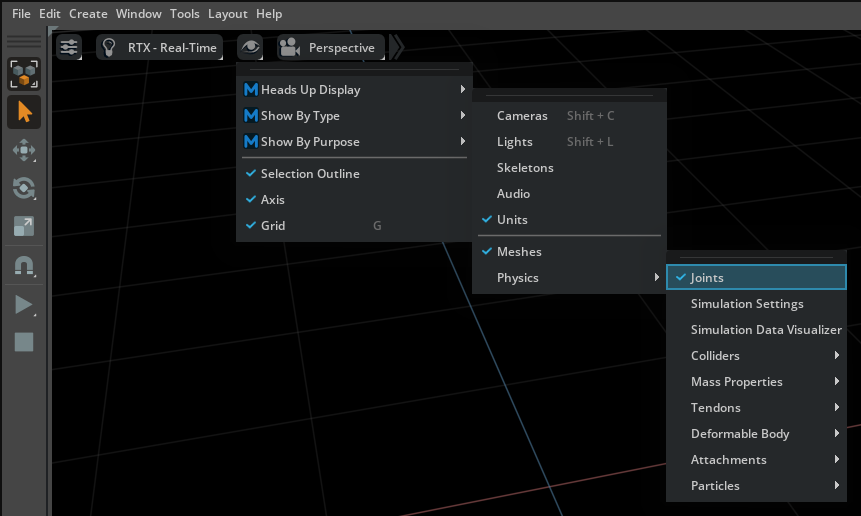
Here you can toggle the drawing of things including collision-shape approximations for physics bodies and the location of joints. You can also be able to enable the Simulation Settings Window and the Simulation Data Visualizer Window.
Note
Viewport visualization overlays can be slow when simulating large scenes.
In addition, there are also many visualization and other debug options available in the Physics Debug Window.
Mouse Interaction#
In addition to visualizing physics elements, the Omni PhysX UI extension also provides an overlay that enables you to interact with objects during simulation. You can push or grab objects by shift-clicking them in the viewport when the simulation is running. See the related settings and description in the Mouse Interaction Settings.