

Backdrops and Layout#
Material Graph provides several tools for keeping your graph organized: backdrops for visual grouping, automatic layout for quick cleanup, and view-framing shortcuts for fast navigation.
Backdrops#
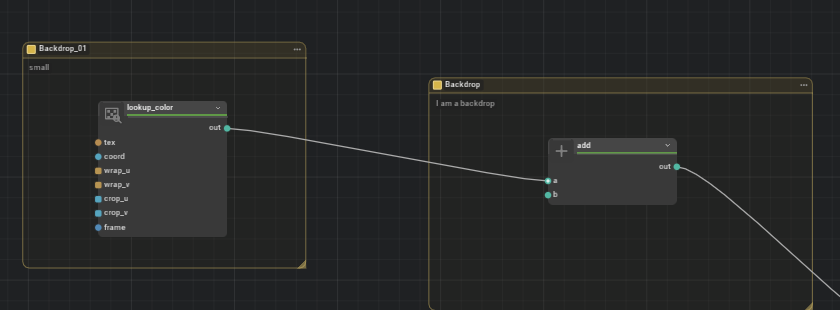
Backdrops are colored rectangular containers that sit behind nodes on the canvas. Use them to label functional sections of a graph, such as all nodes that contribute to the base color or a set of utility math nodes.
Creating a Backdrop#
Catalog: Expand Miscellaneous in the Nodes tab, then drag Backdrop onto the canvas.
Context menu: Right-click empty canvas space and choose Nodes > Miscellaneous > Backdrop.
A new backdrop uses the default size and color at the drop position. Move and resize it to enclose the nodes you want to document.
Resizing#
Drag the resize handle at the bottom-right corner of the backdrop to change its dimensions. Nodes inside the backdrop are not moved; only the backdrop boundary changes.
Color#
Double-click the color swatch in the backdrop header to open a color picker. Choose any color to visually distinguish different sections of the graph.
Double-click the backdrop’s header name to rename it.
Description#
The body of a backdrop contains an editable text area. Double-click the backdrop body to enter a description, such as “Normal map blending chain” or “Displacement logic.” The text is saved with the graph.
Stacking Order#
Backdrops always render behind nodes. When backdrops overlap, they stack by depth: a smaller backdrop nested inside a larger one renders on top of the outer backdrop but still behind any nodes. This lets you create hierarchical groupings without obscuring node content.
Auto Layout#
Press Ctrl+L or choose View > Auto Layout Nodes from the Material Graph overflow menu to apply a layered layout to every node at the current graph level. The command does not use the current selection as a filter.
Auto Layout arranges nodes in horizontal layers from inputs on the left to outputs on the right, minimizing connection crossings. It is especially useful after pasting a subgraph or importing a material that was authored in another tool.
Frame Selection#
Press F to frame the current view:
Selection State |
Behavior |
|---|---|
One or more nodes selected |
The view pans and zooms to fit the selected nodes. |
No selection |
The view pans and zooms to fit all nodes in the graph. |
Frame Selection is the fastest way to re-center after scrolling or zooming deep into a section of the graph.
Context Visibility#
Backdrop and NodeGraph visibility can be restricted to one or more render contexts. This is useful when your material has separate networks for MDL, MaterialX, and Universal that share the same graph level:
A backdrop confined to the MDL context is visible only when the MDL context is active.
A NodeGraph confined to Universal is hidden when you switch to MDL.
Open the element’s node menu, choose Context Visibility…, and select every context in which the element should appear. Select all contexts to remove the restriction.