

Using AI Agents with MCP#
The RTX Remix Model Context Protocol (MCP) Server enables AI agents and Large Language Models (LLMs) to interact with the Toolkit. This allows for workflow automation, AI-powered feature integration, and Toolkit control through natural language commands.
See also
To jump straight into setting up a Remix AI Agent Assistant see the Connecting AI Agents with MCP section.
Background Information#
What is MCP?#
Model Context Protocol (MCP) is an open standard that provides a unified way for AI applications to interact with external tools and data sources. In the context of RTX Remix, MCP acts as a bridge between AI agents and the Toolkit’s functionality, exposing the REST API endpoints in a format that LLMs can understand and use through tool calling.
Key Benefits#
Natural Language Control: Interact with the Toolkit using conversational commands
Automation: Create AI-powered workflows to automate repetitive tasks
Integration: Connect the Toolkit with AI platforms and custom agents
Standardization: Use a widely-adopted protocol supported by multiple AI frameworks
Finding the MCP Server Information#
When the RTX Remix Toolkit starts, the MCP server automatically begins running with the following default configuration:
Protocol: Streamable HTTP
Host:
127.0.0.1orlocalhostPreferred port:
18014Endpoint:
http://127.0.0.1:18014/mcp/
On Windows, read mcp_endpoint from %LOCALAPPDATA%\NVIDIA\RTX Remix\mcp.json for the
running server’s address, including fallback ports. Check that its pid is still running and
confirm readiness before connecting; a crash can leave a stale file. See the
discovery manifest details.
If the port is occupied, the Toolkit tries the remaining ports through 18019 in order. If all
six ports are unavailable, MCP startup logs an error and stops. Find MCP_PORT_FALLBACK in
the Toolkit log and use its endpoint= URL in your client configuration. Wait for
SERVICE_READY service=mcp with the matching host and port before connecting. Client settings
do not update automatically when the port changes.
Clients that cannot yet connect over Streamable HTTP can fall back to the protocol’s legacy SSE transport by
setting /exts/lightspeed.trex.mcp.core/transport to sse, which serves http://127.0.0.1:18014/sse instead.
Connecting AI Agents to MCP#
There are many frameworks that will allow AI Agents to connect to the RTX Remix MCP Server. This guide will go through the steps of connecting an AI Agent to the MCP Server with Langflow, but we also include some general steps for any MCP-Compatible client.
Using Langflow#
Langflow is a visual framework for building AI agents that supports MCP:
Important
An OpenAI API key is required to use the NVIDIA RTX Remix Langflow template as-is, however, the template can be modified to use different LLM providers. See the Agent component documentation for more information on the Agent component.
Install Langflow by following the installation guide
Tip
Minimum version of the Langflow Desktop application required is
1.5.13.Minimum version of the Langflow PIP package required is
1.5.0.post2.
Launch the RTX Remix Toolkit
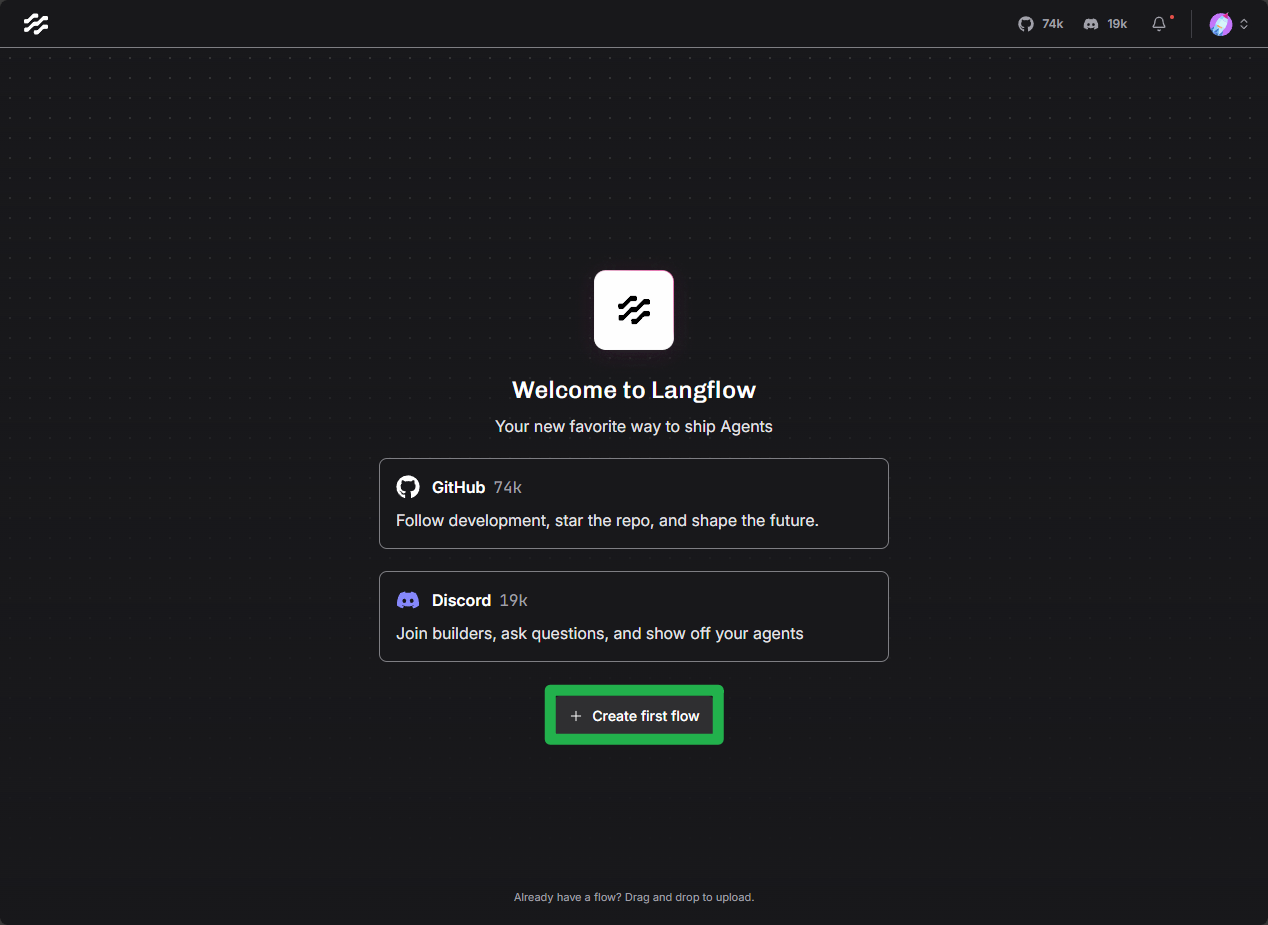
Launch Langflow and create a new flow in Langflow
Select the
NVIDIA RTX RemixTemplate in the “Agents” section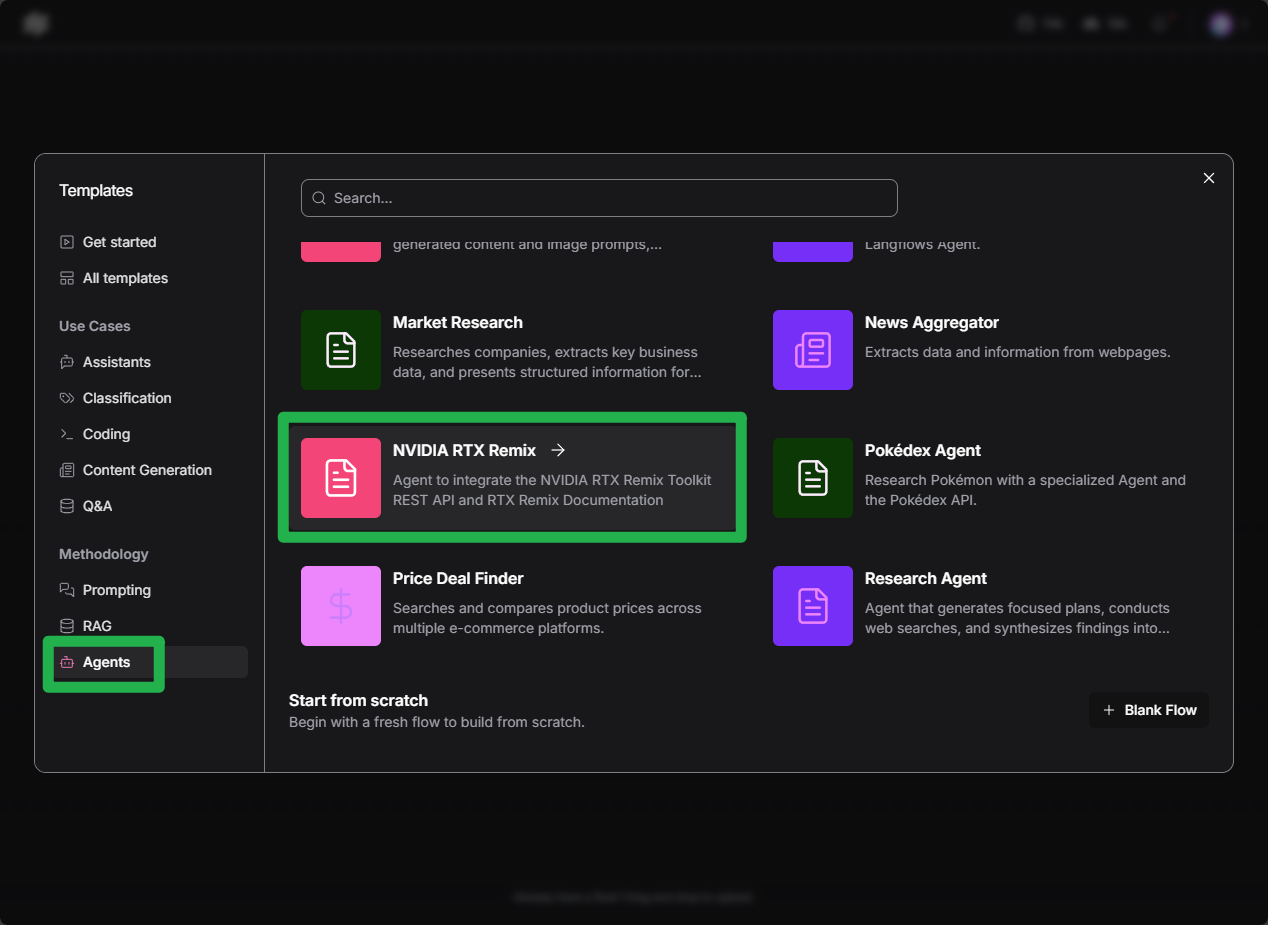
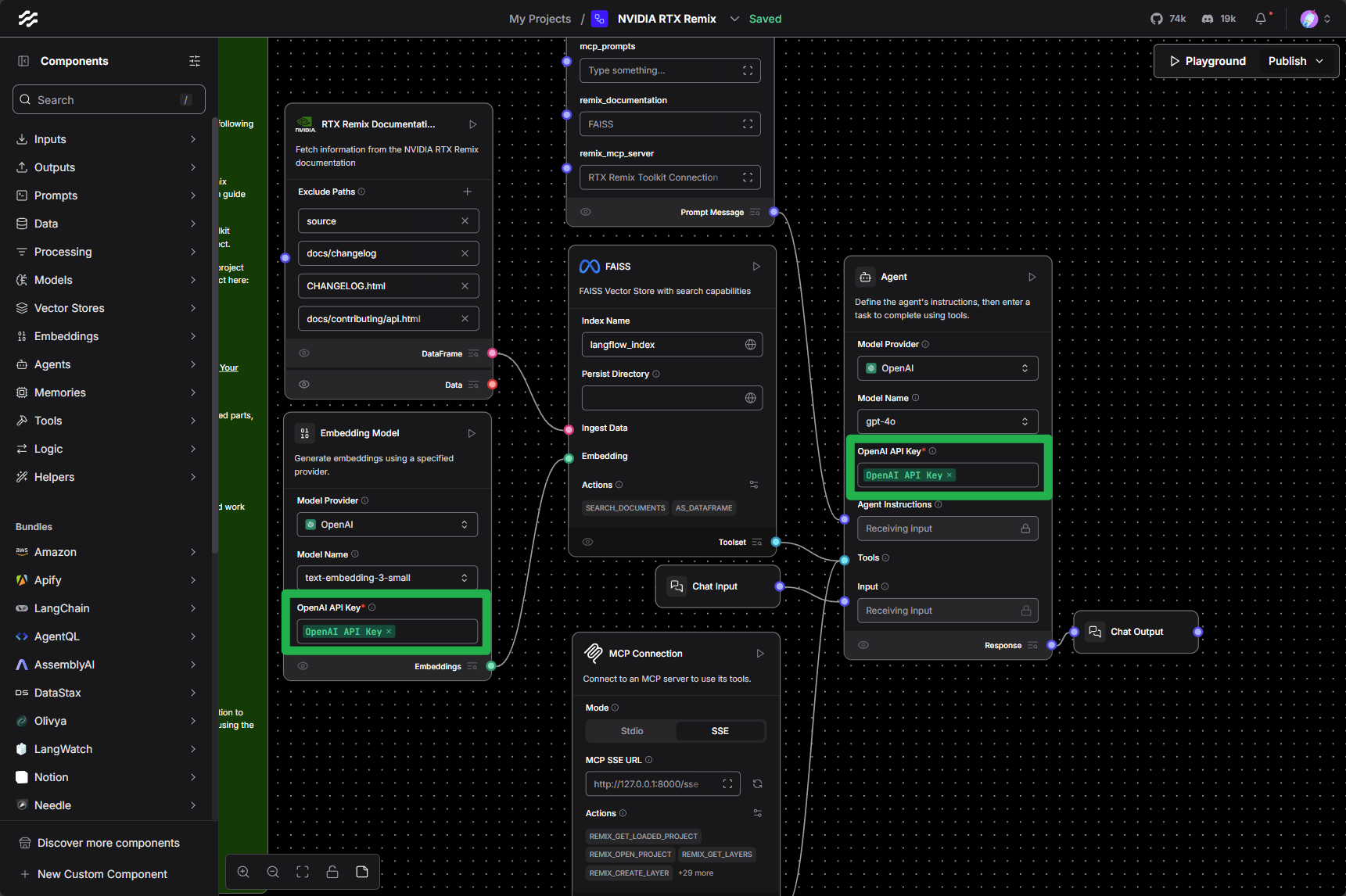
Update the required API Keys. Using Langflow’s Environment Variables can simplify this process:
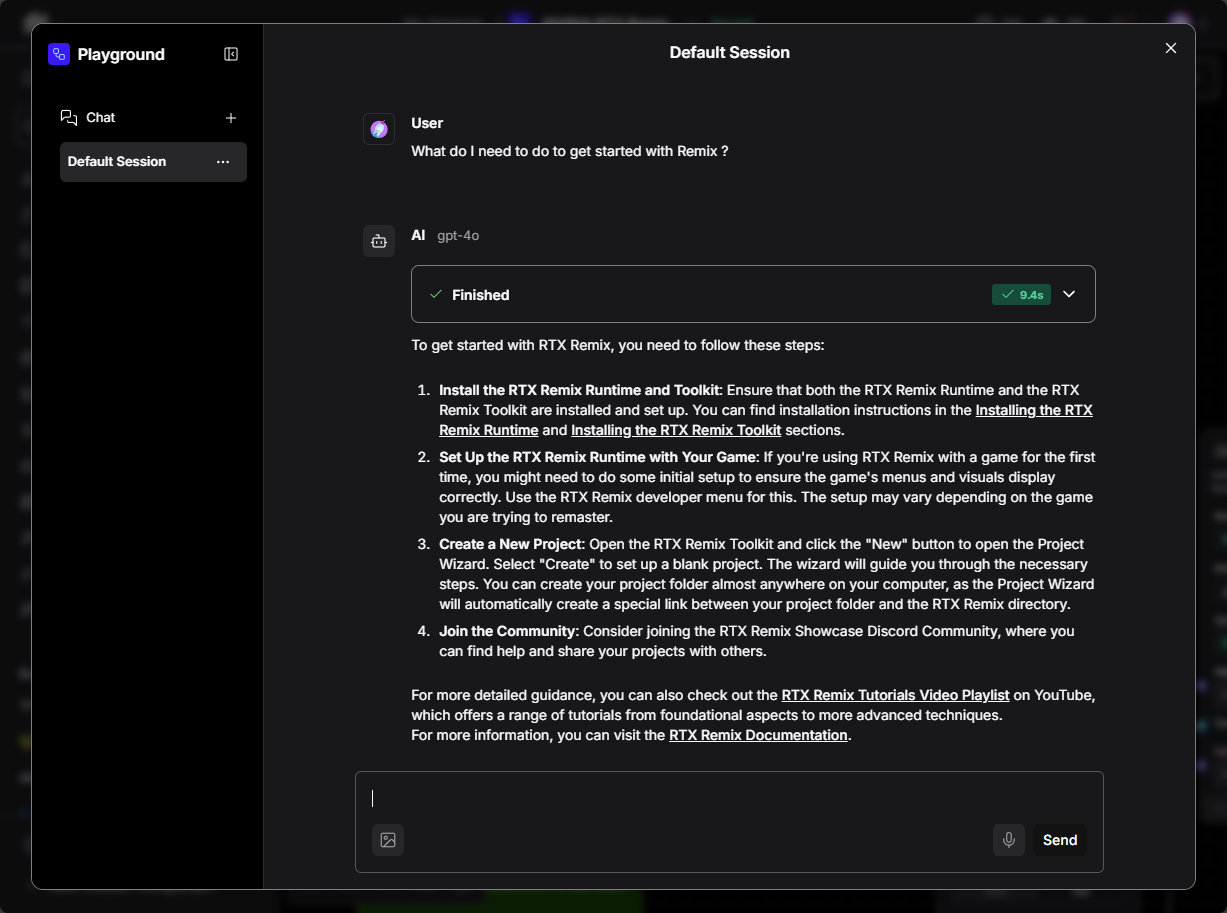
Test the flow by entering the “Playground”
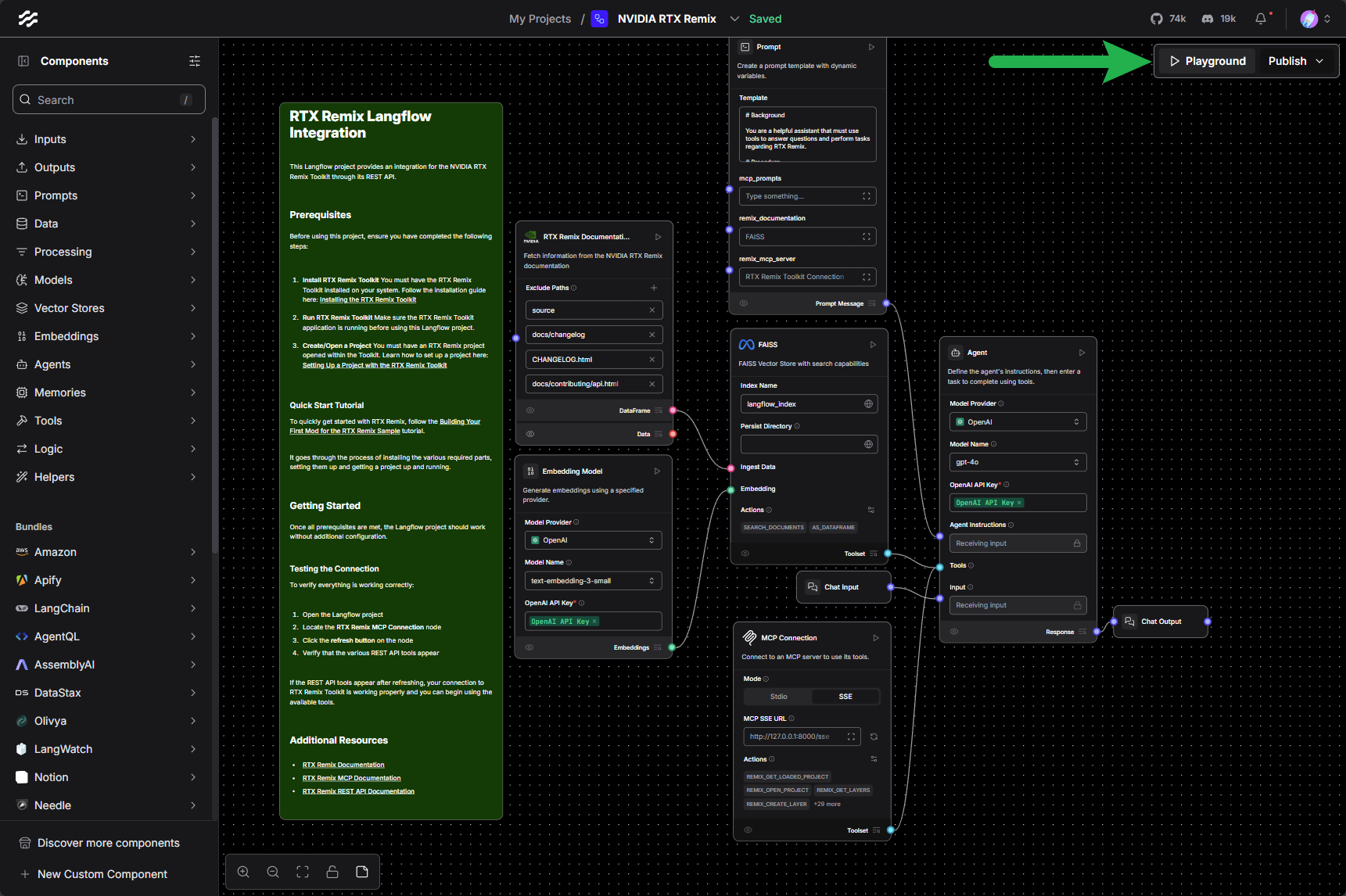
Interact with the flow by entering a message in the “Input” field and clicking the “Send” button.
Tip
For troubleshooting flow issues, refer to the README node in the Langflow project for detailed information on template usage and common issue resolution.
Using MCP-Compatible Clients#
Any MCP-compatible client can connect to the Toolkit. To connect:
Configure the client for Streamable HTTP at
http://127.0.0.1:18014/mcp/, or the fallback endpoint from the Toolkit logEnsure the RTX Remix Toolkit is running
The client will automatically discover available tools through the MCP protocol
For example, to register the server with Claude Code for the current folder:
claude mcp add --transport http remix http://127.0.0.1:18014/mcp/
claude mcp list then shows remix as connected while the Toolkit is running.
Modding skill#
The rtx-remix-modding skill teaches agents how to use the Toolkit’s MCP tools. It requires Toolkit 1.6.0 or newer,
including prebuilt development packages.
To install the published version from the NVIDIA skills repository, run this with
Node.js 22.20 or newer, in the folder you start your agent from:
npx skills add https://github.com/nvidia/skills --skill rtx-remix-modding
When prompted, make sure your agent is selected.
The Toolkit also bundles the skill and its reference files. Start your coding agent from the Toolkit installation
directory, or open that directory as its workspace, to use its bundled skill discovery files. The skill’s instructions
are in skills/rtx-remix-modding/SKILL.md.
Connect the agent to MCP separately; loading the skill does not establish a connection to the Toolkit.
How MCP Works with RTX Remix#
The RTX Remix MCP server operates as follows:
Automatic Startup: The MCP server starts automatically when launching the RTX Remix Toolkit
REST API Translation: It translates the Toolkit’s REST API endpoints into MCP-compatible tools
Streamable HTTP: Carries MCP requests and responses between clients and the Toolkit
Tool Definitions: Provides structured descriptions of available actions that LLMs can understand
See also
See the REST API Documentation for more information on the RTX Remix Toolkit’s REST API.
Technical Architecture#

The diagram labels the legacy SSE transport; the default transport is Streamable HTTP.
Troubleshooting#
Testing the MCP Server#
The MCP Inspector is the recommended tool for testing:
Make sure
Node.js22.19 or newer is installed. If not, follow the instructions here. Older versions fail to start the Inspector with an error aboutstyleTextmissing fromnode:util.Start the RTX Remix Toolkit (ensures MCP server is running)
Launch MCP Inspector:
npx @modelcontextprotocol/inspectorIt prints a
http://127.0.0.1:6274URL with an auth token already filled in. Open that URL.Add the RTX Remix MCP server:
Choose “Add Servers”, then “Add manually”
Server ID: any name, for example
rtx-remixTransport:
streamable-httpURL:
http://127.0.0.1:18014/mcp/(use the logged endpoint if the preferred port is occupied)Click “Add”
Turn on the new server’s Connect toggle. Once connected, the card reports the negotiated protocol revision.
Use the Tools tab to explore and invoke Toolkit operations, and the Messages pane to inspect the request and response traffic
Need to leave feedback about the RTX Remix Documentation? Click here