

RTX Sensor Processing Graphs [omni.rtx.spg]#
SPG enables running custom GPU code as post-processing passes on RTX render outputs (Arbitrary Output Variables, or AOVs). You write a CUDA kernel, describe its launch configuration in a Lua script, declare its interface in USD, and wire it into a RenderProduct. All computation stays on the GPU – there is no CPU-side data transfer in the processing pipeline.
This guide assumes proficiency with CUDA kernel programming and basic familiarity with USD (Universal Scene Description).
Prerequisites#
Kit must be running with
--enable omni.rtx.spg, or activateomni.rtx.spgmanually through the Extension Manager UI.CUDA development knowledge is assumed. This guide does not teach CUDA programming; it focuses on the SPG-specific interface.
How SPG Works#
Every SPG shader is defined by three files:
File |
Role |
|---|---|
|
CUDA kernel – the GPU transform you write. |
|
Lua launch script – tells SPG how to validate inputs, allocate outputs, and launch the kernel. |
|
USD shader definition – declares inputs, outputs, and references the CUDA source. Wired into the render graph. |
 .cu            .cu.lua          .usda
 (kernel)       (launch script)  (shader def)
    \               |               /
     \              |              /
      +-------  SPG Engine  ------+
                    |
              Output AOV buffer
The rest of this guide teaches you to create these files through two hands-on walkthroughs, starting with a simple grayscale conversion.
Walkthrough: Grayscale Conversion of LdrColor#
In this walkthrough you will convert the RTX-rendered LdrColor image (RGBA uint8,
tone-mapped) into a grayscale image called LdrGrayscale. You will create three
shader files and one scene file, then load and run the result in Kit.
Step 1: The CUDA Kernel#
File: GrayscaleKernel.cu
SPG compiles CUDA source at runtime using NVRTC (NVIDIA Runtime Compilation). Your
kernel is a standard extern "C" __global__ function.
extern "C" __global__ void grayscale(
    int width,
    int height,
    cudaTextureObject_t inputLdrColor,
    cudaSurfaceObject_t outputLdrGrayscale)
{
    int x = blockIdx.x * blockDim.x + threadIdx.x;
    int y = blockIdx.y * blockDim.y + threadIdx.y;

    if (x < width && y < height)
    {
        uchar4 pixel = tex2D<uchar4>(inputLdrColor, x, y);

        // ITU-R BT.601 luminance weights
        float luminance = 0.299f * pixel.x + 0.587f * pixel.y + 0.114f * pixel.z;
        unsigned char gray = (unsigned char)min(255.0f, max(0.0f, luminance));

        uchar4 out = { gray, gray, gray, pixel.w };
        surf2Dwrite<uchar4>(out, outputLdrGrayscale, x * sizeof(uchar4), y);
    }
}
Key points:
extern "C"is required – NVRTC needs C linkage to locate the kernel by name.cudaTextureObject_tprovides read-only, hardware-cached access to the input AOV.cudaSurfaceObject_tprovides random-access write to the output buffer.uchar4matches the RGBA uint8 format of the LdrColor AOV.CUDA headers shipped with Kit are available via
#include(for example,#include <cuda_fp16.h>for half-precision support). The include path is automatically configured by SPG.
Step 2: The Lua Launch Script#
File: GrayscaleKernel.cu.lua
SPG uses Lua as a lightweight scripting glue between the USD graph and CUDA kernel
execution. Lua is small, fast to evaluate, and runs inside a secure sandbox that
prevents file-system access or unbounded computation. The launch script is called
each frame. (For a complete reference of all available Lua functions and types, see
Lua cuda Module Reference at the end of this guide.)
The Lua function receives three tables:
inputs– AOV data from connectedopaqueshader attributes. Each entry has.shape(a Lua table of dimensions) and.dtype(e.g.cuda.uchar4), so you can validate and query the input geometry.outputs– you allocate these to describe the kernel’s output buffers (viacuda.imageorcuda.empty). After allocation, outputs also expose.shapeand.dtype.params– USD-typed attribute values (e.g.int,float,bool).
The function name must match the CUDA kernel function name and the USD
subIdentifier attribute.
function grayscale(inputs, outputs, params)
    assert(#inputs["LdrColor"].shape == 2, "Input must be a 2D image")
    assert(inputs["LdrColor"].dtype == cuda.uchar4, "Input must be uchar4")

    local height = inputs["LdrColor"].shape[1]
    local width  = inputs["LdrColor"].shape[2]

    outputs["LdrGrayscale"] = cuda.image(width, height, cuda.uchar4)

    return cuda.kernel({
        -- void grayscale(int, int, cudaTextureObject_t, cudaSurfaceObject_t)
        args = {
            cuda.int(width),                             -- -> int width
            cuda.int(height),                            -- -> int height
            cuda.TextureObject(inputs["LdrColor"]),      -- -> cudaTextureObject_t inputLdrColor
            cuda.SurfaceObject(outputs["LdrGrayscale"]), -- -> cudaSurfaceObject_t outputLdrGrayscale
        },
        block = { 32, 32 },
        grid = { math.ceil(width/32), math.ceil(height/32) },
    })
end
Key points:
cuda.image(width, height, dtype)allocates a 2D texture-backed image output. Prefer this for image data. For non-image data (matrices, arrays, tensors), usecuda.empty({shape}, dtype)instead.cuda.TextureObject(...)andcuda.SurfaceObject(...)wrap resources into the corresponding CUDA types (cudaTextureObject_t,cudaSurfaceObject_t).The
argslist must match the CUDA kernel’s C function signature exactly – same order, same types. Each inline comment shows the corresponding C parameter.Input/output keys (
"LdrColor","LdrGrayscale") must match the USD attribute names exactly.blockandgridmap directly to the CUDA launch configuration (<<<grid, block>>>). Here, 32x32 thread blocks tile over the image dimensions.
Step 3: The USD Shader Definition#
File: GrayscaleKernel.usda
The USD shader definition declares the kernel’s interface and points SPG at the CUDA source file.
#usda 1.0
(
    defaultPrim = "GrayscaleKernel"
)

def Shader "GrayscaleKernel"
{
    uniform token info:implementationSource = "sourceAsset"
    uniform asset info:spg:sourceAsset = @../source/GrayscaleKernel.cu@
    uniform token info:spg:sourceAsset:subIdentifier = "grayscale"

    opaque inputs:LdrColor
    opaque outputs:LdrGrayscale
}
Key points:
info:spg:sourceAsset– path to the.cufile, relative to this.usdafile.info:spg:sourceAsset:subIdentifier– theextern "C"function name to invoke. Must also match the Lua function name.opaque inputs:LdrColor/opaque outputs:LdrGrayscale– AOV inputs and outputs. Theopaquetype means the actual data type is resolved at runtime by the Lua launch script.The
.cu.lualaunch script must be co-located with the.cufile. SPG finds it by appending.luato the source asset path (i.e.GrayscaleKernel.cu+.lua=GrayscaleKernel.cu.lua).This file is a reusable shader definition. Scene files reference it via USD
referencesand wire its inputs/outputs to RenderVars.
Step 4: The Scene File#
File: example-grayscale.usda
The scene file wires the shader into the RTX rendering pipeline. It defines:
A RenderProduct associated with a camera and resolution.
RenderVars declaring which AOVs to produce.
A Shader instance referencing the shader definition.
Connections linking RenderVars to shader inputs/outputs.
Below is the rendering pipeline section (the full scene file also includes Cornell Box-inspired geometry with colored walls, a box, and a sphere):
def Scope "Render"
{
    def RenderProduct "GrayscaleDemo"
    {
        uniform int2 resolution = (1920, 1080)
        rel camera = </World/Camera>
        rel orderedVars = [ <LdrColor>, <LdrGrayscale> ]

        def RenderVar "LdrColor"
        {
            uniform string sourceName = "LdrColor"
            opaque omni:rtx:aov
        }

        def RenderVar "LdrGrayscale"
        {
            uniform string sourceName = "LdrGrayscale"
            opaque omni:rtx:aov.connect = <../GrayscaleKernel.outputs:LdrGrayscale>
        }

        def Shader "GrayscaleKernel" (
            references = @GrayscaleKernel.usda@
        )
        {
            opaque inputs:LdrColor.connect = <../LdrColor.omni:rtx:aov>
        }
    }
}
Key points:
RenderProduct ties a camera and resolution together and lists the active RenderVars via
orderedVars(which AOVs are produced). Every RenderVar consumed or produced by shaders must appear in this list. SPG runs shader nodes in topological order from the dependency graph (connections), not from the order in orderedVars.RenderVar
LdrColordeclares the built-in LdrColor AOV produced by the RTX renderer.uniform string sourceNameidentifies the AOV, andopaque omni:rtx:aovexposes it as a connectable attribute.RenderVar
LdrGrayscalereceives the shader’s output viaomni:rtx:aov.connect. It also needs asourceNameto register the AOV.Shader
GrayscaleKernelreferences the reusable shader definition and connectsinputs:LdrColorto the LdrColor RenderVar’somni:rtx:aovattribute.The connection pattern flows:
RenderVar.omni:rtx:aov->Shader.inputs:X->Shader.outputs:Y->RenderVar.omni:rtx:aov.connect.
Step 5: Run It#
Run Kit with --enable omni.rtx.spg and open example-grayscale.usda via
File > Open Stage. The scene loads with the Cornell Box-inspired geometry
rendered through the scene’s camera:
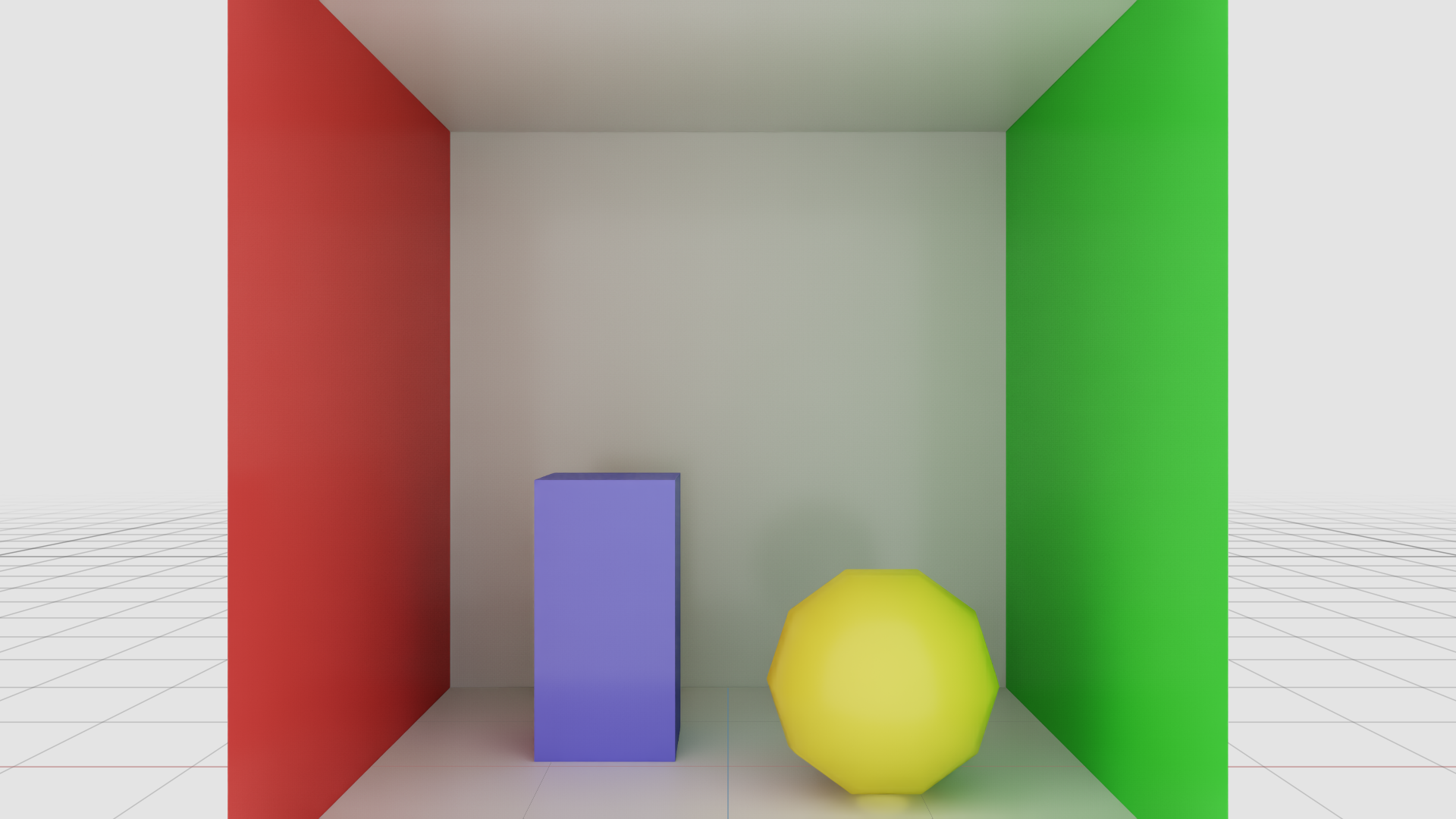
Open Kit’s Script Editor (from the Window menu), paste the following
code and click Run. This sets the main viewport’s render product to
GrayscaleDemo and switches the displayed AOV to LdrGrayscale:
from omni.kit.viewport.utility import get_active_viewport_window
viewport_api = get_active_viewport_window().viewport_api
viewport_api.render_product_path = "/Render/GrayscaleDemo"
viewport_api.display_render_var = "LdrGrayscale"
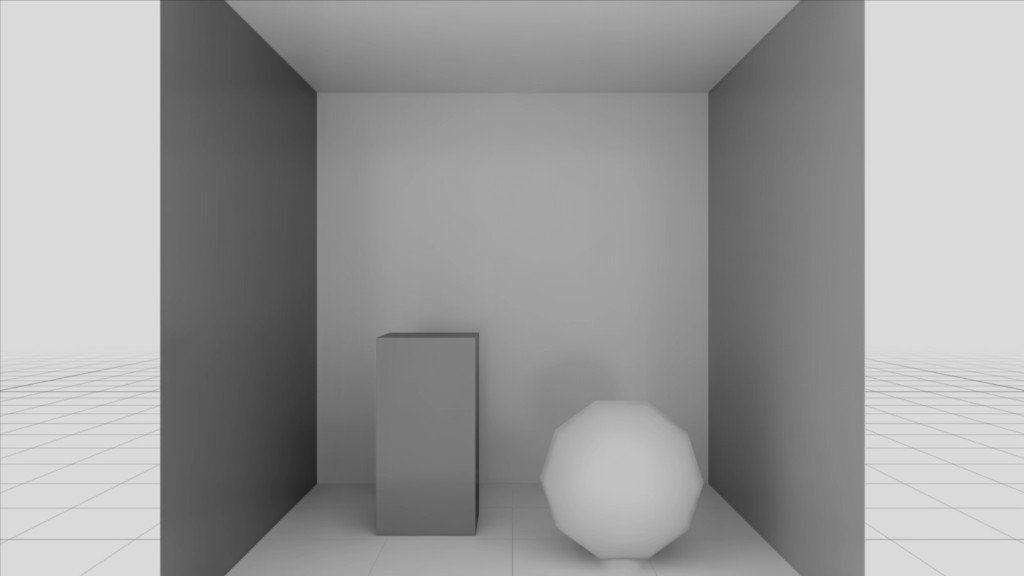
The SPG graph executes automatically each frame. The viewport now shows the
grayscale conversion of LdrColor:
Note:
display_render_varonly works for RGBA unorm textures (such asLdrColororLdrGrayscale). For other output formats, save the raw AOV to disk instead. Because the capture must wait for the render product to be active, wrap it in an async function and schedule it on Kit’s event loop:import omni.kit.app from omni.kit.async_engine import run_coroutine from omni.kit.widget.viewport.capture import FileCapture from omni.kit.viewport.utility import get_active_viewport async def save_aovs(aov_names, output_dir="/tmp", settle_frames=5): viewport_api = get_active_viewport() viewport_api.render_product_path = "/Render/GrayscaleDemo" for _ in range(settle_frames): await omni.kit.app.get_app().next_update_async() for name in aov_names: viewport_api.schedule_capture(FileCapture(f"{output_dir}/{name}.png", aov_name=name)) run_coroutine(save_aovs(["LdrColor", "LdrGrayscale"]))This captures the raw AOV data directly to a PNG file, bypassing the viewport compositing pipeline.
Understanding the Architecture#
Now that you have a working example, this section explains the full architecture in more depth.
The Three Layers#
CUDA (.cu) – The Transform Kernel
A C function with C arguments, working directly on rendered GPU data via the CUDA
API. SPG compiles .cu source at runtime using NVRTC. The kernel receives its
arguments in the exact order defined by the Lua launch script’s cuda.kernel({ args })
list. Standard CUDA headers (e.g. cuda_fp16.h) are available via #include.
Lua (.cu.lua) – The Launch Script
A lightweight scripting language used as the runtime bridge between the USD graph and CUDA kernel execution. Lua was chosen for its small footprint, fast evaluation, and ability to run inside a secure sandbox (no file-system access, bounded memory and instruction limits).
The launch script is called every frame. It:
Validates inputs (shape, dtype).
Allocates output buffers.
Returns a
cuda.kernel({...})table describing the launch configuration.
The Lua wrapper objects (cuda.TextureObject, cuda.SurfaceObject, cuda.int, etc.)
are translated into C function arguments before the kernel is launched.
USD (.usda) – The Static Graph
Declares shader inputs and outputs, references the CUDA source file, and is wired into the RenderProduct/camera/AOV structure. USD is read once at stage load and defines the processing graph topology.
Walkthrough: Chaining Shaders – Grayscale + Invert#
This walkthrough builds on the grayscale example. You will chain two shaders
together: first the GrayscaleKernel from the previous walkthrough, then a new
InvertKernel that inverts the RGB channels. The final output is called
LdrInverted.
New Concepts#
This example introduces two concepts beyond the grayscale walkthrough:
Typed parameters: a
floatinput in USD, received asparamsin Lua. The invert kernel uses astrengthparameter to blend between the original and inverted image.Multi-node chaining: one shader’s output feeds directly into another shader’s input, without an intermediate RenderVar.
Step 1: The CUDA Kernel#
File: InvertKernel.cu
The invert kernel blends each pixel’s RGB channels between the original value
and its inverse (255 - original), controlled by a strength parameter. Alpha
is preserved unchanged.
extern "C" __global__ void invert(
    int width,
    int height,
    float strength,
    cudaTextureObject_t inputImage,
    cudaSurfaceObject_t outputInverted)
{
    int x = blockIdx.x * blockDim.x + threadIdx.x;
    int y = blockIdx.y * blockDim.y + threadIdx.y;

    if (x < width && y < height)
    {
        uchar4 pixel = tex2D<uchar4>(inputImage, x, y);

        // lerp(original, 255-original, strength) per RGB channel
        unsigned char r = (unsigned char)(pixel.x + strength * (255 - 2 * pixel.x));
        unsigned char g = (unsigned char)(pixel.y + strength * (255 - 2 * pixel.y));
        unsigned char b = (unsigned char)(pixel.z + strength * (255 - 2 * pixel.z));

        uchar4 out = { r, g, b, pixel.w };
        surf2Dwrite<uchar4>(out, outputInverted, x * sizeof(uchar4), y);
    }
}
Key points:
strengthcontrols the blend: 0.0 = pass-through, 1.0 = fully inverted. Values in between produce a partial inversion.Alpha (
pixel.w) is preserved unchanged.The kernel follows the same structure as the grayscale kernel – thread mapping, bounds check, texture read, surface write.
Step 2: The Lua Launch Script#
File: InvertKernel.cu.lua
The launch script introduces params access. Typed USD attributes (non-opaque)
appear in the params table rather than inputs.
function invert(inputs, outputs, params)
    assert(#inputs["Image"].shape == 2, "Input must be a 2D image")
    assert(inputs["Image"].dtype == cuda.uchar4, "Input must be uchar4")

    local height = inputs["Image"].shape[1]
    local width  = inputs["Image"].shape[2]

    outputs["Inverted"] = cuda.image(width, height, cuda.uchar4)

    return cuda.kernel({
        -- void invert(int, int, float, cudaTextureObject_t, cudaSurfaceObject_t)
        args = {
            cuda.int(width),                           -- -> int width
            cuda.int(height),                          -- -> int height
            cuda.float(params["strength"]),             -- -> float strength
            cuda.TextureObject(inputs["Image"]),        -- -> cudaTextureObject_t inputImage
            cuda.SurfaceObject(outputs["Inverted"]),    -- -> cudaSurfaceObject_t outputInverted
        },
        block = { 32, 32 },
        grid = { math.ceil(width/32), math.ceil(height/32) },
    })
end
Key points:
paramsaccess:params["strength"]corresponds to the USD attributefloat inputs:strength. When wrapping as a kernel argument,cuda.float(params["strength"])extracts the value automatically. To use the raw number in Lua arithmetic, accessparams["strength"].valueinstead.Input/output keys (
"Image","Inverted") match the USD shader definition’s attribute names, not the RenderVar names. The scene file’s connections bridge the two namespaces.
Step 3: The USD Shader Definition#
File: InvertKernel.usda
This definition adds a typed parameter alongside the opaque AOV inputs/outputs.
Typed inputs appear in the params table in Lua; opaque inputs appear in inputs.
#usda 1.0
(
    defaultPrim = "InvertKernel"
)

def Shader "InvertKernel"
{
    uniform token info:implementationSource = "sourceAsset"
    uniform asset info:spg:sourceAsset = @../source/InvertKernel.cu@
    uniform token info:spg:sourceAsset:subIdentifier = "invert"

    float inputs:strength = 1.0

    opaque inputs:Image
    opaque outputs:Inverted
}
Key points:
float inputs:strength = 1.0defines a typed parameter with a default value. Scene files can override this per shader instance.The shader uses generic names (
Image/Inverted) rather than AOV-specific names. Shader input/output names are a contract between the USD Shader definition and the Lua launch script, independent of RenderVar names.
Step 4: The Scene File#
File: example-grayscale-invert.usda
The scene chains two shaders: the GrayscaleKernel from the first walkthrough converts LdrColor to grayscale, then the InvertKernel inverts the result. The InvertKernel reads directly from the GrayscaleKernel’s output – no intermediate RenderVar is needed.
def Scope "Render"
{
    def RenderProduct "GrayscaleInvertDemo"
    {
        uniform int2 resolution = (1920, 1080)
        rel camera = </World/Camera>
        rel orderedVars = [ <LdrColor>, <LdrInverted> ]

        def RenderVar "LdrColor"
        {
            uniform string sourceName = "LdrColor"
            opaque omni:rtx:aov
        }

        def RenderVar "LdrInverted"
        {
            uniform string sourceName = "LdrInverted"
            opaque omni:rtx:aov.connect = <../InvertKernel.outputs:Inverted>
        }

        def Shader "GrayscaleKernel" (
            references = @GrayscaleKernel.usda@
        )
        {
            opaque inputs:LdrColor.connect = <../LdrColor.omni:rtx:aov>
        }

        def Shader "InvertKernel" (
            references = @InvertKernel.usda@
        )
        {
            opaque inputs:Image.connect = <../GrayscaleKernel.outputs:LdrGrayscale>
            float inputs:strength = 1.0
        }
    }
}
Key points:
Shader-to-shader chaining: The InvertKernel connects its
inputs:Imagedirectly toGrayscaleKernel.outputs:LdrGrayscale. No intermediate RenderVar is needed for the grayscale result.Typed parameter override:
float inputs:strength = 1.0overrides the shader definition’s default. Try changing this value to see partial inversion.orderedVarslists onlyLdrColor(input) andLdrInverted(final output). The intermediate grayscale result is internal to the shader chain.
Step 5: Run It#
Run Kit with --enable omni.rtx.spg and open example-grayscale-invert.usda via
File > Open Stage.
Open Kit’s Script Editor (from the Window menu), paste the following
code and click Run. This sets the main viewport’s render product to
GrayscaleInvertDemo and switches the displayed AOV to LdrInverted:
from omni.kit.viewport.utility import get_active_viewport_window
viewport_api = get_active_viewport_window().viewport_api
viewport_api.render_product_path = "/Render/GrayscaleInvertDemo"
viewport_api.display_render_var = "LdrInverted"
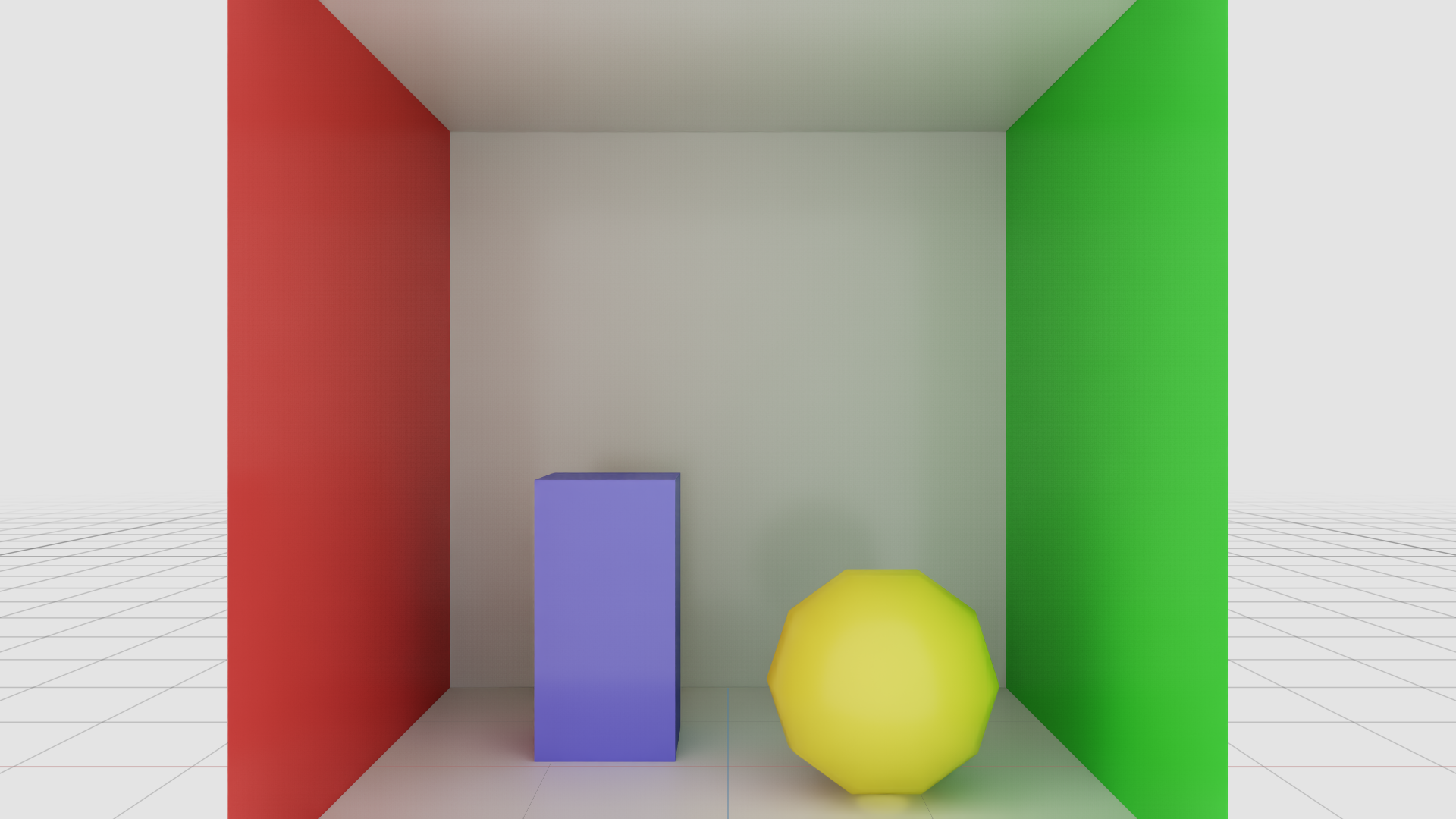
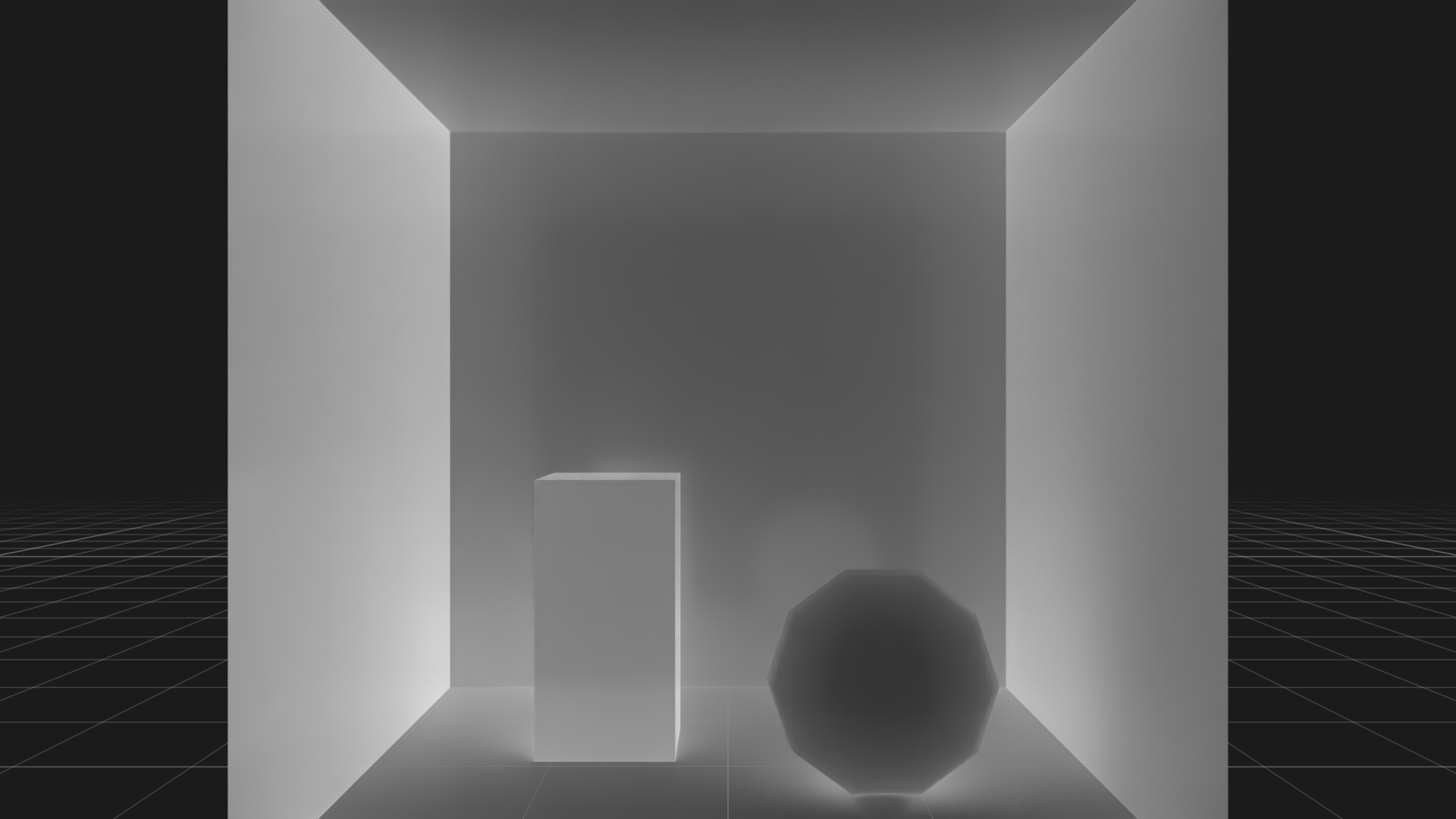
The before and after results of the grayscale + invert chain:
LdrColor (original rendered image):
LdrInverted (after grayscale + invert chain with strength = 1.0):
Note:
display_render_varonly works for RGBA unorm textures. To save any AOV to disk regardless of format, useFileCaptureas shown in the grayscale Run It section.
Known Limitations#
SPG is currently under active development. The API surface, Lua bindings, and supported workflows may evolve across releases. Future versions will expand the feature set and provide more exhaustive documentation, including additional examples, supported data types, and integration patterns.
Current limitations:
Only local
.cu,.cu.lua, and.usdafiles are currently supported.SPG Shader nodes must not be nested under a Material prim at this time.
Lua cuda Module Reference#
This section is an exhaustive reference for all Lua functions, types, and globals available in SPG launch scripts.
dtype Constants#
All dtype constants live in the cuda table and can also be called as constructors
for kernel arguments (e.g. cuda.int(42)).
Constant |
C Type |
Size |
|---|---|---|
|
bool |
1 byte |
|
uint8 |
1 byte |
|
uchar4 |
4 bytes |
|
__half |
2 bytes |
|
half2 |
4 bytes |
|
half3 |
6 bytes |
|
half4 |
8 bytes |
|
float |
4 bytes |
|
float2 |
8 bytes |
|
float3 |
12 bytes |
|
float4 |
16 bytes |
|
int32_t |
4 bytes |
|
int2 |
8 bytes |
|
int3 |
12 bytes |
|
int4 |
16 bytes |
|
uint32_t |
4 bytes |
|
uint2 |
8 bytes |
|
uint3 |
12 bytes |
|
uint4 |
16 bytes |
|
double |
8 bytes |
|
double2 |
16 bytes |
|
double3 |
24 bytes |
|
double4 |
32 bytes |
|
int64_t |
8 bytes |
|
uint64_t |
8 bytes |
Output Allocation#
Function |
Description |
|---|---|
|
Allocate a 2D texture-backed image output. Preferred for image data. |
|
Allocate a buffer-backed output with arbitrary shape (up to 8 dimensions). Use for non-image data. |
|
Allocate a buffer filled with zeros. |
|
Allocate a buffer filled with ones. |
|
Allocate a buffer filled with a specified value. |
Kernel Argument Wrappers#
Function |
Wraps To |
Description |
|---|---|---|
|
|
Read-only texture access to an input or output resource. |
|
|
Read-write surface access to an output resource. |
|
|
Raw device pointer to an input or output resource. |
|
|
Upload a Lua table of numbers to a GPU device array. |
|
|
Scalar kernel argument. |
|
|
Scalar kernel argument. |
|
|
Scalar kernel argument. |
|
|
Scalar kernel argument. |
|
|
Scalar kernel argument. |
All dtype constants can be called as scalar constructors (e.g. cuda.half(1.0)).
Vector types accept multiple scalar arguments or a single params entry
(e.g. cuda.float3(x, y, z) or cuda.int2(params["size"])).
Cached Computation#
Function |
Description |
|---|---|
|
Call |
Example: pre-compute a 1D Gaussian kernel and upload it to the GPU once. The
weights are recalculated only if radius changes.
local weights = cuda.static(function(r)
    local sigma = r / 3.0
    local t = {}
    local sum = 0
    for i = -r, r do
        local w = math.exp(-0.5 * (i / sigma) ^ 2)
        t[#t + 1] = w
        sum = sum + w
    end
    for i = 1, #t do t[i] = t[i] / sum end
    return cuda.array(t, cuda.float)
end, params["radius"].value)
Kernel Launch#
return cuda.kernel({
    args = { ... },          -- ordered kernel arguments (required)
    block = { bx, by },     -- block dimensions
    grid = { gx, gy },      -- grid dimensions
    sharedMemSize = 0,       -- dynamic shared memory in bytes (optional)
    maxThreadsPerBlock = 0,  -- max threads per block hint (optional)
})
Global Variables#
Variable |
Description |
|---|---|
|
The current frame number. |
Logging Functions#
These functions write to the Kit log (visible in the console and Kit’s log file).
Function |
Description |
|---|---|
|
Log a message at INFO level. |
|
Log a message at WARNING level. |
|
Log arguments at VERBOSE level. |
|
Assert a condition; logs an error on failure. |
Launch Script Function Signature#
Every launch script function receives three tables:
Parameter |
Contents |
|---|---|
|
Map of input resources. Each entry has |
|
Map you populate with allocated outputs. Keyed the same way (e.g., USD |
|
Map of USD-typed parameter values. Each entry has |
Glossary#
Term |
Definition |
|---|---|
AOV |
Arbitrary Output Variable. A named data buffer produced by the RTX renderer (e.g. LdrColor, HdrColor). |
RenderProduct |
A USD prim representing one full RTX-rendered view associated with a specific camera. May produce multiple AOVs per rendered frame, requested via the |
orderedVars |
A relationship on RenderProduct listing which RenderVars are active and which AOVs the renderer produces. Shader execution order is determined by the dependency graph (input/output connections), not by the order of RenderVars in orderedVars. |
RenderVar |
A USD prim that declares a single AOV within a RenderProduct. |
Shader |
A UsdShade Shader prim representing a processing node. In SPG, it wraps a CUDA kernel and Lua launch script. Inputs may be connected to AOVs (opaque) or carry typed parameters (int, float, bool). |
Lua Launch Script |
The |
subIdentifier |
The |
NVRTC |
NVIDIA Runtime Compilation. SPG uses NVRTC to compile |
LdrColor |
Low Dynamic Range Color. The tone-mapped RGBA uint8 image produced by the RTX renderer. One of the most commonly used AOVs. |