

Known Issues#
Insufficient Tessellation Quality on Native Revit Pipe Catalog Elements
When converting Revit models containing pipe catalog elements (pipes, elbows, couplings, tees, etc.), curved surfaces may appear faceted rather than smooth due to insufficient tessellation resolution.
This results in visual artifacts and faceted shading on cylindrical and curved pipe components in the converted USD output.
Workaround: Scene Optimizer Utilities
To improve the visual quality of affected pipe elements:
Disable the “instanceable” flag on meshes that require the workaround.
Run Scene Optimizer Mesh Cleanup with all settings enabled.
Run Scene Optimizer Generate Normals with default settings.
Note: The instanceable flag must be disabled before applying Scene Optimizer operations for the changes to take effect.
Note: Scene Optimizer operations can also be executed programmatically via Python as a post-processing step. For more information, see Scene Optimizer Python Usage.
Creo Simplified Representation May Exclude Child Parts When Parent Assembly Is Excluded
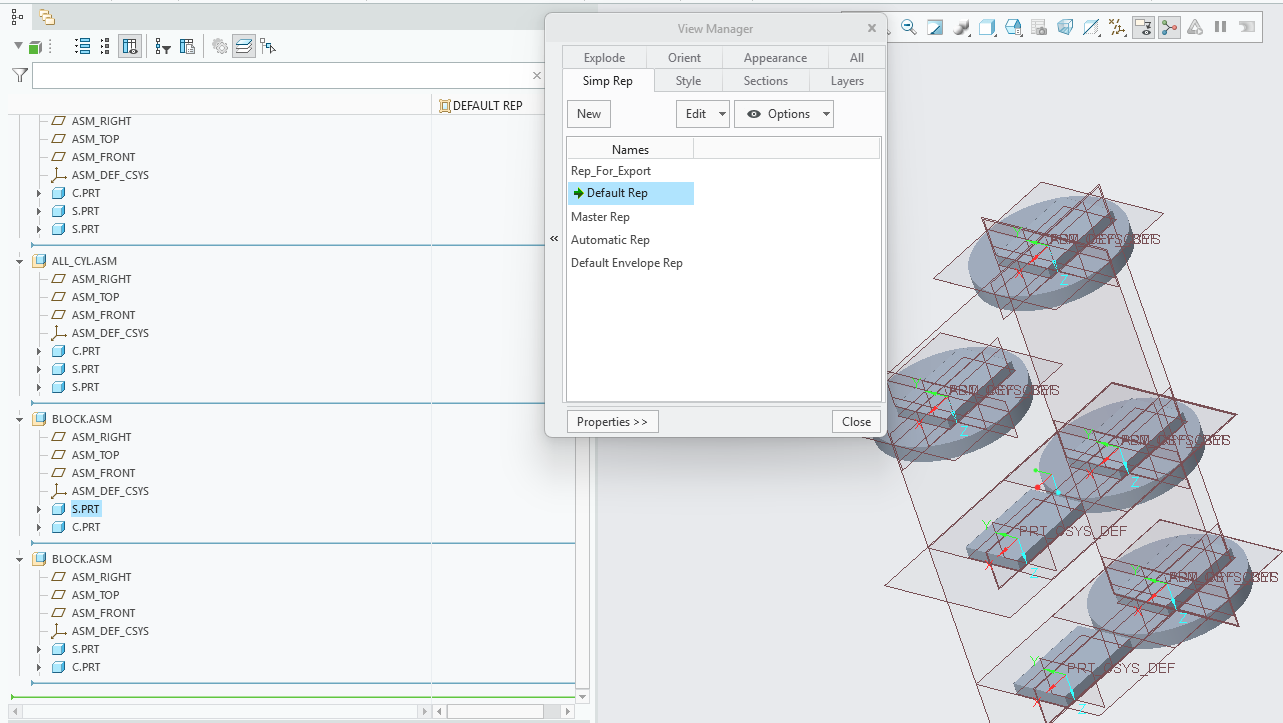
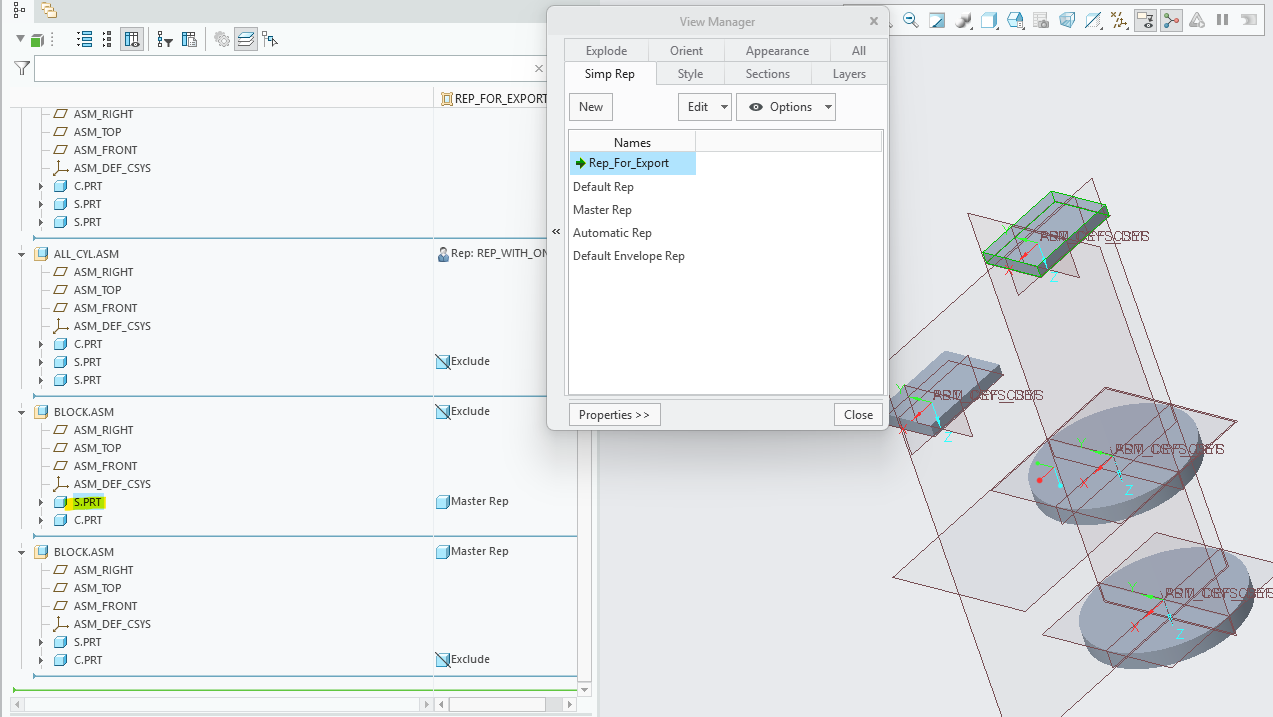
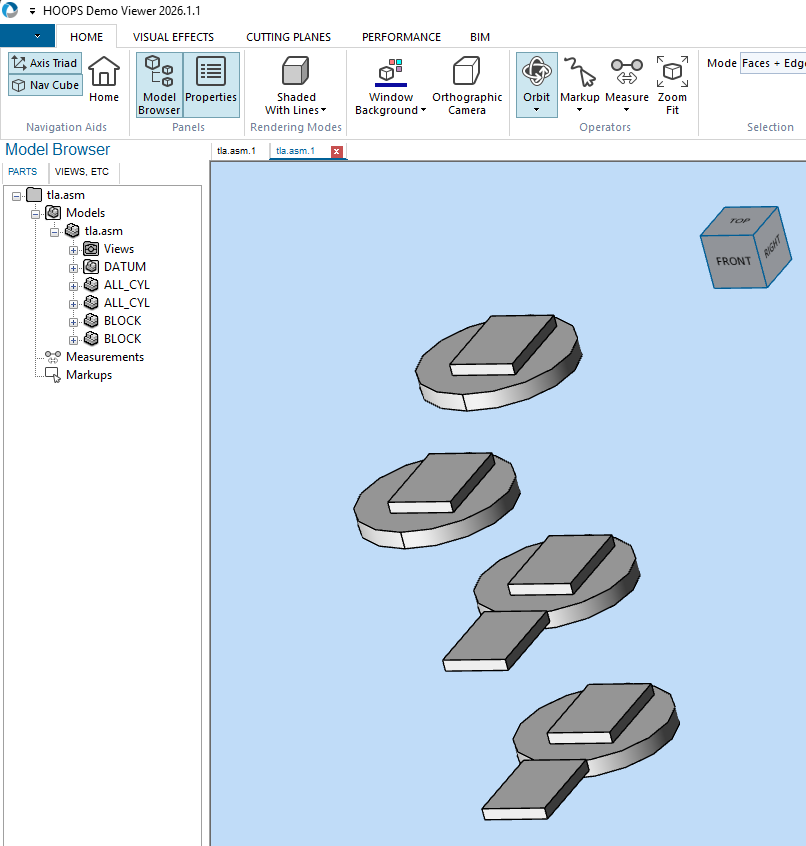
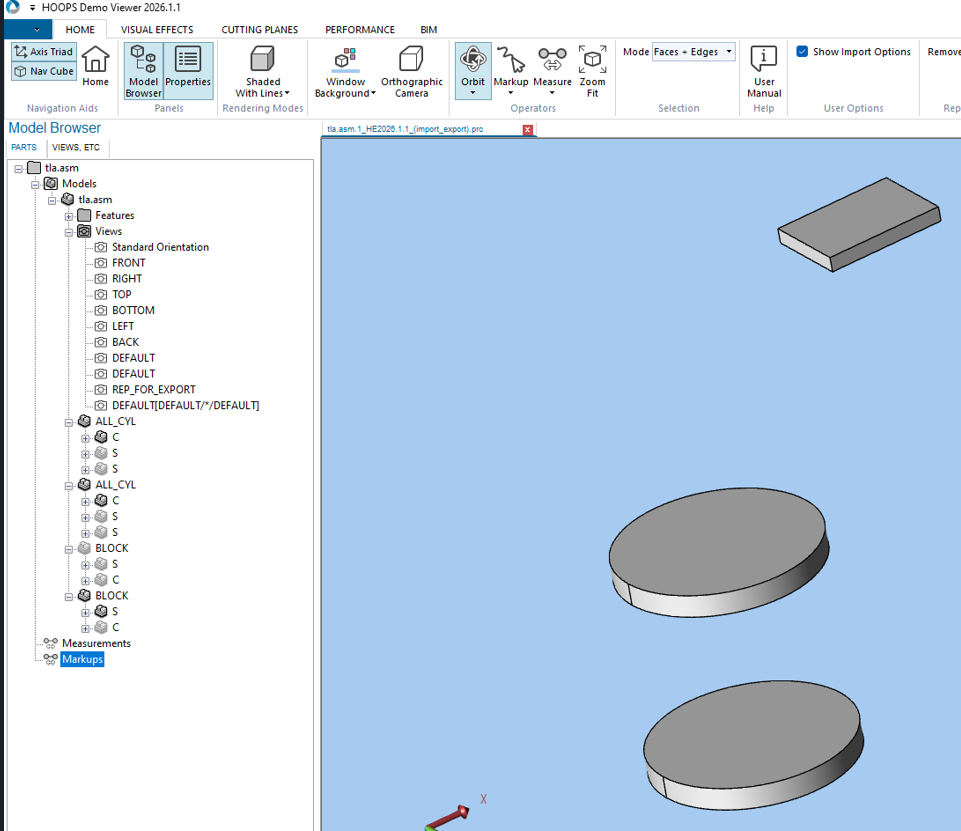
When converting Creo (Pro/E) files using the View Layer Name option to extract a simplified representation, child parts may be incorrectly excluded from the converted USD output even when they are specified to load as a different representation.
This is a limitation in the HOOPS Exchange SDK. Support for Creo Simplified Representations was introduced in HOOPS Exchange 2026.1.0 and improvements are being worked on by TechSoft.
Default Simplified Representation in Creo
Custom Simplified Representation in Creo
Default Simplified Representation Converted in HOOPS Demo Viewer 2026.1.1
Custom Simplified Representation Converted in HOOPS Demo Viewer 2026.1.1
Revit Files Larger Than 2GB May Fail to Convert
When converting Revit (
.rvt) files larger than 2GB, conversion may fail during model import.The failure may appear as an import error such as
A3D_LOAD_INVALID_FILE_FORMATorFailed to import model from input path.This is a current limitation in the HOOPS-based Revit import path.
Workaround
Reduce or split the Revit file so each converted file is under 2GB before running CAD Converter.
In Revit, purge and compact the model by using Audit, Compact, and Purge Unused to reduce the file size. Autodesk provides additional guidance in How to keep the size of Revit files manageable.