

Physics Umbrella UI#
The Physics Umbrella UI consists of two main components: the Simulation Config viewport menu (provided by omni.physics.ui) for selecting and toggling registered simulators, and the IsaacSim Ready extension (omni.physics.isaacsimready) that adds schema capability checking and automatic variant switching workflows for multiphysics assets.
Simulation Config Menu#
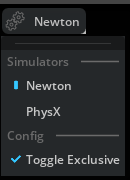
The omni.physics.ui extension adds a Simulation dropdown menu to the viewport menubar. This menu lists all simulators that have been registered with the Physics Umbrella framework and lets users activate or deactivate them.
How It Works#
The menu is managed by two classes:
SimulationConfigManager- Subscribes to simulation registry events and refreshes the menu whenever a simulator is registered, unregistered, activated, or deactivated.SimulationConfigViewportMenu- Builds the viewport menu with a checkable item for each registered simulator.
When the user toggles a simulator:
If Toggle Exclusive mode is enabled (the default), all other simulators are deactivated first.
The selected simulator is activated via
IPhysics.activate_simulation().The simulator’s
StageUpdateFns.on_attachcallback is called with the current stage ID.When deactivating,
StageUpdateFns.on_detachis called beforeIPhysics.deactivate_simulation().
The menu title shows the name of the currently active simulator, or "None" if no simulators are active, or "Multiple" if more than one is active.
Settings#
/persistent/physics/ui/simulator_toggle_exclusive(bool, default:true) - When enabled, activating a simulator deactivates all others. This setting is also exposed as a Toggle Exclusive checkbox in the Simulation menu.
IsaacSim Ready Extension#
The omni.physics.isaacsimready extension enables multiphysics workflows for IsaacSim-ready assets. It provides two key features:
Schema Capability Checking - Validates whether the physics schemas used on a USD stage are supported by the active simulator(s).
Automatic Variant Switching - Switches USD variant sets on prims when the active simulator changes, allowing assets to carry simulator-specific configurations.
Schema Capability Checking#
Overview#
The capability checking system answers the question: “Can the active simulator handle all the physics schemas in this scene?”
For example, a scene authored with PhysX-specific schemas (PhysxRigidBodyAPI, PhysxSceneAPI) may not be fully supported by a different simulator. The capability checker detects this and reports which schemas are unsupported.
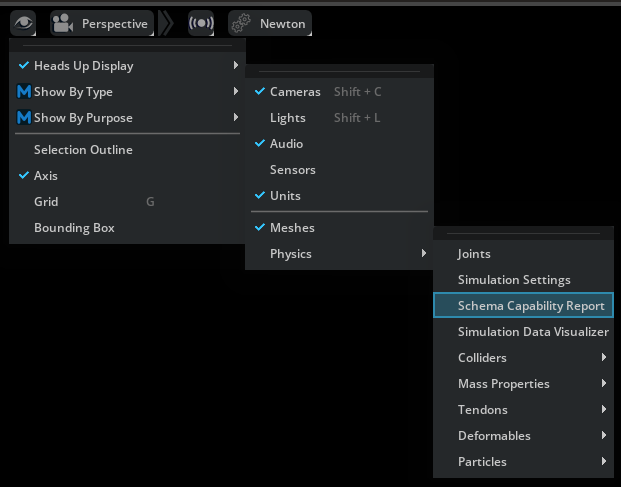
The capability report window can be enabled through the “eye icon” - Show By Type - Physics - Schema Capability Report
How It Works#
The CapabilityManager class drives the capability checking workflow:
Schema Registration - On startup, all USD physics schema type names and API schema names are registered with the manager. Third-party simulators can register additional schemas from their own USD plugins.
Stage Scanning - When a stage is opened (or modified via resync), the manager uses USDRT to efficiently query which registered schemas are actually present on the stage.
Capability Querying - For each active simulator, the manager calls
IPhysicsSimulation.is_capable_of_simulating()with the list of schemas found on the stage.Result Display - Results are shown in the Schema Capability Report window, with green/red indicators for each schema.
The check is also re-triggered when:
A simulator is registered, unregistered, activated, or deactivated
Prims are added, removed, or resynced on the stage
Capability Report Window#
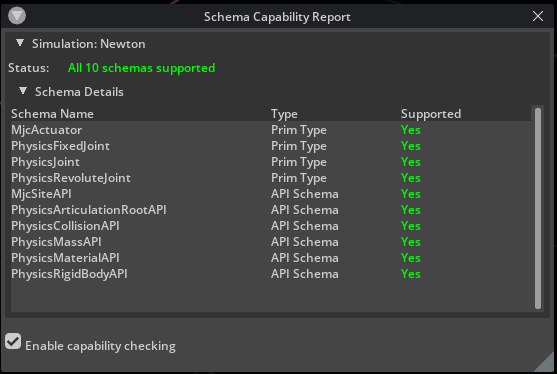
The Schema Capability Report window displays a collapsible section for each active simulator, showing:
Status - Summary such as “All 12 schemas supported” (green), “3 of 12 schemas not supported” (red), “No physics” (gray), or “Capability check not available” (orange).
Schema Details - An expandable table listing each schema name, its type (Prim Type or API Schema), and whether it is supported.
The window also includes an Enable capability checking checkbox that controls whether checking runs automatically.
Registering Custom Schemas#
Third-party simulators can register their own schemas for capability tracking:
from omni.physics.isaacsimready.scripts.extension import get_capability_manager

manager = get_capability_manager()

# Register individual schema names
manager.register_schema_type_names({"MyPhysicsScene", "MyPhysicsJoint"})
manager.register_api_schema_names({"MyRigidBodyAPI", "MyCollisionAPI"})

# Or register all schemas from a USD plugin at once
manager.register_plugin_schema("myPhysicsSchema")
Automatic Variant Switching#
Overview#
IsaacSim-ready assets can use USD variant sets to carry simulator-specific configurations. For example, a robot asset might have a Physics variant set with variants named PhysX, MuJoCo, and Newton, each containing the appropriate physics schemas and parameters for that simulator.
The VariantSwitcher automatically switches these variant sets when the user activates a different simulator in the Simulation Config menu.
How It Works#
The variant switching system consists of two cooperating classes:
VariantManager- Tracks which prims on the stage have specific variant sets. When a stage is opened, it traverses all prims and records those with registered variant set names (e.g.,"Physics"). It also handles incremental updates when prims are added or modified.VariantSwitcher- Maintains a mapping from simulator names to variant names and orchestrates switching. It subscribes to simulation registry events and triggers variant switching when a simulator is activated.
The workflow:
The extension registers a variant set name to watch (default:
"Physics").When a stage is opened, the
VariantManagerscans all prims and records those that have aPhysicsvariant set.Simulators register their variant mappings (e.g.,
"PhysX"maps to variant"PhysX").When the user activates a simulator, the
VariantSwitcherdetects the change and switches all tracked prims to the corresponding variant.A notification is posted listing which prims were switched.
The switcher also handles incremental updates: when new prims are added to the stage (detected via USD resync notices), only the new subtrees are scanned and switched rather than rescanning the entire stage.
Registering Simulator-to-Variant Mappings#
Simulators register their variant name mapping so the switcher knows which variant to select:
from omni.physics.isaacsimready.scripts.extension import get_variant_switcher

switcher = get_variant_switcher()

# Register mappings: simulator name -> variant name
switcher.register_simulator_variant("PhysX", "PhysX")
switcher.register_simulator_variant("MuJoCo", "MuJoCo")
switcher.register_simulator_variant("Newton", "Newton")

# Query mappings
variant = switcher.get_variant_for_simulator("PhysX")  # Returns "PhysX"
all_mappings = switcher.get_all_mappings()  # {"PhysX": "PhysX", "MuJoCo": "MuJoCo", ...}
Registering Custom Variant Set Names#
By default, the extension tracks the "Physics" variant set. Additional variant set names can be registered:
from omni.physics.isaacsimready.scripts.extension import get_variant_manager

manager = get_variant_manager()

# Register additional variant set names to track
manager.register_simulation_variant("CustomPhysicsVariant")

# Query which prims have a specific variant set
prim_paths = manager.get_prims_with_variant("Physics")
Triggering Variant Switching Programmatically#
In addition to the automatic switching on simulator activation, variants can be switched explicitly:
import omni.usd
from omni.physics.isaacsimready.scripts.extension import get_variant_switcher

switcher = get_variant_switcher()
stage = omni.usd.get_context().get_stage()

# Switch based on the currently active simulator
count = switcher.switch_variants_for_active_simulation(stage)
print(f"Switched {count} prims")

# Or switch for a specific simulator name and variant set
count, paths = switcher.switch_variants_for_simulation(stage, "MuJoCo", "Physics")
print(f"Switched {count} prims: {paths}")
Property Panel Integration#
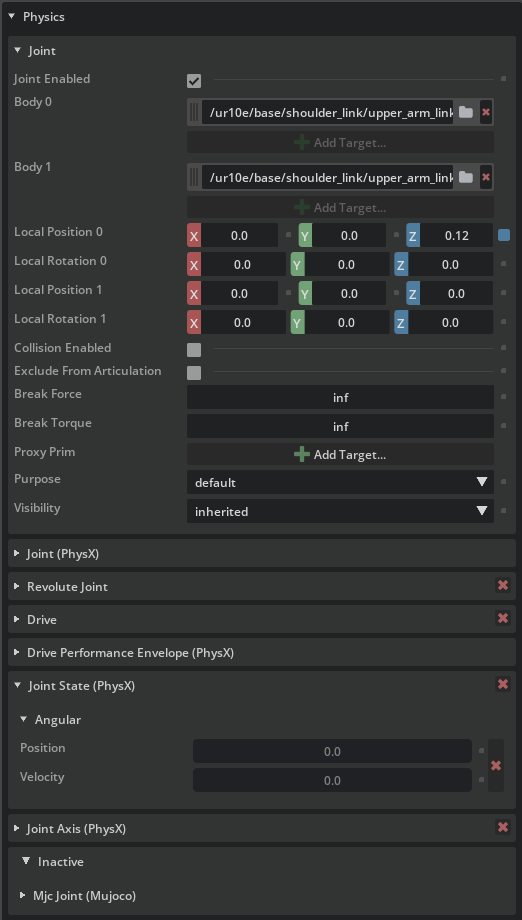
The variant switcher integrates with the Physics property panel (omni.kit.property.physics), when available: when a simulator is activated it calls activate_parent_schema_group() for that simulator’s schema group, and when a simulator is deactivated or unregistered it calls deactivate_parent_schema_group(). This keeps the property panel in sync with the active simulator without any additional code in the simulator extension. For this automatic wiring to work, the group_name passed to register_parent_schema_group() must match the simulator name used when registering the simulator with the Physics Umbrella framework.
Note
The screenshot above shows the Physics property panel with the PhysX simulation engine active. PhysX and UsdPhysics schema sections are shown in the main panel, while MuJoCo is inactive and collapsed at the bottom under the Inactive group.
The omni.kit.property.physics extension exposes an API for registering physics schema property widgets. Each simulator registers one or more parent schemas — a parent schema maps a USD schema module to a set of property widgets. Widgets are grouped by parent schema and can be activated or deactivated independently, so switching the active simulator shows only the relevant widgets in the Physics panel while the rest are moved to a collapsed Inactive section.
Schema Registration#
register_parent_schema(parent_schema, schema_title, widgets=None, builders=None, order=None, extensions=None, extras=None, ignore=None, internal_extensions=None)
Registers a USD schema module and auto-discovers all prim and API schema classes within it. For each discovered class a PhysicsWidget (or a custom replacement from widgets) is registered in the property panel under the given parent_schema group. Codeless schemas (those without a generated Python class) are supported: wherever a schema class is accepted, a schema type name string (e.g. "MySimulatorSceneAPI") may be passed instead.
parent_schema— USD schema module name as a string (e.g."MySimulatorSchema").schema_title— Label appended to each widget title in the form “<attribute> (schema_title)”. PassNoneto omit the suffix.widgets—dictmapping schema class or schema type name string → custom widget class. Schemas not in the dict fall back toPhysicsWidget.builders—dictmapping USD attribute name string (e.g."physxRigidBody:lockedPosAxis") →[BuilderClass, *args]. Overrides how individual attributes are rendered.order—dictmapping schema class or schema type name string → list of USD attribute name strings. Controls the display order of attributes within a schema’s widget.extensions—dictmapping schema class or schema type name string → list of schema classes or schema type name strings. The listed schemas are rendered as nested sub-widgets directly below the parent schema’s widget rather than as standalone top-level sections.extras—dictmapping schema class or schema type name string → list of schema classes or schema type name strings to display alongside it. Used to attach schemas that are logically related but not extension APIs.ignore— set of schema classes or schema type name strings to skip entirely during widget registration.internal_extensions— likeextensions, but the nested sub-schemas are not shown as standalone top-level sections even when applied to the prim directly.
import omni.kit.property.physics as prop_physics

prop_physics.register_parent_schema(
    "MySimulatorSchema",
    "MySimulator",
    widgets={MySceneClass: MySceneWidget},
    ignore={MyInternalClass},
)
unregister_parent_schema(parent_schema)
Removes all widgets that were registered for parent_schema and deregisters the schema from the property window.
prop_physics.unregister_parent_schema("MySimulatorSchema")
Schema Groups#
A schema group is a named collection of parent schemas that can be activated and deactivated together. This is the typical entry point for a multi-schema simulator.
register_parent_schema_group(group_name, parent_schemas)
Registers a list of parent_schema names under a single group_name.
unregister_parent_schema_group(group_name)
Removes the group mapping. Does not unregister the individual parent schemas.
prop_physics.register_parent_schema("MySimulatorSchema", "MySimulator")
prop_physics.register_parent_schema("MySimulatorContactSchema", "MySimulator")

prop_physics.register_parent_schema_group(
    "MySimulator",
    ["MySimulatorSchema", "MySimulatorContactSchema"],
)

# Later, on extension shutdown:
prop_physics.unregister_parent_schema_group("MySimulator")
prop_physics.unregister_parent_schema("MySimulatorSchema")
prop_physics.unregister_parent_schema("MySimulatorContactSchema")
Activation#
activate_parent_schema(parent_schema) / deactivate_parent_schema(parent_schema)
Show or hide all widgets belonging to a single parent schema. Deactivated widgets appear in the collapsed Inactive section of the Physics panel.
activate_parent_schema_group(group_name) / deactivate_parent_schema_group(group_name)
Convenience wrappers that call the per-schema functions for every schema in the group.
Settings#
All settings are configurable via Edit > Preferences > Physics IsaacSim Ready:
/exts/omni.physics.isaacsimready/capability_check_enabled(bool, default:true) - Enable or disable schema capability checking. When disabled, no stage scanning or capability queries are performed./exts/omni.physics.isaacsimready/capability_check_window_enabled(bool, default:false) - Show or hide the Schema Capability Report window. Both this andcapability_check_enabledmust betruefor the window to appear./exts/omni.physics.isaacsimready/variant_manager_enabled(bool, default:true) - Enable or disable the variant manager. When disabled, no variant tracking or automatic switching occurs.
The Schema Capability Report window visibility can also be toggled from the Physics viewport menu via the Schema Capability Report checkbox item.