

Known Issues#
Insufficient Tessellation Quality on Native Revit Pipe Catalog Elements#
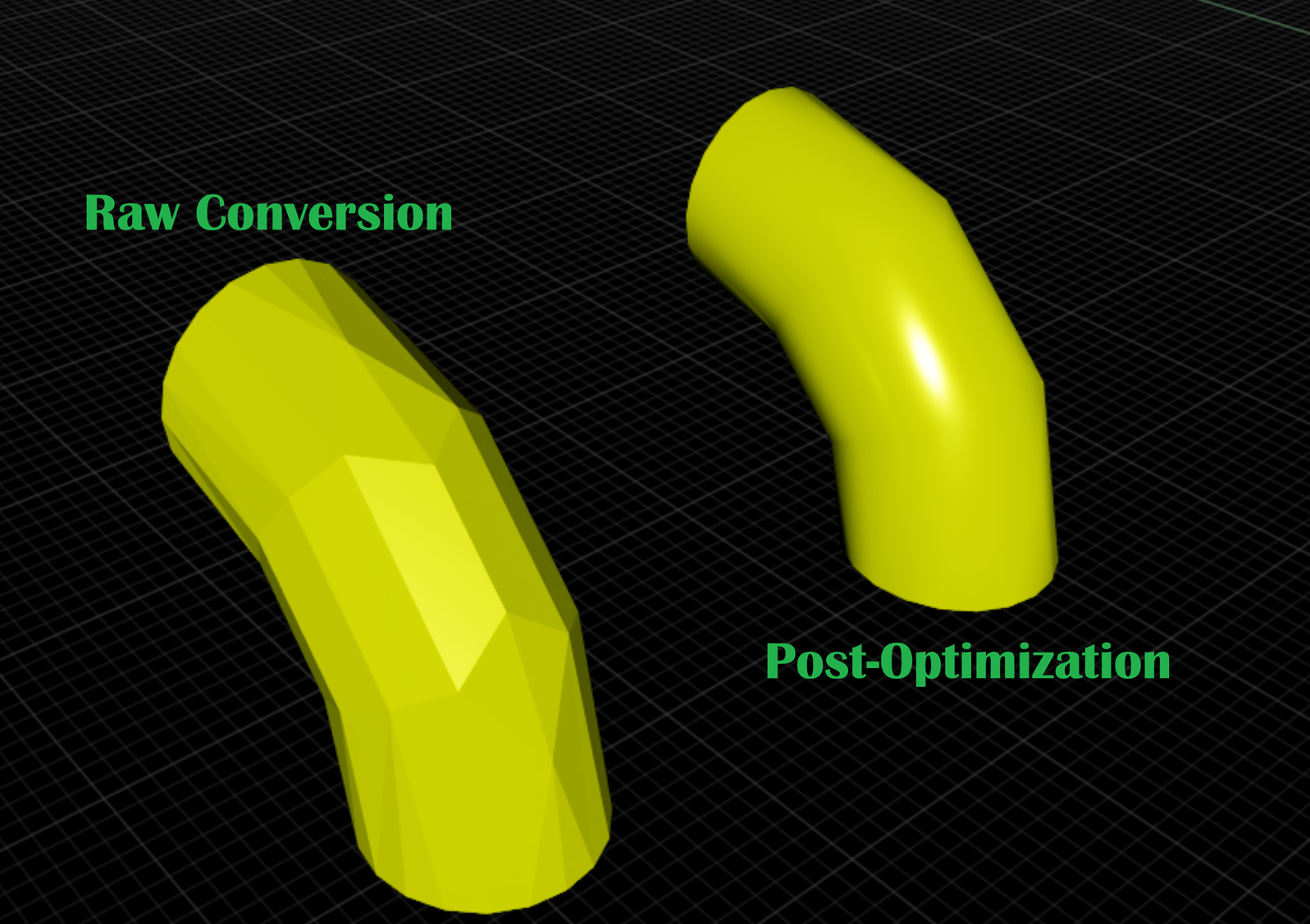
When converting Revit models containing pipe catalog elements (pipes, elbows, couplings, tees, etc.), curved surfaces may appear faceted rather than smooth.
This can result in visible shading artifacts on cylindrical and curved pipe components in the converted USD output.
Post-conversion mesh cleanup plus normal generation can improve the visual quality of affected pipe elements.
The example below shows a faceted raw conversion and the smoother result after post-conversion mesh cleanup and normal generation.
Workaround: Scene Optimizer Utilities#
To improve the visual quality of affected pipe elements:
Convert the file with normals disabled.
Disable the “instanceable” flag on meshes that require the workaround.
Run Scene Optimizer Mesh Cleanup with vertex welding enabled.
Run Scene Optimizer Generate Normals with default settings.
Example sceneOpConfig JSON stack:
[
    {
        "operation": "meshCleanup",
        "mergeVertices": true
    },
    {
        "operation": "generateNormals"
    }
]
The same JSON can be saved to a file and passed through the sceneOpConfig converter setting.
Example converter settings:
{
    "useNormals": false,
    "instancingStyle": 0,
    "sceneOpConfig": "scene_optimizer_pipe_normals.json"
}
Note: Normals can be disabled with useNormals=false in converter settings.
Note: The instanceable flag must be disabled before applying Scene Optimizer operations for the changes to take effect.
Note: Mesh cleanup is important because normal generation works best when neighboring triangles share vertices. Use the workaround selectively on affected curved pipe geometry; aggressive smoothing across an entire model may soften hard-edged objects that should remain crisp.
Creo Simplified Representation May Exclude Child Parts When Parent Assembly Is Excluded#
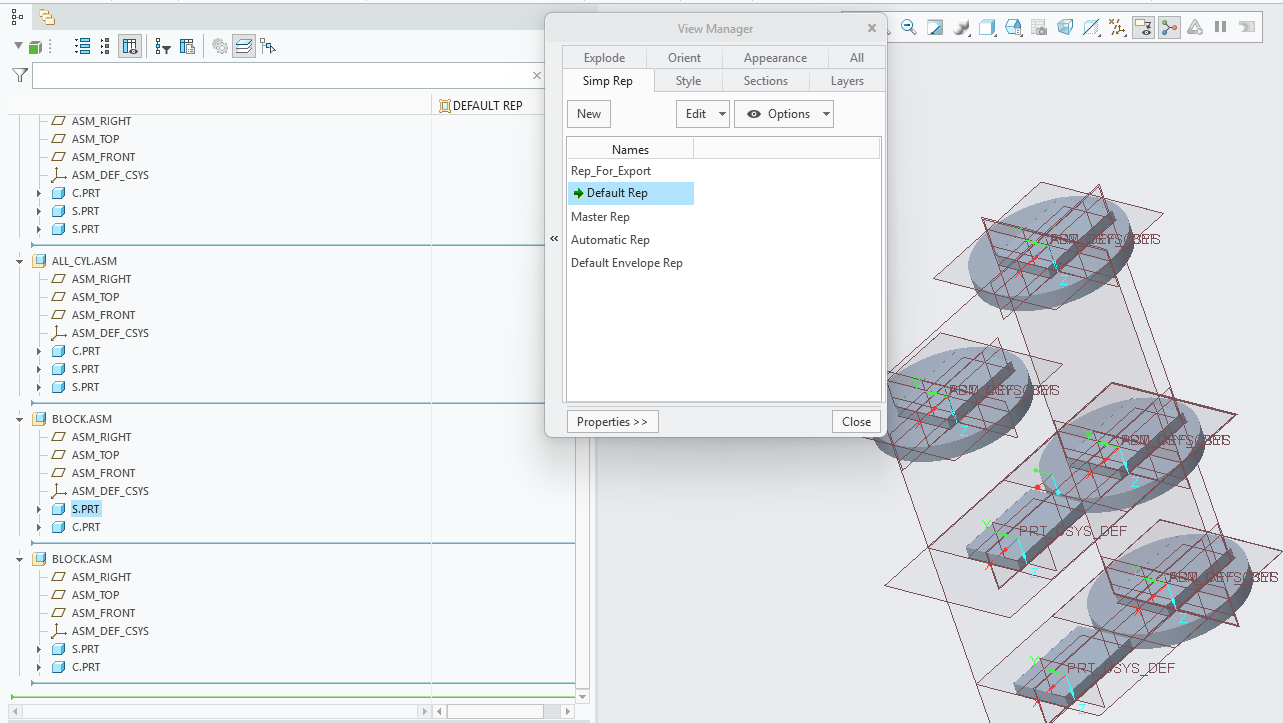
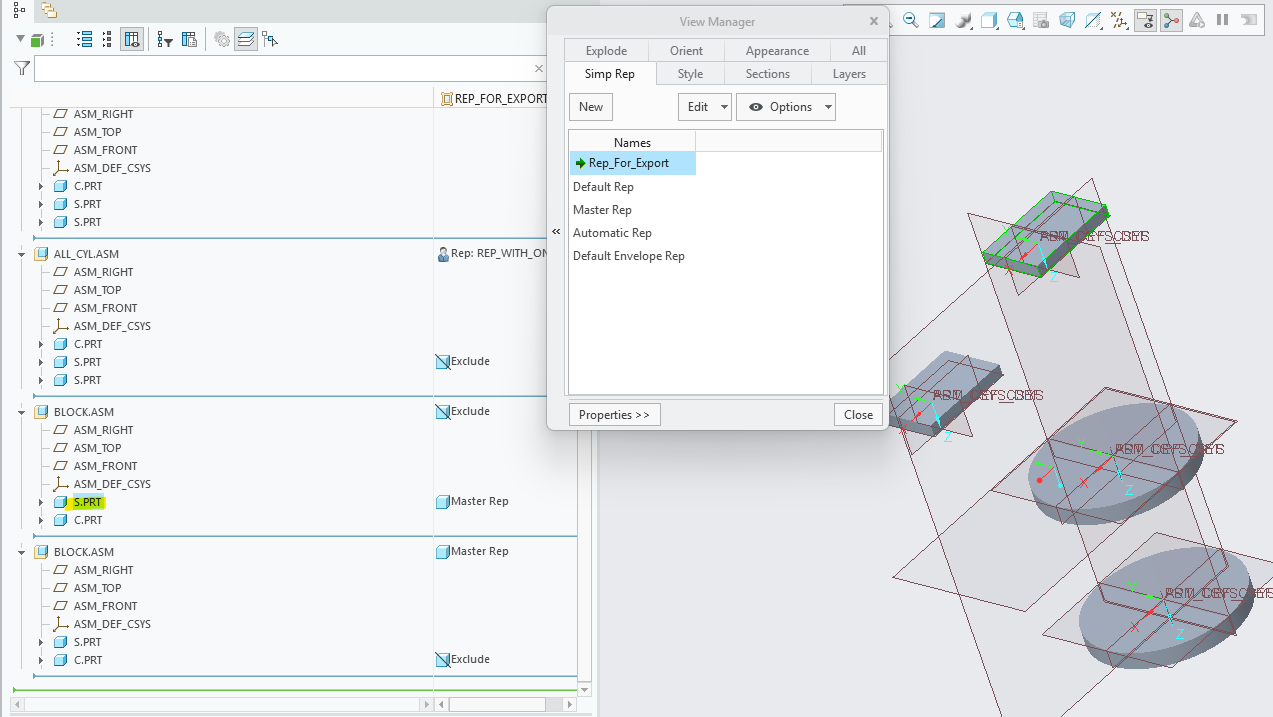
When converting Creo (Pro/E) files using the View Layer Name option to extract a simplified representation, child parts may be incorrectly excluded from the converted USD output even when they are specified to load as a different representation.
This is a limitation in the HOOPS Exchange SDK. Support for Creo Simplified Representations was introduced in HOOPS Exchange 2026.1.0 and improvements are being worked on by TechSoft.
Default Simplified Representation in Creo
Custom Simplified Representation in Creo
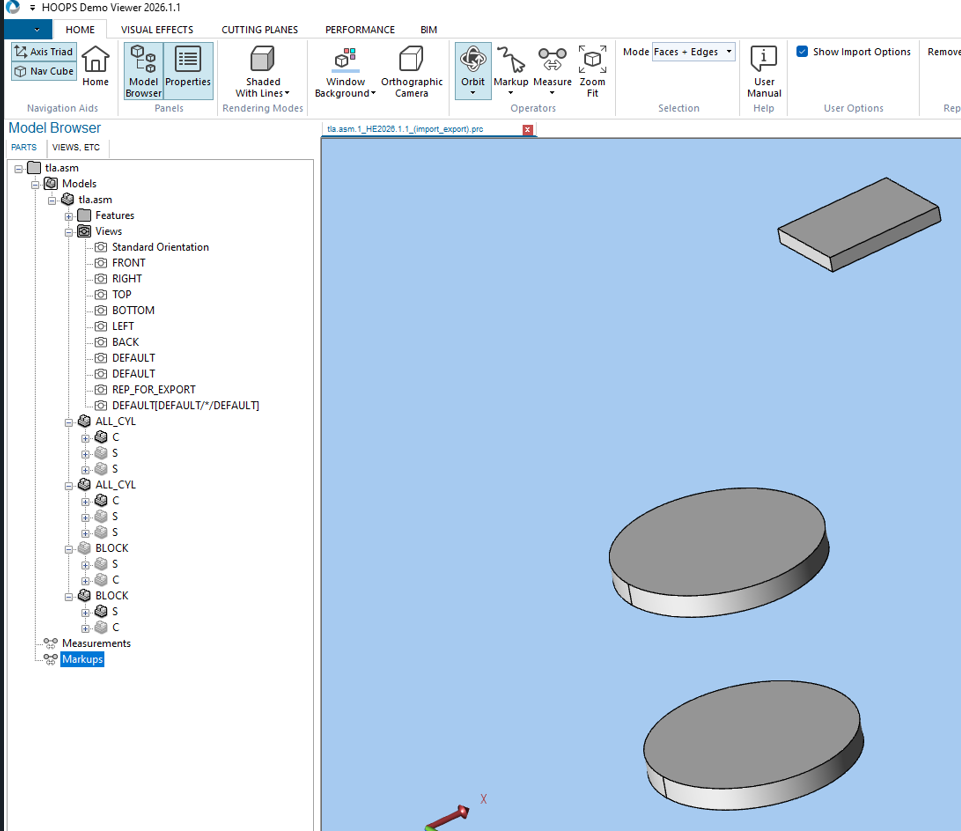
Default Simplified Representation Converted in HOOPS Demo Viewer 2026.1.1
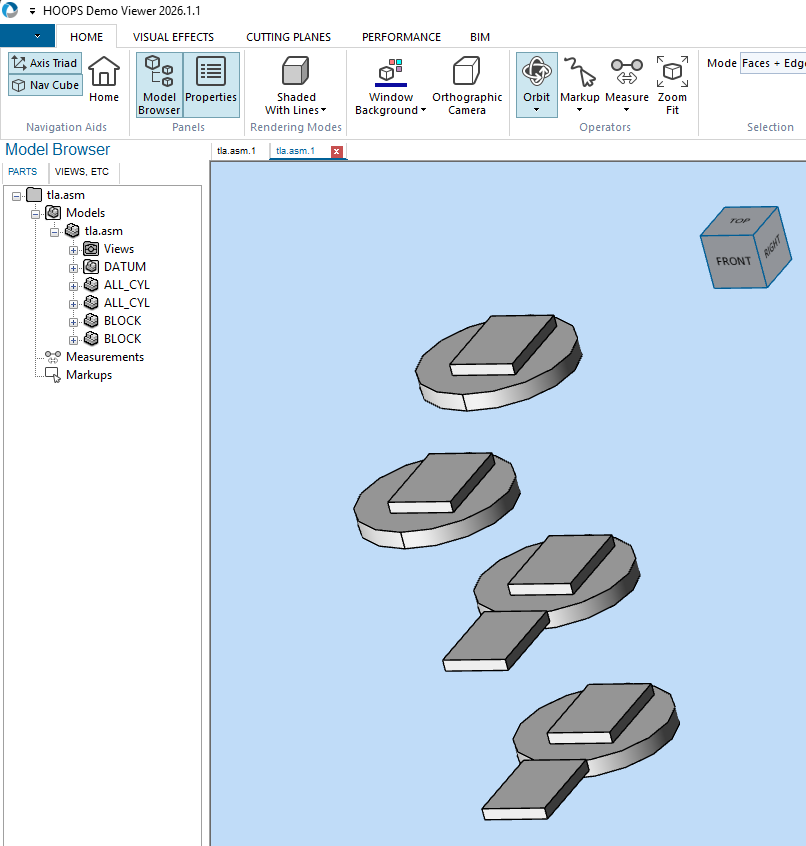
Custom Simplified Representation Converted in HOOPS Demo Viewer 2026.1.1
Revit Files Larger Than 2GB May Fail to Convert#
When converting Revit (
.rvt) files larger than 2GB, conversion may fail during model import.The failure may appear as an import error such as
A3D_LOAD_INVALID_FILE_FORMATorFailed to import model from input path.This is a current limitation in the HOOPS-based Revit import path.
Workaround#
Reduce or split the Revit file so each converted file is under 2GB before running CAD Converter.
In Revit, purge and compact the model by using Audit, Compact, and Purge Unused to reduce the file size. Autodesk provides additional guidance in How to keep the size of Revit files manageable.
2D Geometry Conversion Limitations#
Enabling Convert Curves (
convertCurves=true) converts visual 2D model-space linework from standalone DWG/DXF files into USDBasisCurves. Filled regions may convert as meshes independently of this option.Paper-space layouts (title sheets / print layouts) are not supported; only model-space content is converted.
Text, dimensions, and other annotations are not preserved as text.
DWG and Revit file reading is not supported on
aarch64.